Report Viewer
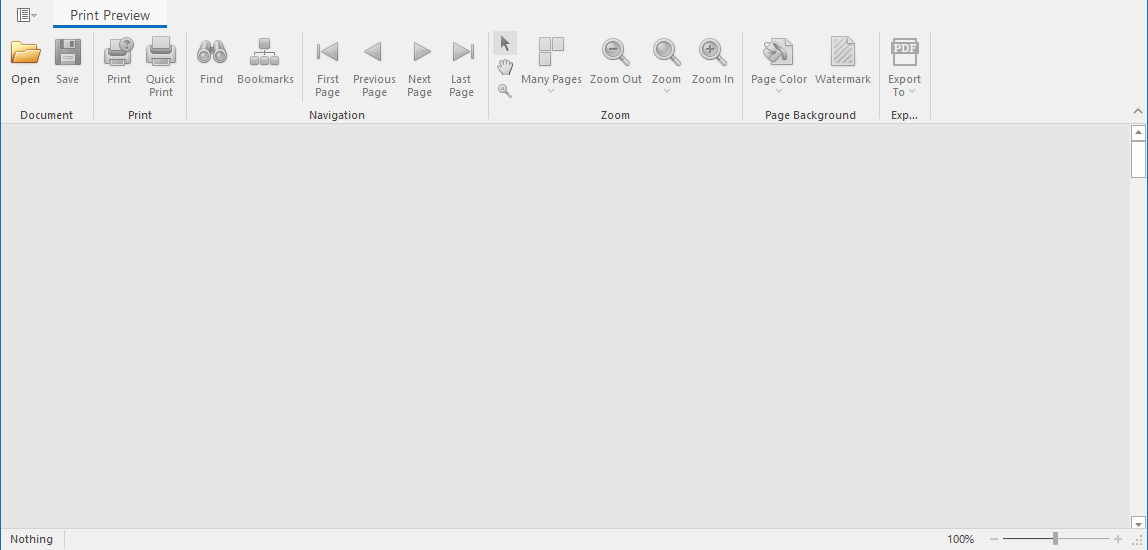
View all stored reports locally from a Windows workstation. The Report Viewer utilizes the workstation’s resources rather than those of the Engine, so it can display stored reports much faster in most instances.
In comparison to the viewing capabilities of the browser-based administrative interface, the Report Viewer offers more capabilities. With the Report Viewer, for example, you can change the visual display parameters of the report.
-
Launch the File Reporter OES Report Viewer application.

-
Click Open and go to the location of your stored reports, then select the reports folder and click Open.
To determine where your stored reports are located, select Configuration in the File Reporter OES administrative interface, then click Stored Reports to view the location in the Stored Reports Folder field.
-
(Optional) Adjust the view to your preferences using the following tools:
-
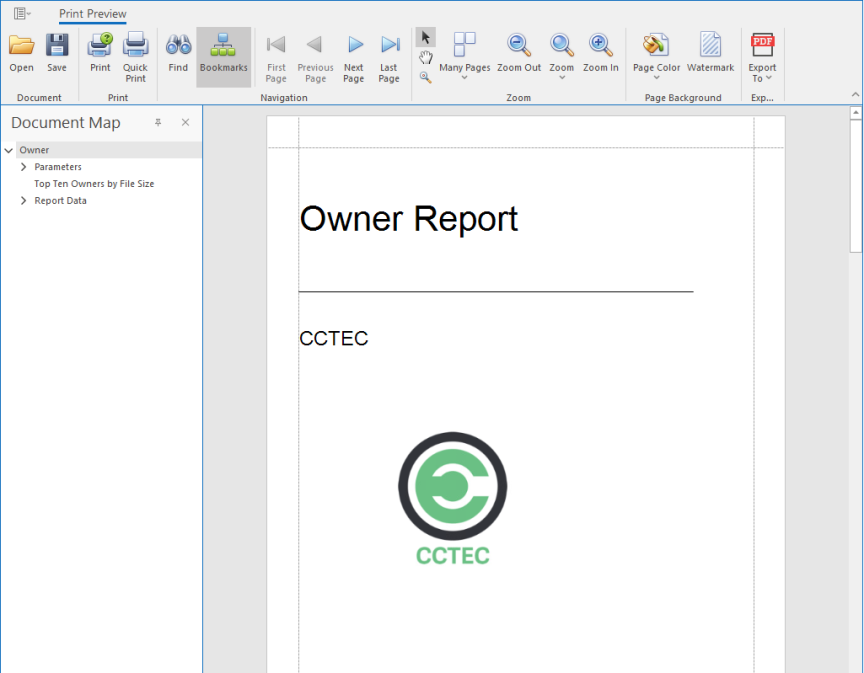
Bookmarks: Toggle the display for the report Document Map.
-
Many Pages: Specify the number of pages to display.
-
Zoom Out: Reduce the size of the report page to view more on the screen.
-
Zoom: Change the zoom level of the report preview.
-
Zoom In: Increase the size of the report page to get a close-up view.
-
Page Color: Change the background color of the report pages.
-
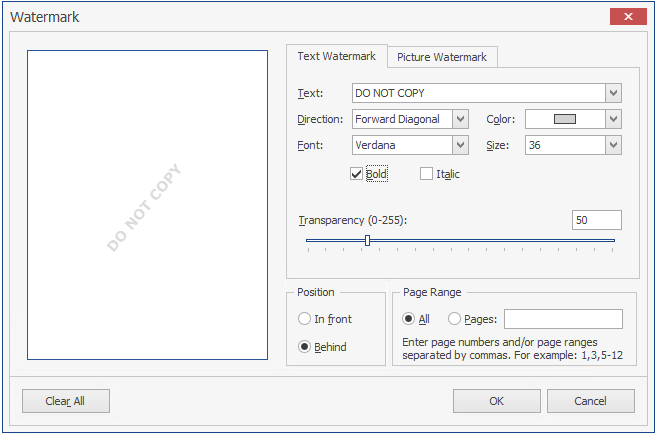
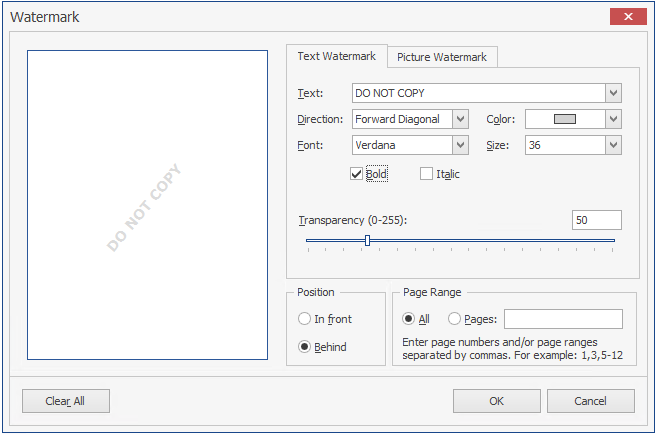
Watermark: Insert a semi-transparent text or image behind the content of each page of the report. The Watermark dialog lets you specify your watermark’s settings.
-
-
(Optional) Save the report using the following tools:
-
Save Save the report as a
.prnxfile which can be opened through the Report Viewer. -
Export To a new report format. Each selected format option brings up a dialog to provide specifics on how you want to export the report.

-