Built-in Reports
File Reporter OES enables you to generate reports applicable to your Open Enterprise Server network, including Built-in Reports and Custom Query Reports.
Overview
After scanning your storage resources, File Reporter OES has the content necessary to generate reports. The type of report you can generate depends on the type of scan you conducted (e.g., to create an Assigned NCP Permissions report, you must first conduct a Permissions scan on an OES volume).
Every report is created by first establishing the report definition, which specifies the report name, type, target path to the scans, and more.
IMPORTANT: The report definition name must be unique. File Reporter OES generates an error if you try to give the report definition an existing name.
Built-in Report features:
-
Aggregate reporting capabilities to specify multiple target paths in the same report.
-
Path and identity-based scoping to report against specific folders or eDirectory identities, and specify the level at which you want to start reporting data.
-
Boolean filtering for all file data reports – see Built-in Report Filtering for details.
Once the report definition is created and saved, you can generate the report immediately, or schedule it to be generated later, in either Preview or Stored mode.
-
Preview mode lets you view the report and save it locally if desired.
-
Stored mode saves the report to the server hosting the Engine, where it remains for a set number of days.
You can generate detailed reports from certain built-in report types (e.g., a File Extension Report that includes the specific details of all *.mov files).
All Built-in Reports include a cover sheet that you can customize to include your organization’s logo.
Built-in Report Types
File Reporter OES has five different built-in report type classifications:
-
Directory Data
-
Permissions
-
File Data
-
Historic Comparison
-
Trending
Each classification includes one or more report types (e.g., the Permissions category can generate three different reports).
Branding and Style
Cover Sheet Logo
All generated Built-in Reports include a cover sheet with a default graphic, which you can replace with your organization’s logo.
-
Select Report Definitions in the Reports menu.
-
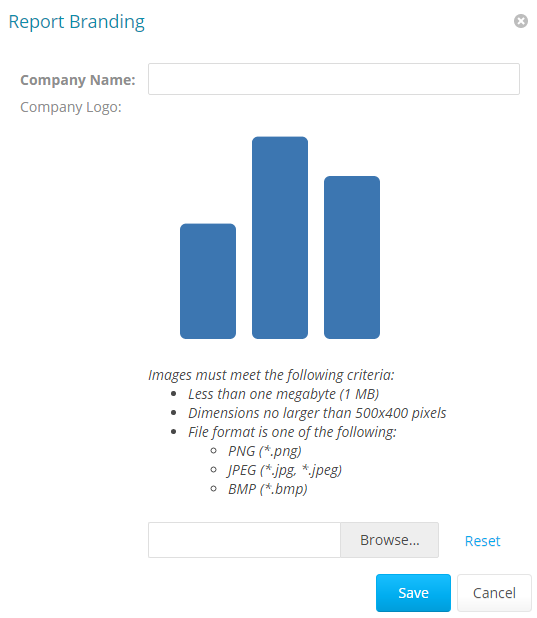
Select Report Branding in the Report Branding and Styling menu.
-
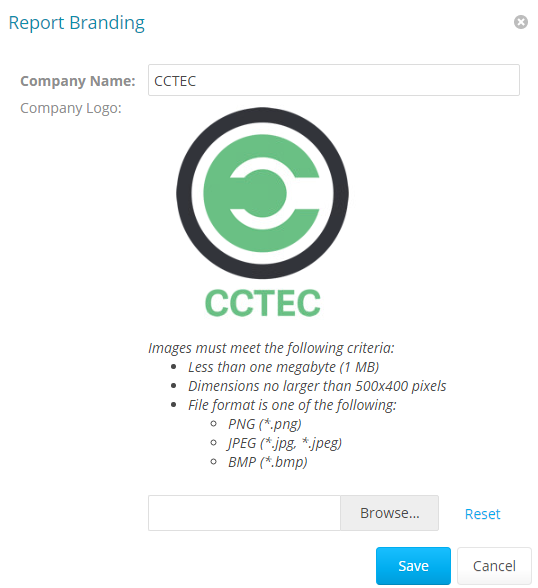
Enter the Company Name of your organization, which will appear on the front cover of the report.
-
Click Browse to locate and select your logo file to replace the default graphic.
-
Click Save.
Report Data Font
Due to the limitations of font encoding in PDF files, you may need to specify an alternate report data font. This is likeliest in locations with multi-byte characters or characters outside the Latin-1 set of characters supported by the default font.
-
If you know the collected data is limited to a specific locale or language, choose a font that properly displays all characters for that locale or language.
-
If the collected data may contain characters that span multiple locales, or include both multi-byte and Latin-1 characters, for example, then choose an appropriate Unicode Font that accurately displays most characters from the Unicode set and not just for a specific locale.
-
Two Unicode fonts known for having good character coverage and glyph presentation are MS Arial Unicode (a sans-serif font) and CODE2000 (a serif font) — see https://en.wikipedia.org/wiki/Unicode_font for more information on these fonts and on Unicode fonts in general.
NOTE: You can change the data font to any font that is available on the server hosting the Web Application.
Headers and parameters in the reports remain in Arial font by default. To change the report data font:
-
Select Report Definitions in the Reports menu.
-
Select Report Data Font in the Report Branding and Styling menu.
-
Select the desired Report Data Font Name from the drop-down menu.
-
Click Save.