Custom Query Report Layouts
After creating a Custom Query report through either the Report Designer Query Editor or the Query Editor built into the browser-based administration interface, you can then design the report layout.
NOTE: This exercise introduces Report Designer’s basic design features. Familiarize yourself with these basic features to become proficient enough in the interface to try more advanced features. Refer to the Report Designer for WinForms in the following document: https://devexpress.github.io/dotnet-eud/interface-elements-for-desktop/articles/report-designer.html for a detailed overview of Report Designer’s features.
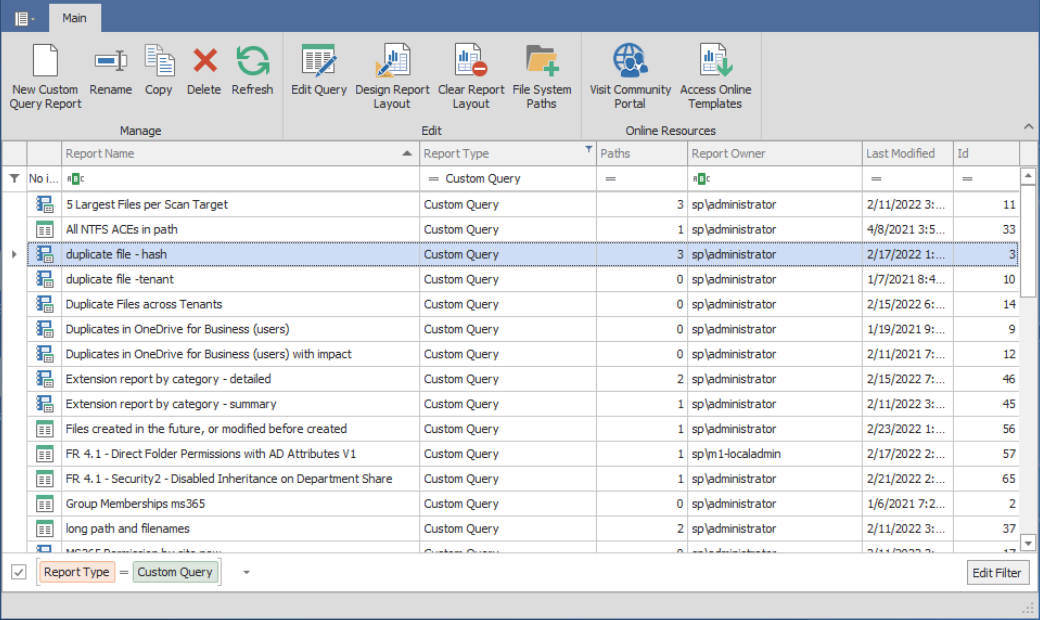
- Select the desired Custom Query report to design from the list.

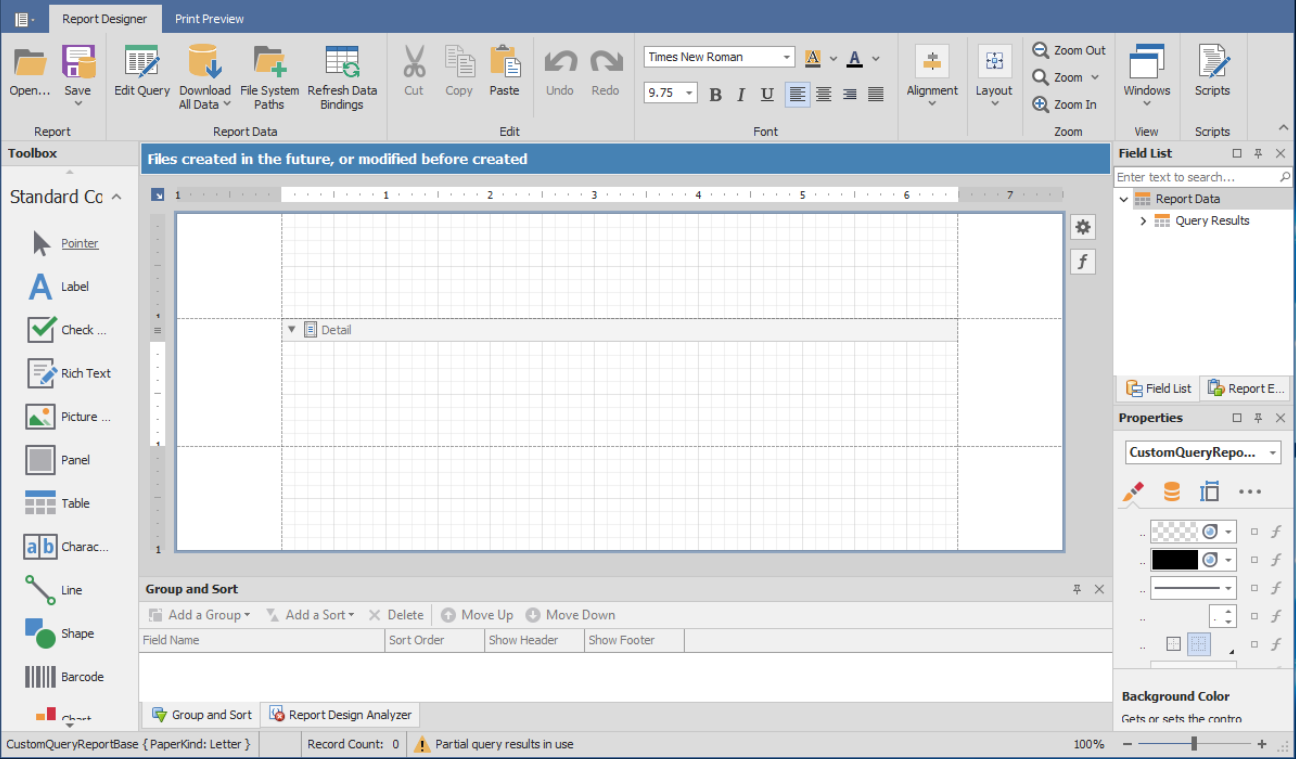
- Click Design Report Layout.

- Create a report header.
- Place the pointer in the upper section of the layout grid.
- Right click and select Report Header in the Insert Band menu. A new Report Header band appears on the grid.
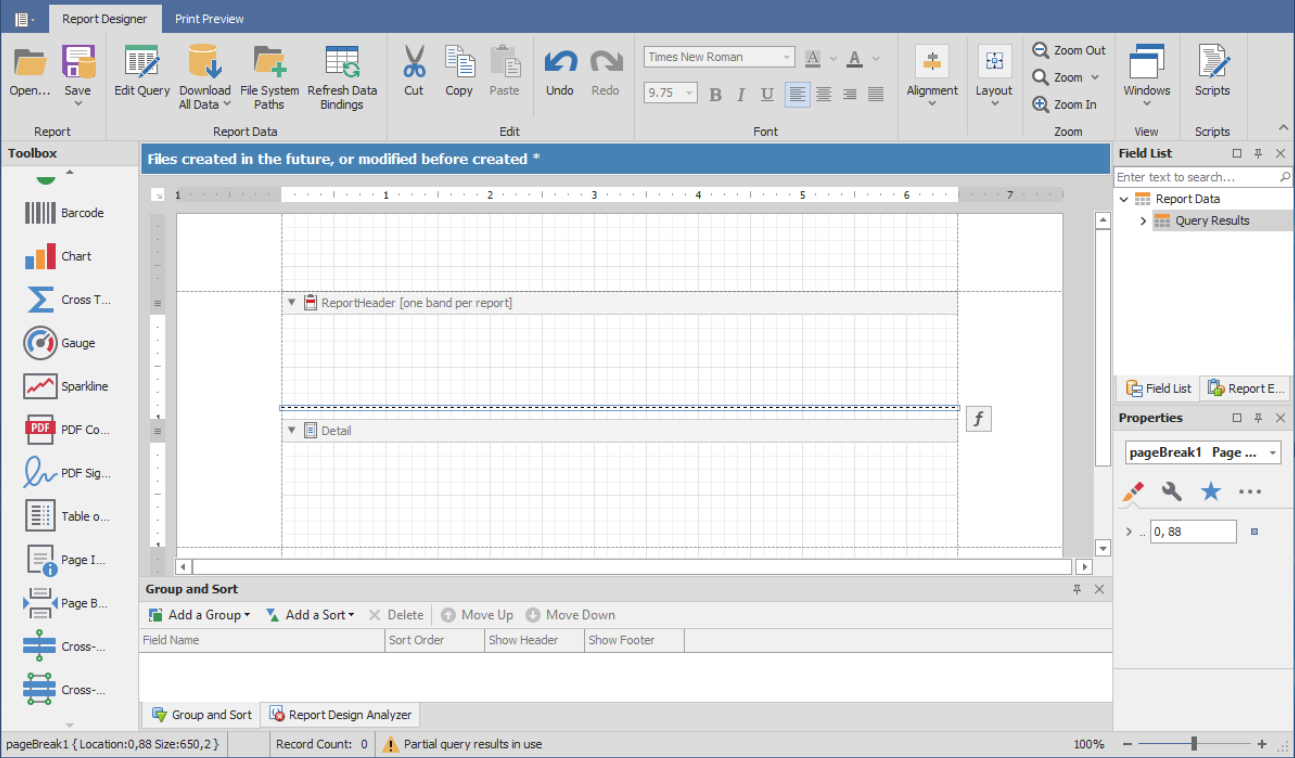
- Resize Page 1 and add a page break.
- Place the mouse pointer on the bottom border of the new band and, using the vertical ruler as a guide, extend the band to fill the first page (e.g., you can extend the border down to the 8" mark to fill the first page).
- Click and drag a Page Break from the Standard Controls region to the bottom of the band.

- Insert and design a chart.
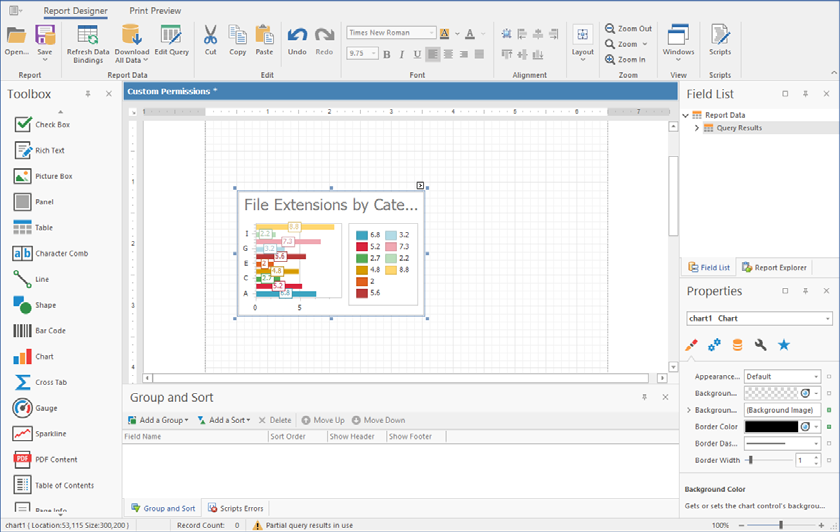
- Click and drag a Chart from the Standard Controls region to the band to launch the Chart Designer.
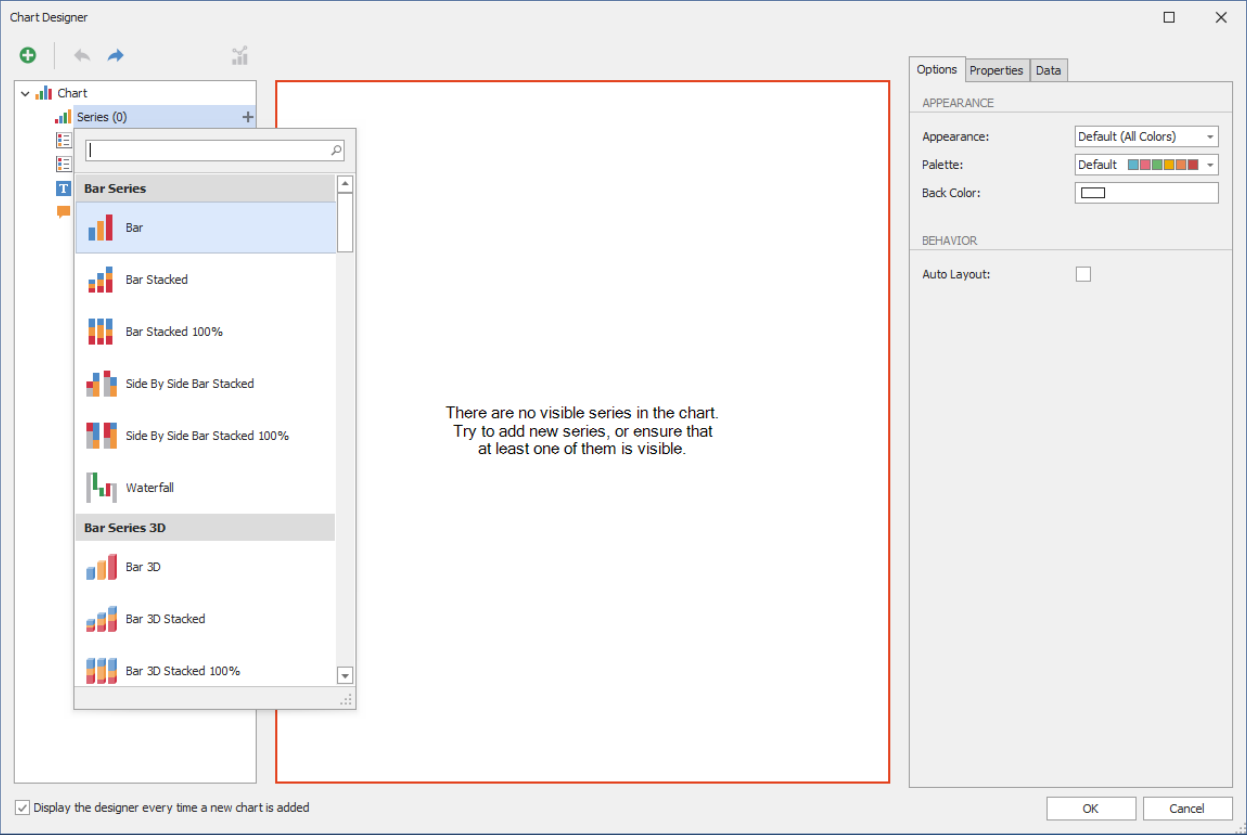
- In the Chart Designer below the Chart menu, click the + that pertains to the Series option and select the Bar option.
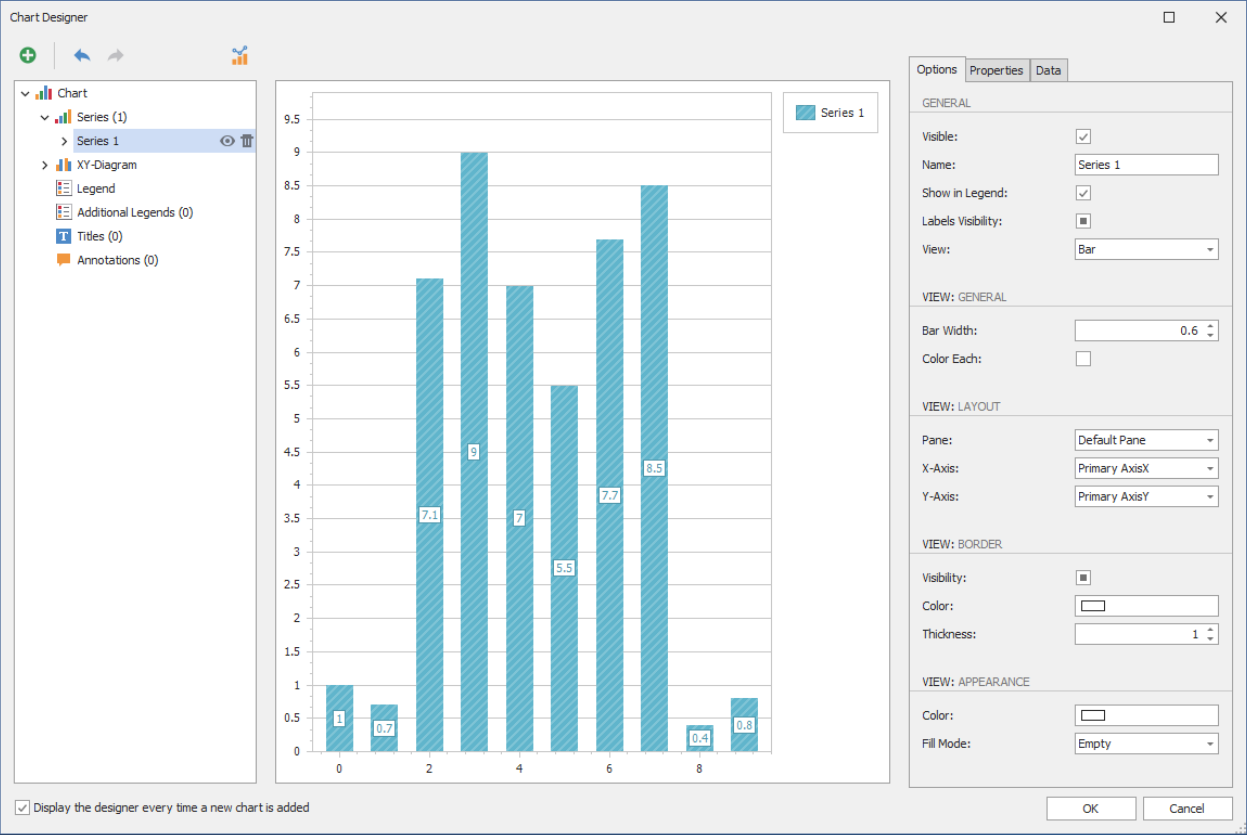
- Click the Data tab and expand Query Results.
- Click and drag Category to the Argument cell.
- Click and drag cat_size to the Value cell.
- Click the Options tab and replace Series 1 with Category Size in the Name field.
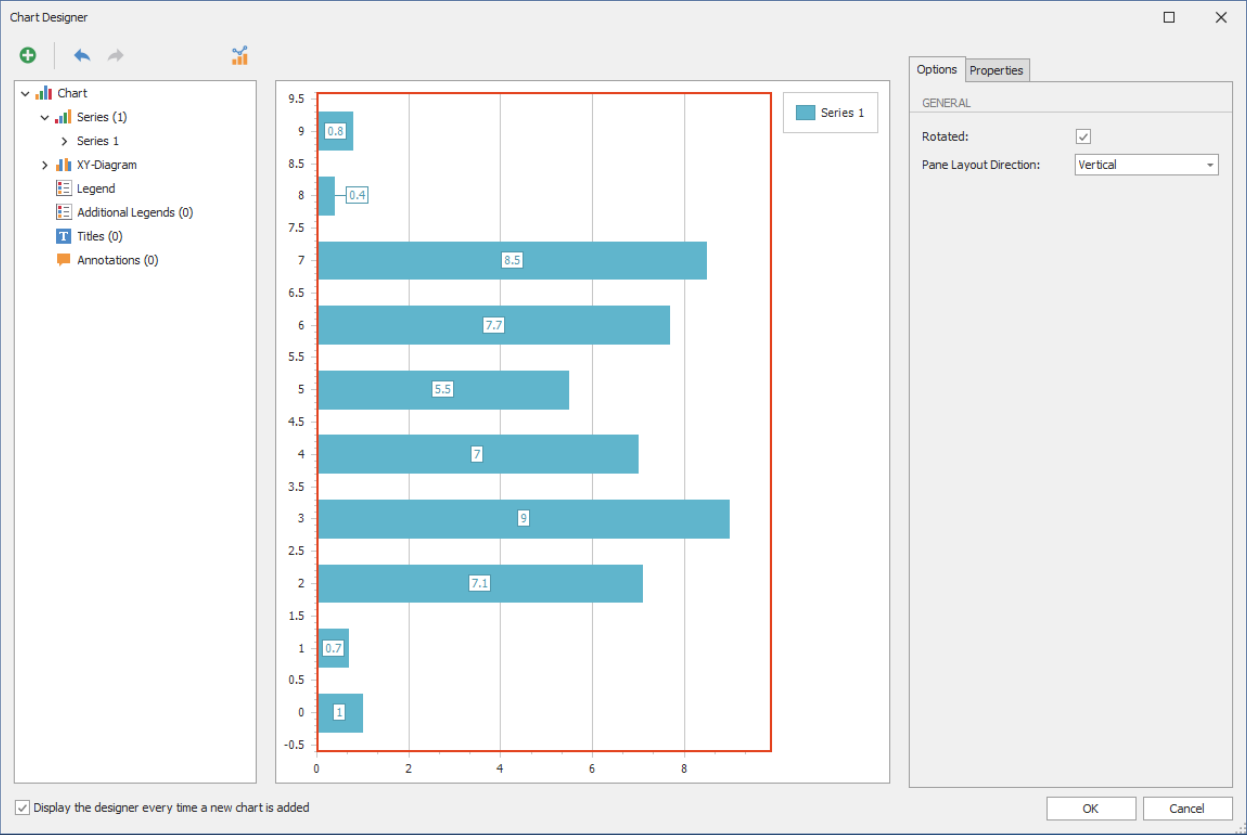
- Click the XY-Diagram option below the Chart menu.
- Check the Rotated box in the Options tab.

- Select Titles below the Chart menu, then click the +, and select Title.
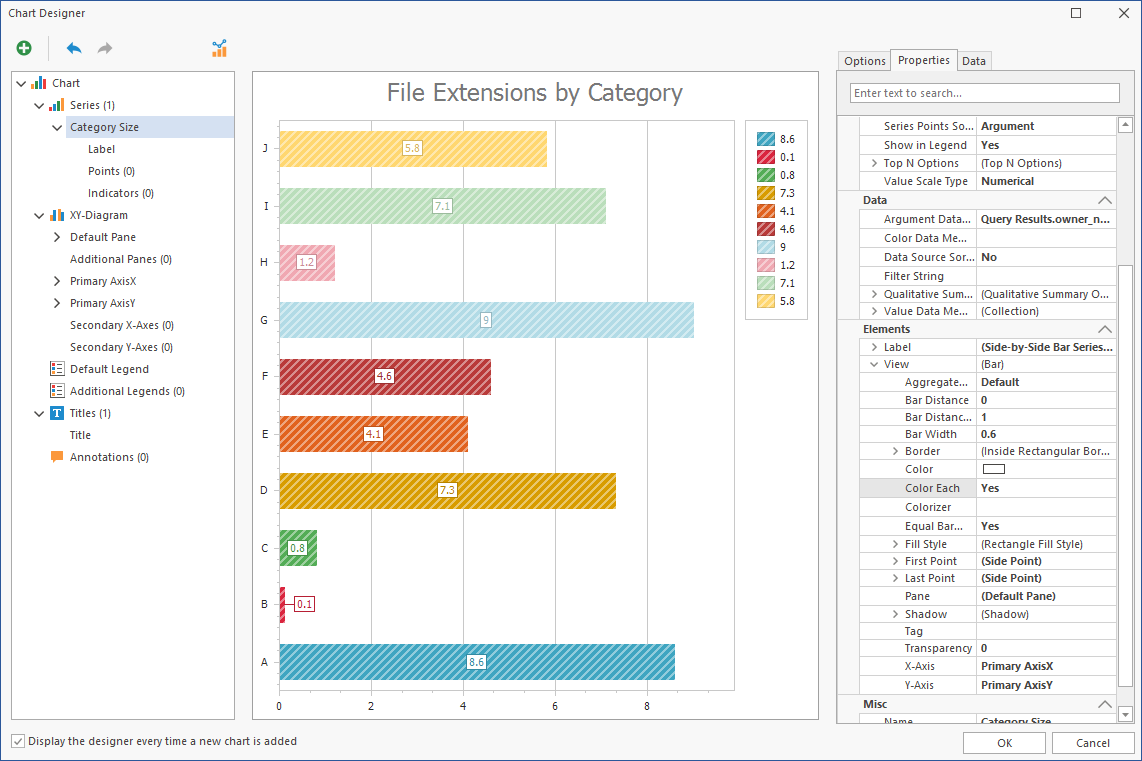
- Replace Chart Title in the Lines field under the Options tab with a more descriptive name (e.g., File Extensions by Category).
- Select Category Size below the Chart menu.
- Click the Properties tab, then scroll down and expand View under the Elements heading.
- Change the Color Each setting to Yes.

- Click OK.

- Click the arrow in the upper right-hand corner of the newly-placed chart to access the Chart Tasks menu, then select Run Designer.
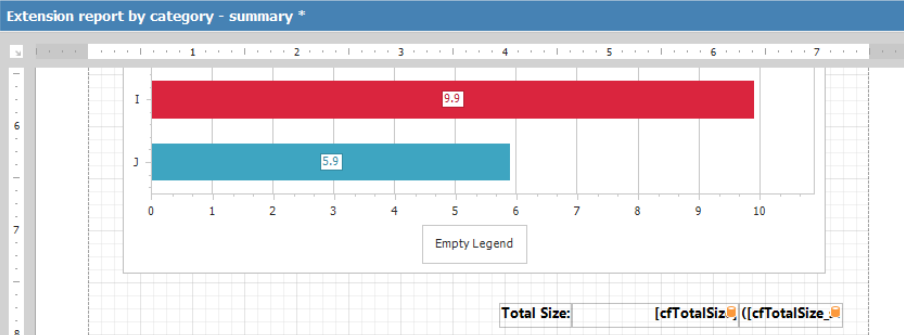
- Click the legend and uncheck the Visibility box under the Options tab so that the legend no longer appears.
- Click OK.
- Expand the view of the chart in the Report Designer to take up more of the page.


- Insert labels.
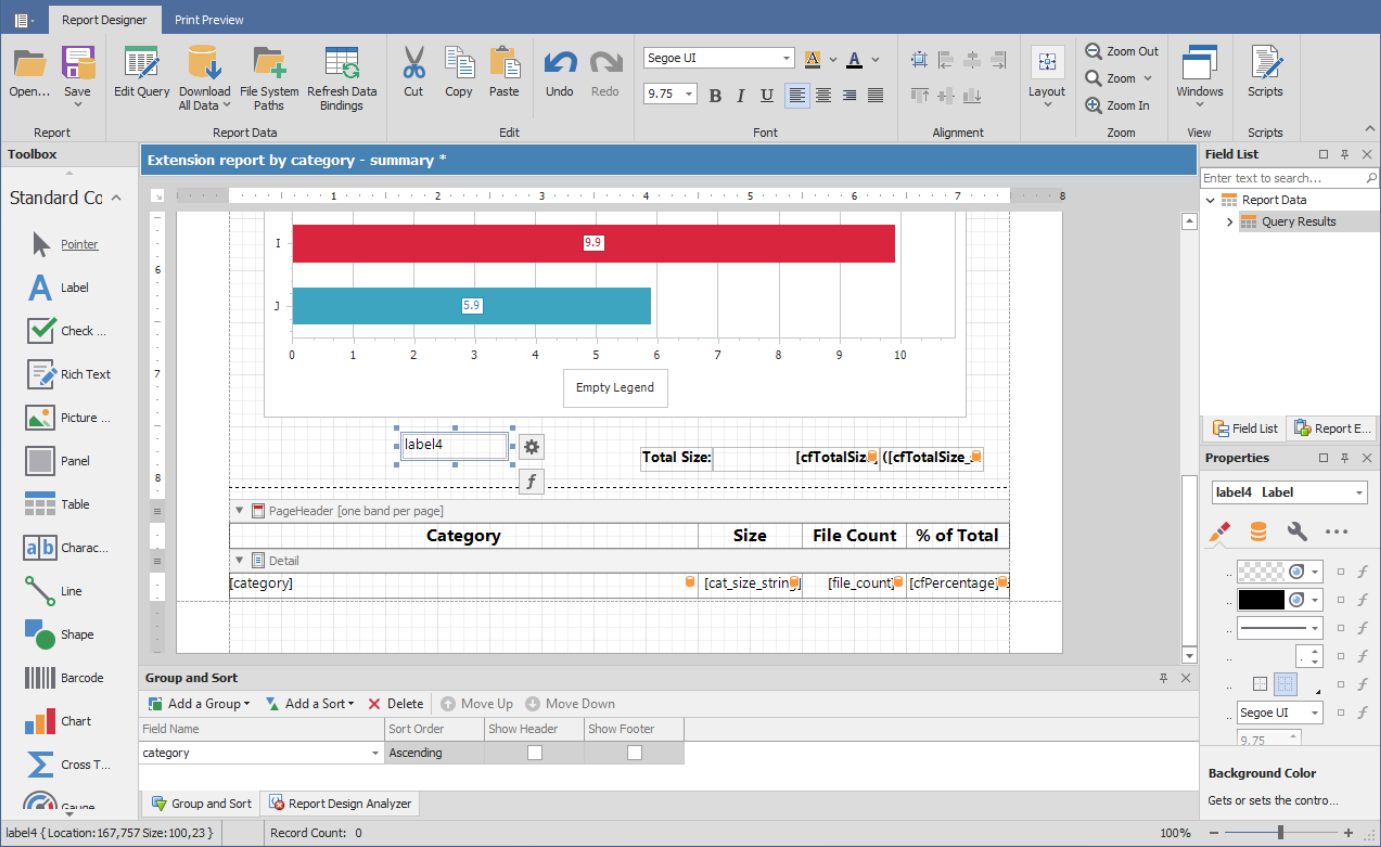
- Click and drag Label from the Toolbox to a position centered below the chart.

- Double-click within the label and specify the label name (e.g., Total Size).
- Adjust the font size and style to your preferences.
- Click and drag Label from the Toolbox to a position centered below the chart.
- Create new fields.
- Expand the Query Results from the Field List.
- Right-click Query Results and select Add Calculated Field.
- In the Design region of the Property Grid for calculatedField1, change the (Name) setting to cfTotalSize.
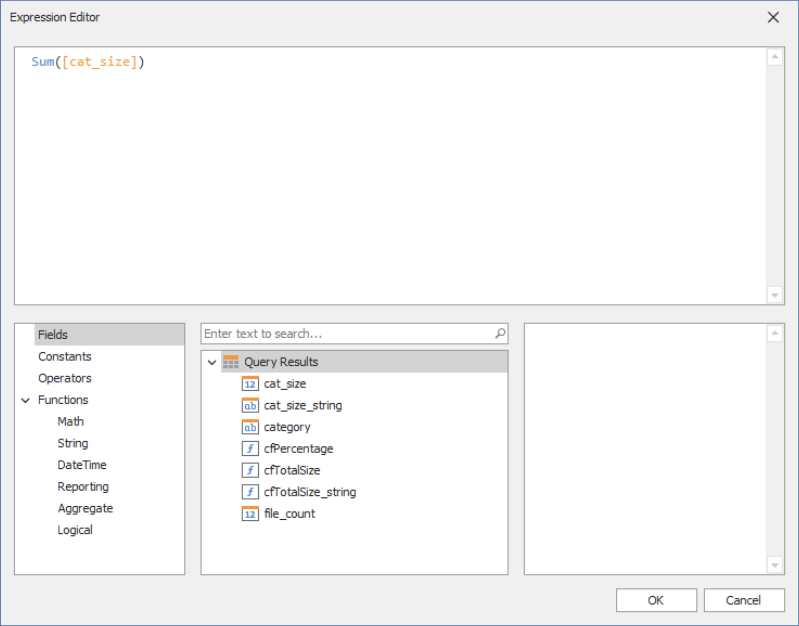
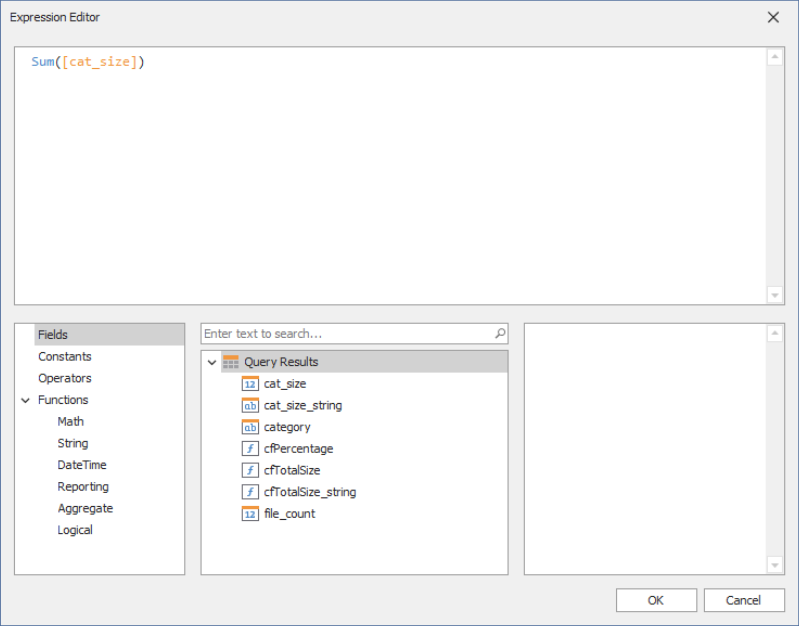
- While still in the Property Grid, click the ellipses (...) pertaining to the Expression field under the Data heading to launch the Expression Editor.
- Select Functions in the bottom-left column.
- Type sum in the empty field at the top of the middle column to locate the Sum function, then double click Sum to place the function in the top text box of the Expression Editor.
- Select Fields in the bottom-left column, then double-click cat_size in the middle column.
- Click OK to save the new field and close the Expression Editor.
- Right-click Query Results and select Add Calculated Field.
- In the Design region of the Property Grid for claculatedField1, change the (Name) setting to cfTotalSize_String.
- While still in the Property Grid, click the ellipses (...) by the Expression field under the Data heading.
- Type Byte in the top text box of the Expression Editor so that ByteString() appears.
- Double-click cfTotalSize you created earlier from the middle column and click OK.
- Place the new fields.
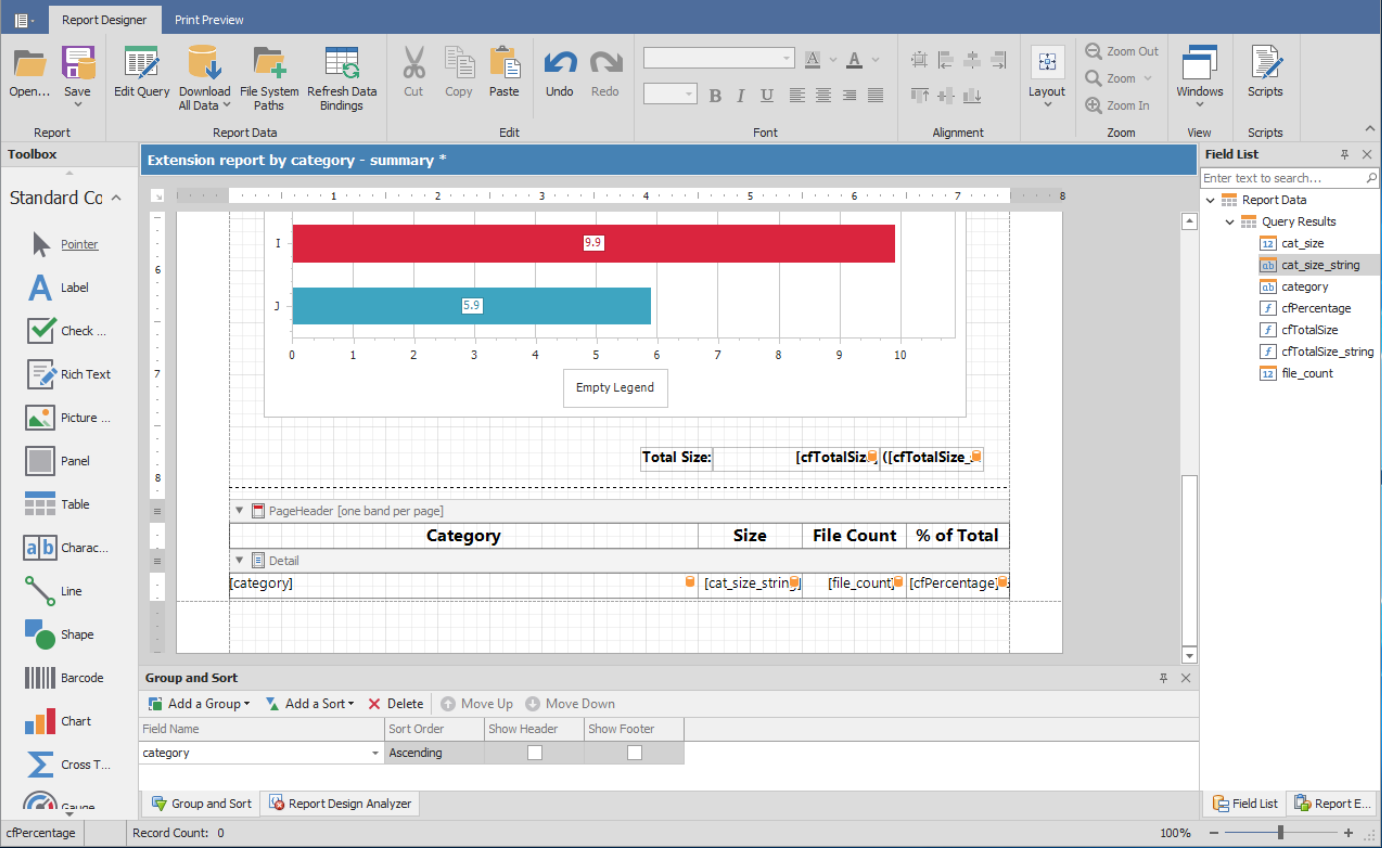
- From the Field List, hold down the Control key and select the two new fields you just created, then drag them to the Total Size label on the grid.
- Adjust the size so that both fields appear to the right of the Total Size label.
- Adjust the font size and style to your preferences.

- Preview the report.
- Click Download All Data.
- When the warning dialog box appears, click Yes.
- Click the Print Preview tab to view how the report will look at this point.
- Make any desired format changes.
- Create a header for Page 2.
- Click the Report Designer tab.
- Scroll down below the page break so that you are working on Page 2 of the report.
- Right-click at the top of the page and select PageHeader in the Insert Band menu.
- Click and drag a Table from the Tool Box to the location of the new page header.
- Replace the names of the three new table cells with the following names:
- Category
- Size
- File Count
- Select and right-click the File Count cell, then select Column to Right in the Insert menu.
- Change the table cell name to Percent of Total.
- Resize the table cells to your preferred width.
- Adjust the font size and style to your preferences.
- Resize the depth of the page header so it is limited to the depth of the table.
- Create a new calculated field for Percent of Total.
- Right-click Query Results and select Add Calculated Field.
- Change the (Name) setting for calculatedField1 in the Design region of the Property Grid to cfPercentofTotal.
- While still in the Property Grid, click the ellipses (...) by the Expression field under the Data heading.
- Double-click cat_string from the middle column of the Expression Editor.
- Hit the space bar and then enter the following string: * /100.
- Double-click cfTotalSize from the middle column of the Expression Editor to complete the string.
- Click OK.
- Insert the table content.
- Click below the header, hold down the Control key, and from the Field List, select the following fields in this order:
- category
- cat_size_string
- file_count
- cfPercentofTotal
- Drag the fields to a location below the header.
- Line up the tables cells with the headings.
- Click the Print Preview tab to view how the report will look.
- Make any necessary adjustments.

- Click below the header, hold down the Control key, and from the Field List, select the following fields in this order:
- Click Save to Database in the Save menu.


By saving the report to the database, you enable the File Reporter Report Generator to use the design for updated reports. You can also save the report as a file to import it into another file, such as a Word document or PowerPoint presentation.