Active Directory Identity Enrichment
You can provide extended data for identities in Custom Query reports or create identity reports for security principals in Active Directory.
Determining Prerequisites
-
File Reporter collects Active Directory identity data automatically once per day by default — see Active Directory Identity Scans in the File Reporter 24.4 Administration Guide for details on running a collection manually.
-
Decide whether to extend an existing Custom Query file system metadata or permissions report, or report just on Active Directory identities themselves.
-
If extending an existing Custom Query report, determine whether that report data already includes Security Identifiers (SIDs) or GUIDs of the owner or permissions trustee.
-
If reporting solely on Active Directory identities, determine which of the extended attributes to include in the report — see the table and view definitions for ad.domains, ad.ds_objects, and ad.ds_objects_view for details on available attributes.
-
Designing the Report
The following example extends a "Direct User Assignment" Custom Query report, which identifies user accounts that have been assigned permissions directly to folders (as opposed to group membership), and shows a summary of the count of direct permissions per user by share path.
-
Launch the File Reporter24.4 Report Designer in the Start menu.
-
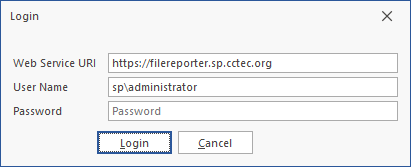
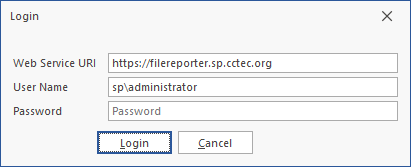
Enter your login credentials and click Login to open a list of your saved Custom Query reports.
-
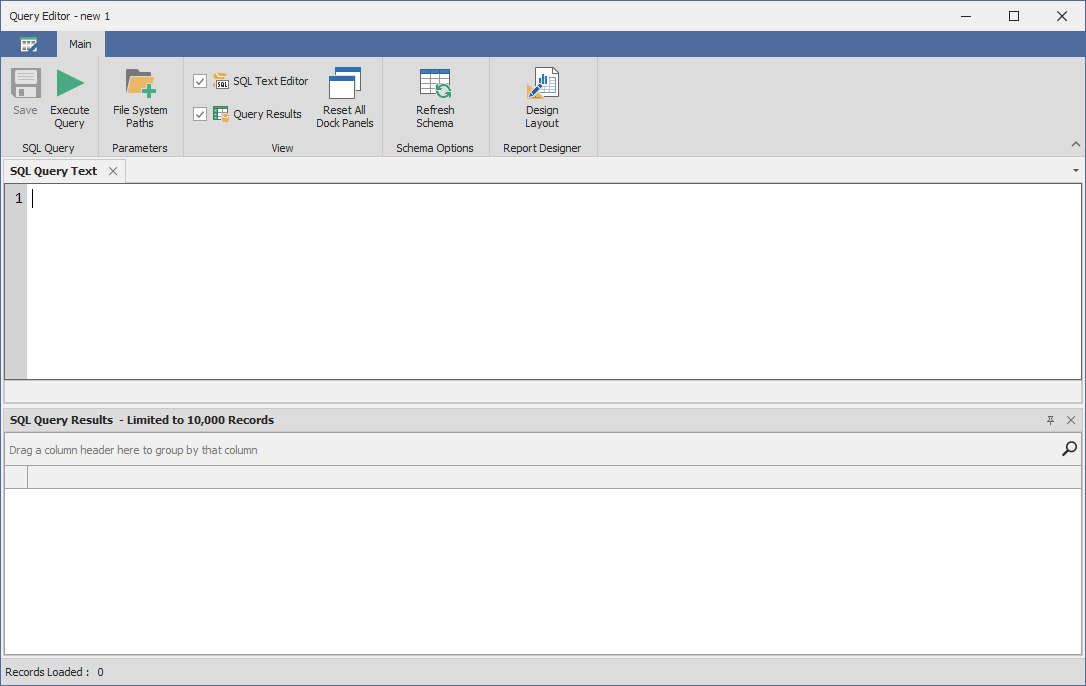
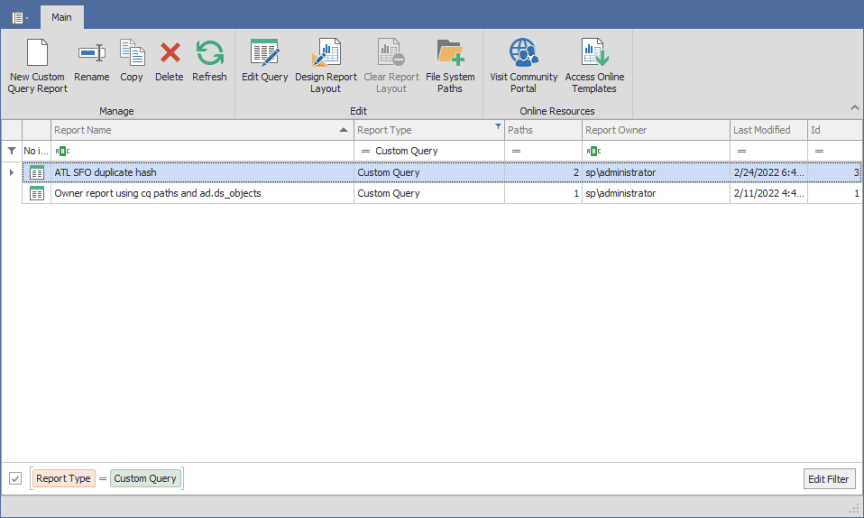
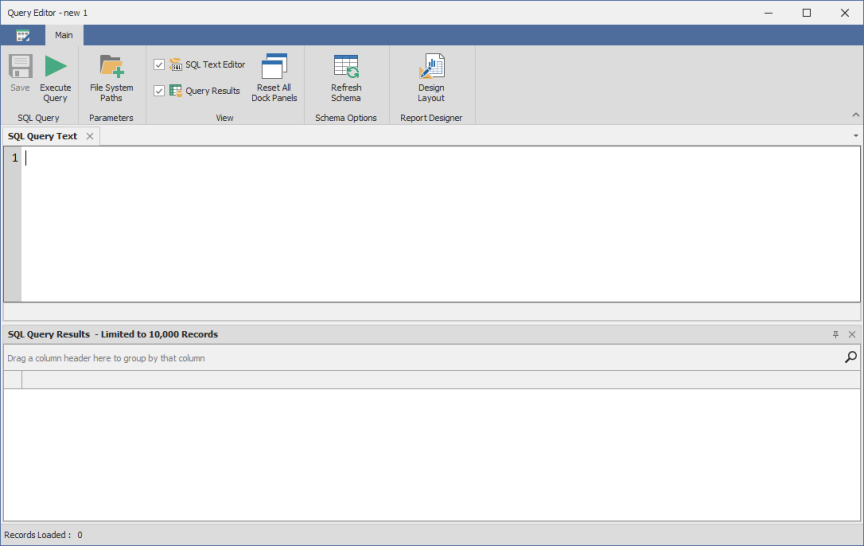
Click New Custom Query, enter a descriptive name, and click Create to launch the Report Designer Query Editor.
-
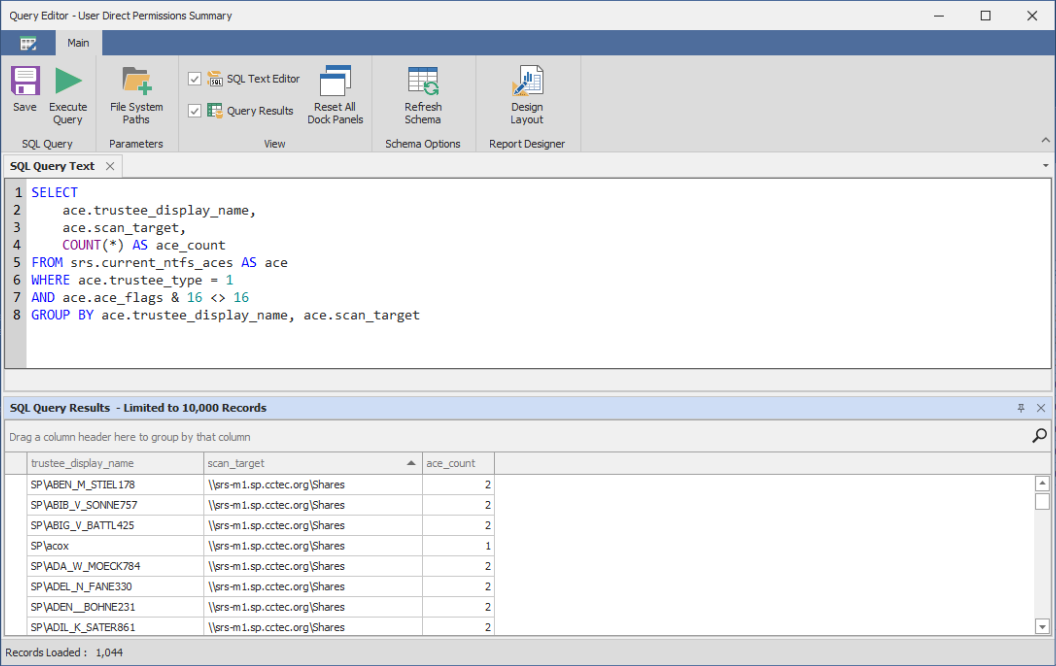
Enter the following SQL statements into the Query Editor:
CopyBasic Query - User Direct Permissions SummarySELECT
ace.trustee_display_name,
ace.scan_target,
COUNT(*) AS ace_count
FROM srs.current_ntfs_aces AS ace
WHERE ace.trustee_type = 1
AND ace.ace_flags & 16 <> 16
GROUP BY
ace.trustee_display_name,
ace.scan_target -
Click Execute to open a preview of the report data. This query will produce a result similar to the following:
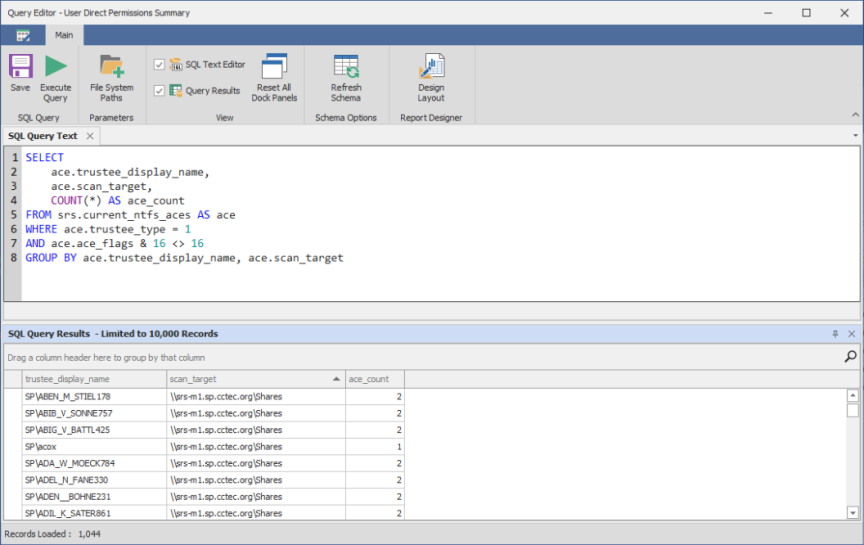
-
Click Save to save the SQL you've entered to this point.
-
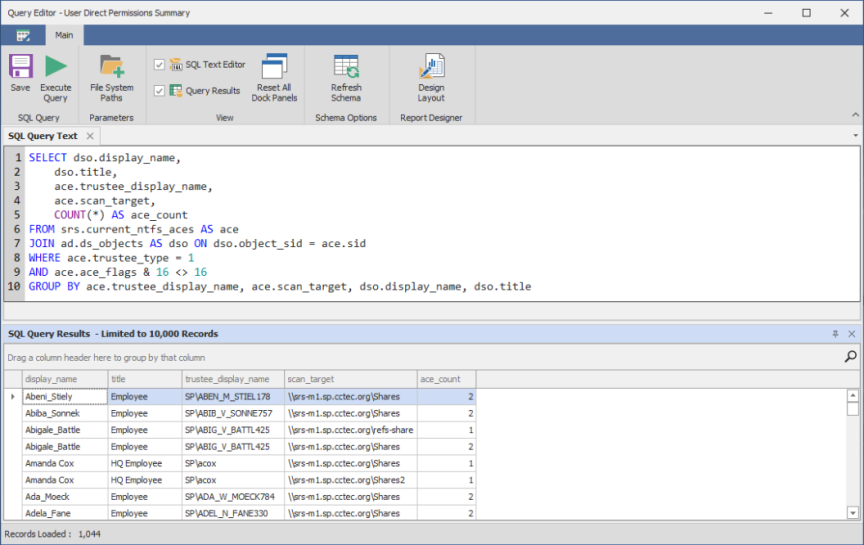
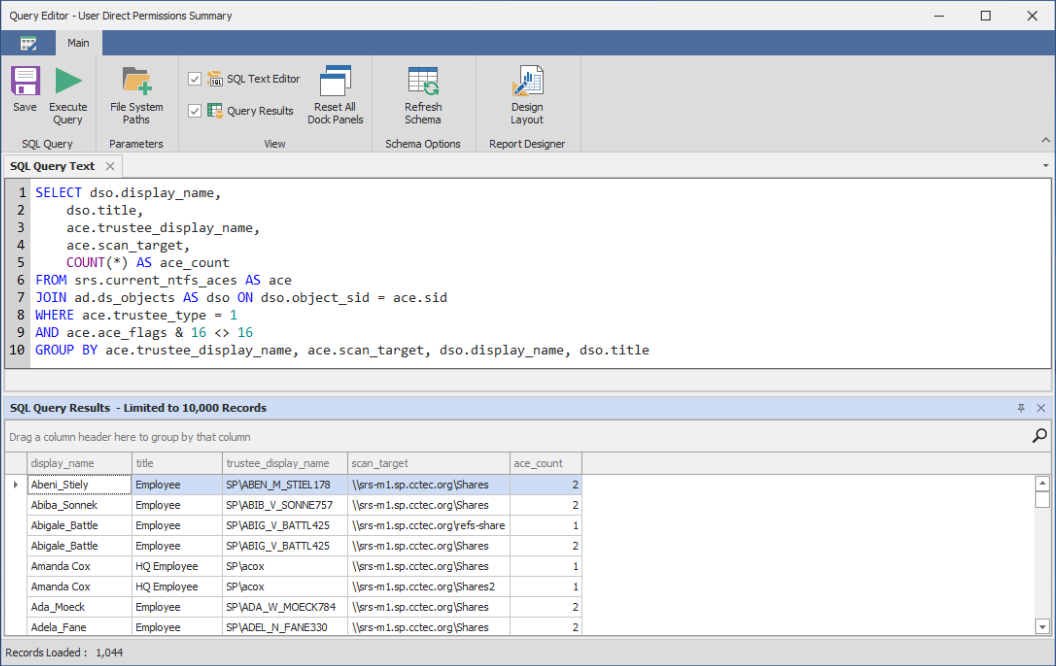
Augment the data by joining with the ad.ds_objects table to include the Active Directory user display_name and title fields.
CopyEnhanced Query - User Direct Permissions SummarySELECT
dso.display_name,
dso.title,
ace.trustee_display_name,
ace.scan_target,
COUNT(*) AS ace_count
FROM srs.current_ntfs_aces AS ace
JOIN ad.ds_objects AS dso
ON dso.object_sid = ace.sid
WHERE ace.trustee_type = 1
AND ace.ace_flags & 16 <> 16
GROUP BY
ace.trustee_display_name,
ace.scan_target,
dso.display_name,
dso.title -
Click Execute to see the updated results, including the title and display_name fields.