Configuring the Web Application
-
Click Configure Web Application.
-
Review what is to be configured and click Next.
-
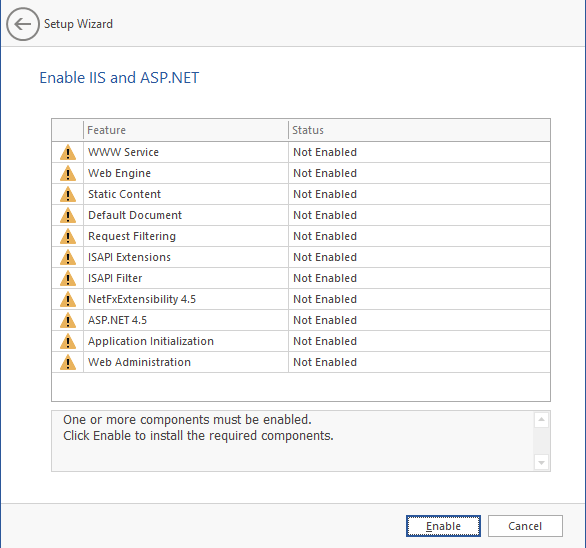
(Conditional) If the components are not enabled, click Enable.
-
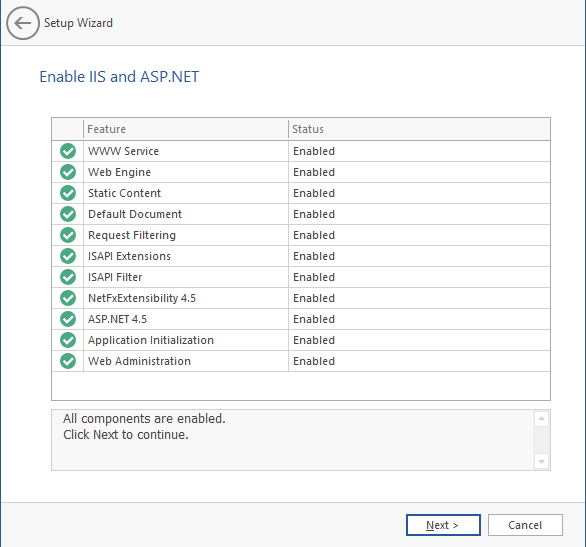
Click Next when all Microsoft IIS components are enabled.
-
Web Site: Details the settings for the File Reporter site in Microsoft IIS.
-
Web Site: The default name for the File Reporter site. Edit as needed.
-
Physical Path: The path specified during installation as the location that serves up content for the website. This field cannot be edited.
-
IP Address: Indicates that web requests will be responded to from any IP address available on the server by default. You can specify which one to use if the server has multiple IP addresses.
-
SSL Port: The default port is 443. You can select another port if there is a conflict.
-
Host Name: The hostname as defined in the DNS you specified in Prerequisites.
-
Application Pool: Details the settings for the File Reporter application pool in Microsoft IIS.
-
Name: The default name for the application pool. Edit as needed.
-
Service Account: Specifies the service account name used by the application pool.
-
Password: The password is generated automatically.
-
Confirm Password: The automatically-generated password is repeated.
-
Provision in Active Directory: This option provisions the application pool in Active Directory when selected. If not selected, the application pool provisions to the local host.
-
New Account Container: This option specifies the default location of the application pool in Active Directory.To modify the location, click Browse and specify a new location.
-
-
Edit the fields as necessary and click Next.
-
Unless your organization has a policy against redirects, leave the check box selected and click Next.

-
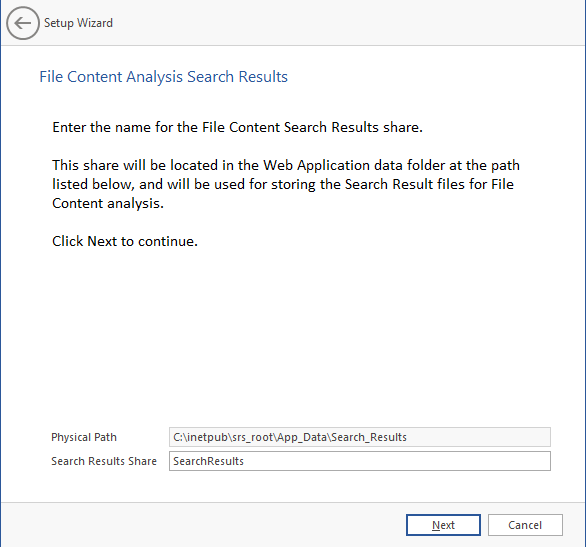
Click Next.

-
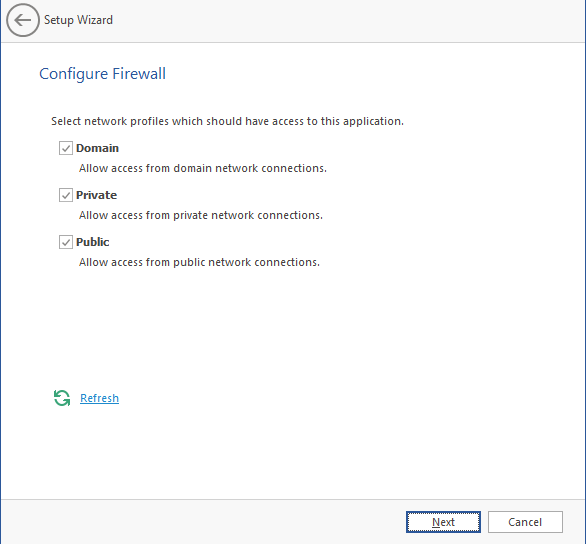
Set the firewall network profiles according to your organization's security policies and click Next.
-
Click Finish when the initial setup for the Web Application is complete. The Database, Engine, and Web Application are now configured.

-
Click the hyperlink located below the Web Application heading to launch the web-based administrative interface.
-
(Conditional) If prompted for a security exception, accept it and follow the procedures for establishing the Web Application URL as a trusted website.


From this window, you can review or edit settings applicable to the File Reporter Web Application. Leave the settings as currently established unless there is a need to change a setting.
If a warning sign appears next to the Host Name entry, then the hostname is not fully resolved. Verify that there is a DNS entry for the File Reporter Web application and that the resolved IP address(es) are located on the host machine.

From this window, you can install the Microsoft IIS URL Rewrite Module, which will redirect File Reporter web application requests using HTTP to HTTPS. For example, if you enter http://File Reporter.cctec.org in a browser, this module redirects you to the secure page at https://FileReporter.cctec.org.