AgentFC
Minimum Requirements
-
Any of the following dual-core 64-bit processor servers:
-
Windows Server 2025
-
Windows Server 2022
-
Windows Server 2019
-
The server must be joined to Active Directory.
-
AgentFC is designed to be deployed as a cluster of one or more nodes. Each node has the following minimum requirements:
-
Quad-core CPU
-
8 GB RAM
-
10 GB free disk space for temporary files
These numbers may need to be adjusted depending on the workloads.
-
Depending on the frequency of workloads, you may want to install each AgentFC node in a virtual machine environment where resources can be scaled as needed.
This can allow for allocation of more resources as heavy workloads are in progress, and reclamation of resources when no jobs are allocated.
-
Consider a cluster of three or more nodes for optimum throughput of content scans.
Installation and Configuration
-
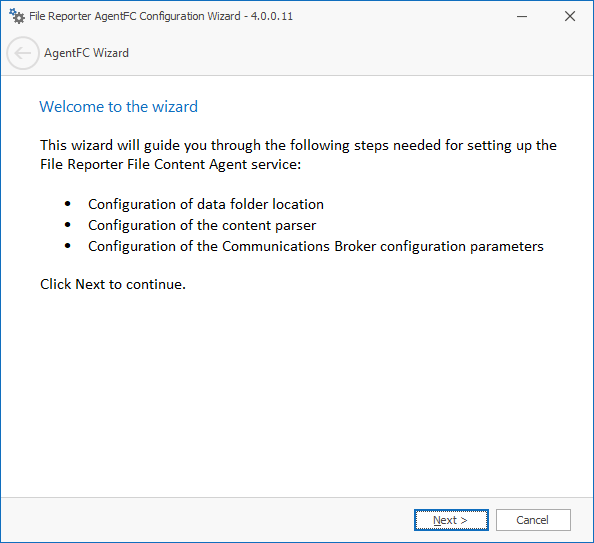
Double-click
FileReporter-AgentFC-24.4.x64-xx.exeat the root of theFileReporter-24.4.isoimage. -
Agree to the license terms and conditions, and click Install.
-
When notified that the setup was successful, click Run Setup Utility.
-
Tika Options: Details the settings specific to Apache Tika.
-
Host Address: AgentFC communicates with Tika via
localhoston the same computer on which AgentFC is hosted. Do not adjust this setting. -
Port: Leave this setting at 9998 unless there is a conflict.
-
Enable Tesseract OCR: This open-source optical character recognition engine from Google analyzes images for textual content. Tesseract OCR is resource-intensive, so it is disabled by default. If you enable Tesseract OCR, you should enable it on all deployed instances of AgentFC, and be aware there may be performance ramifications.
-
Java Runtime: Details the settings for the Java runtime installed with AgentFC.
-
Class Path: Displays the location of Java classes and packages, as well as Apache Tika for content analysis. Do not make changes to this field unless directed otherwise during a technical support call.
-
Start Class: Specifies Apache Tika as a Java Start Class. This field cannot be edited.
-
JVM Parameters: Advanced tuning parameters for the Java Virtual Machine. Do not make changes to this field unless directed otherwise during a technical support call.
-
Data: Details information specific to the data gathered through text parsing.
-
Data Folder: Specify the temporary location where scanned files are processed before being sent to the database.
-
Browse: Specify a new location for the data folder.
-
Complete the fields and click Next.
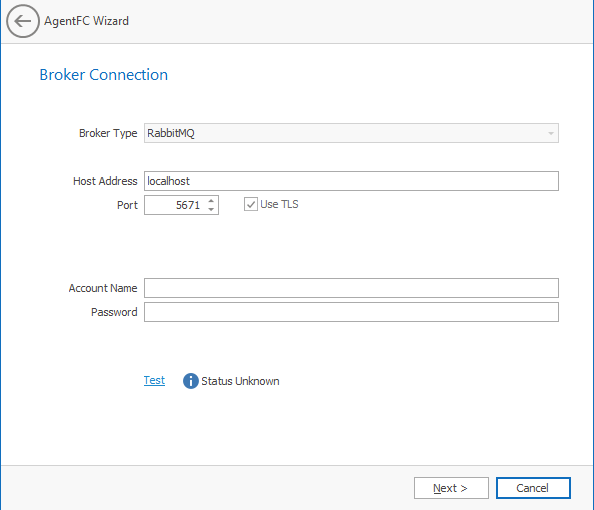
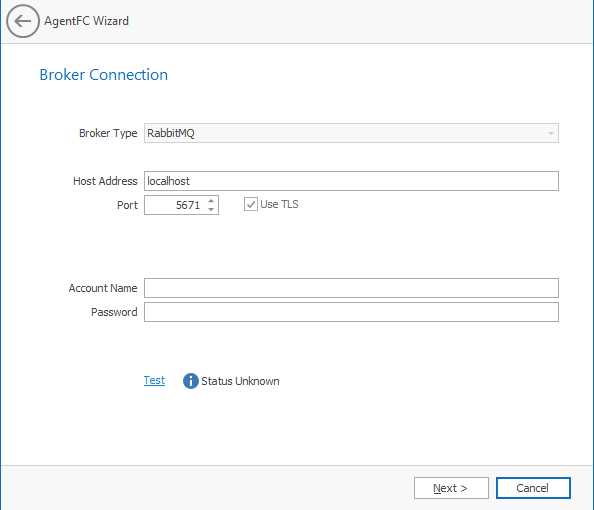
From this window, you can establish settings for communication between AgentFC and the RabbitMQ messaging broker.
-
Broker Type: Displays the RabbitMQ messaging broker.
-
Host Address: Specify the IP address or DNS name of the server hosting RabbitMQ.
-
Port: This is the port on which RabbitMQ's Management API listens with TLS support enabled (default: 5671).
-
Use TLS: Already checked because RabbitMQ in File Reporter uses Transport Layer Security (TLS) as the cryptographic communications security protocol.
-
Account Name: This field displays the default RabbitMQ database broker account name you created during ManagerFC configuration — see ManagerFC for more information.
-
Password: Enter the admin account password you set up during ManagerFC configuration.
-
Test: Click to test the connection between AgentFC and RabbitMQ.
-
-
Complete the fields and click Next.
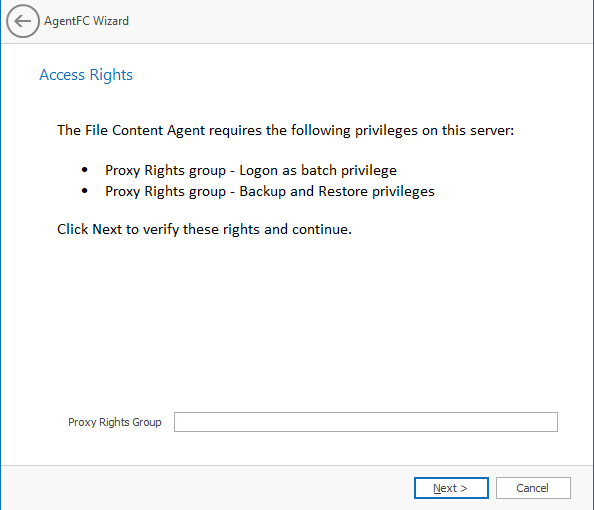
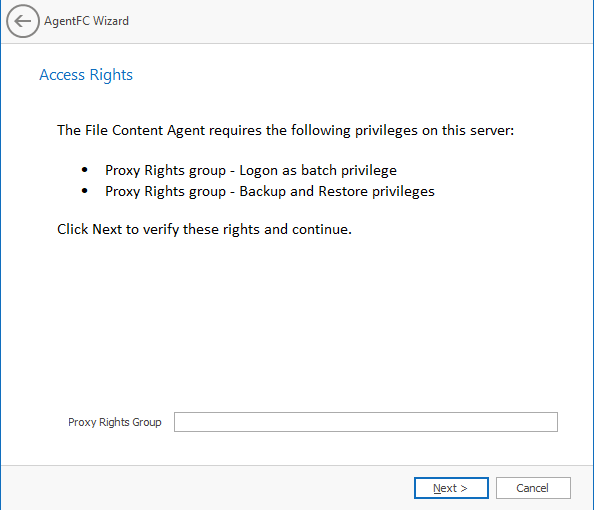
From this window, you can establish required privileges for the AgentFC host via the Proxy Rights Group.
-
Enter the name of the group in the Proxy Rights Group field (default:
SrsProxyRights). -
Click Next.
-
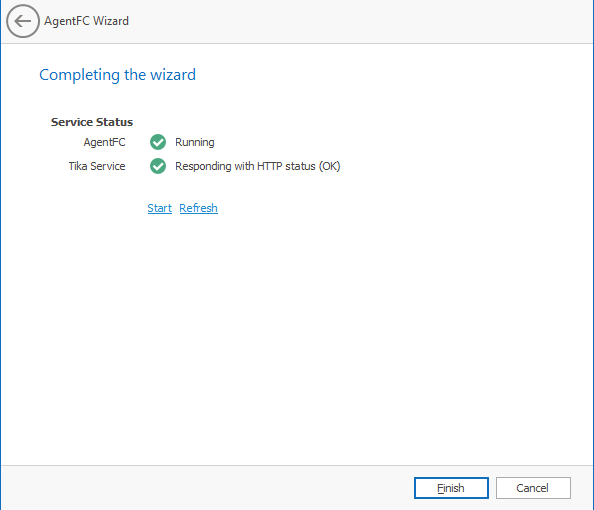
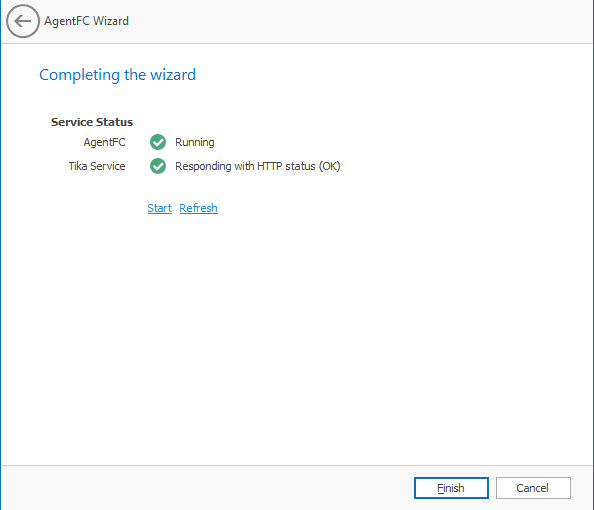
Click Finish to complete the configuration of AgentFC.
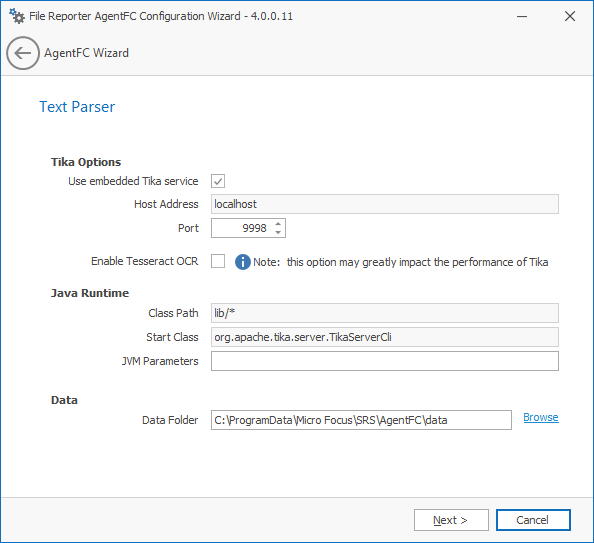
From this window, you can establish specifications for the utilities that perform text parsing and analysis in files.