RabbitMQ Configuration
RabbitMQ is an open-source message broker that enables messaging between the File Reporter components used for file content scanning or for reporting on Microsoft 365 cloud applications such as OneDrive, SharePoint Online, and Teams.
These components include ManagerFC and AgentFC for content scanning and reporting, and Agent365 for Microsoft 365 cloud reporting. If you do not need to perform file content scanning or reporting on Microsoft 365 cloud applications, then you do not need to install RabbitMQ.
RabbitMQ can be installed using any of the supported distributions found at: https://www.rabbitmq.com/download.html.
To introduce RabbitMQ into the File Reporter framework, a simplified, supported distribution for Windows is included with this release. This distribution is meant solely for use in basic scenarios in which clustering, containerization, or automated upgrades are not required.
The installation steps in this chapter pertain solely to this included distribution. Refer to associated product documentation for other RabbitMQ distributions or installers.
Upgrading a Previous Installation
File Reporter introduced file content scanning in version 3.5 and subsequently introduced the RabbitMQ message broker as a File Reporter component. If you installed RabbitMQ previously, you should upgrade to the updated version provided.
Before upgrading...
-
Verify that all scans are completed or canceled.
-
Uninstall the service.
-
Stop the RabbitMQ service (console command:
sc stop rabbitmq). -
Within the existing RabbitMQ folder, run
remove-rabbitmq-service.bat.
-
-
Delete the existing RabbitMQ folder.
-
Follow the steps in the remainder of this chapter to install and set up the new version.
Extracting RabbitMQ
RabbitMQ requires a recent version of the Visual C++ Redistributable Package for Visual Studio 2015. This is a common dependency for many applications, so it may already be present. If not:
-
Install the most recent Visual C++ Redistributable Packages for Visual Studio 2015 found either at https://docs.microsoft.com/en-us/cpp/windows/latest-supported-vc-redist?view=msvc-170, or in the RabbitMQ folder of the
FileReporter-24.4.isoimage namedvc-redist-vs2015-2022-x64-*.exe. -
Unzip the
RabbitMQ-3.9.x.zipfile to the desired path in the RabbitMQ folder of theFileReporter-24.4.isoimage.IMPORTANT: The path cannot contain spaces. The zip file contains the
rabbitmqfolder (i.e., extracting to the rootC:\produces an install location ofC:\rabbitmq.
Creating Certificates for RabbitMQ
Certificates are required to enable TLS for secure messaging between RabbitMQ, ManagerFC, AgentFC, and the Web Application.
-
Double-click
CertificateGenerator.exein the RabbitMQ folder of theFileReporter-24.4.isoimage.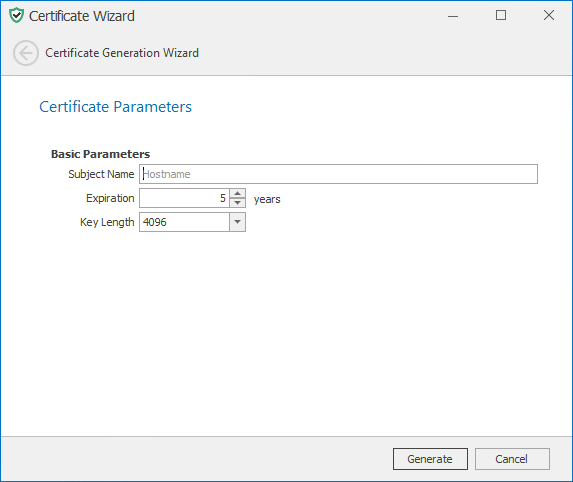
-
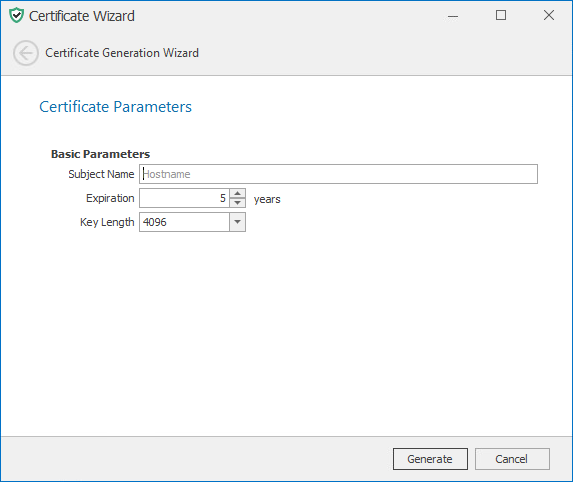
Enter the DNS name for the RabbitMQ service host or endpoint in the Subject Name field.
-
(Optional) Modify the settings in the other fields.
-
Click Generate.
-
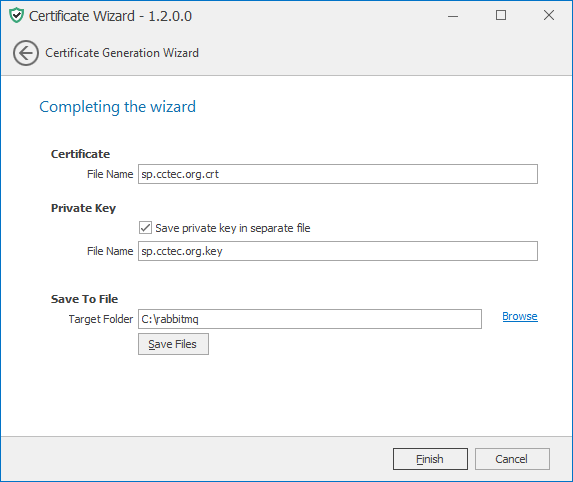
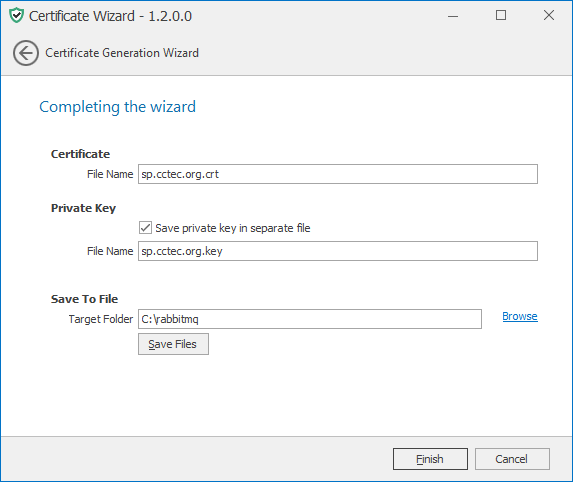
Enter the desired name of the certificate file to export in the File Name field of the Certificate section.
-
(Optional) Check Save private key in a separate file in the Private Key section and then enter a value for File Name for the private key file to export.
-
Enter a path for the Target Folder into which the certificate and key file(s) will be exported in the Save to File section.
IMPORTANT: The path should not contain spaces. You should export the certificate files to the root of the extracted RabbitMQ folder.
-
Click Save Files to export the files.
-
Click Finish.
-
From the location where the files were generated, copy the files to a folder on the RabbitMQ system (e.g., to the RabbitMQ folder created when you extracted the
RabbitMQ-3.9.xx.zipfile). -
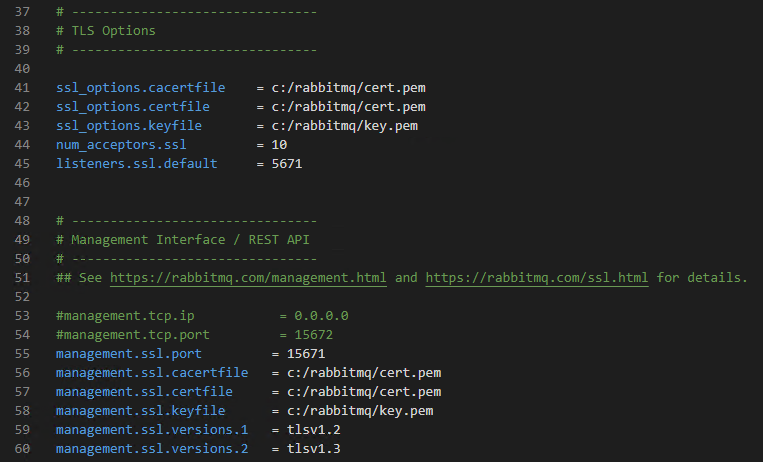
Edit the
rabbitmq.conffile located in therabbitmq\basefolder to which RabbitMQ was extracted (if using the provided archive). -
Modify the entries for
ssl_options.*Note that paths are absolute and use forward slashes.
Uncomment the following lines:
ssl_options.cacertfilessl_options certfilessl_options.keyfilenum_acceptors.ssllisteners.ssl.default
-
Modify the entries for
management.*interface.Optionally comment the following lines:
management.tcp.ipmanagement.tcp.port
Uncomment the following lines:
management.ssl.portmanagement.ssl.cacertfilemanagement.ssl.certfilemanagement.ssl.keyfilemanagement.ssl.versions.1management.ssl.versions.2
-
Specify the certificate and private key.
-
Modify the paths for
ssl_options.cacertfileandssl_options.certfilein the TLS Options section with the path to the RabbitMQ certificate you created. -
While still in the TLS Options section, modify the path for
ssl_options.keyfilewith the path of the private key. -
Modify the paths for
management.ssl.cacertfileandmanagement.ssl.certfilein the Management Interface / REST API section with the path to the certificate. Note that paths are absolute and use forward slashes. -
While still in the Management Interface / REST API section, modify the path for
management.ssl.keyfilewith the path of the private key.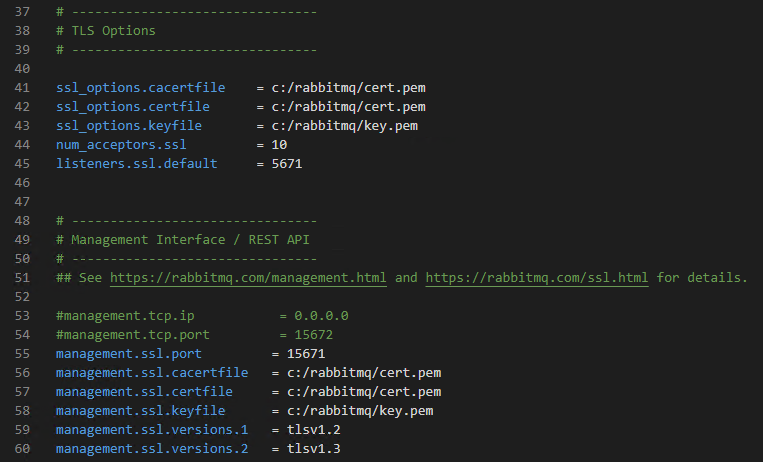
-
-
Save any modifications you made to the configuration file, then close the editor.
Installing the RabbitMQ Service
-
Double-click the
rabbitmqfolder from the extracted RabbitMQ files. -
Double-click the
install-rabbitmq-service.batfile. The RabbitMQ service is now installed.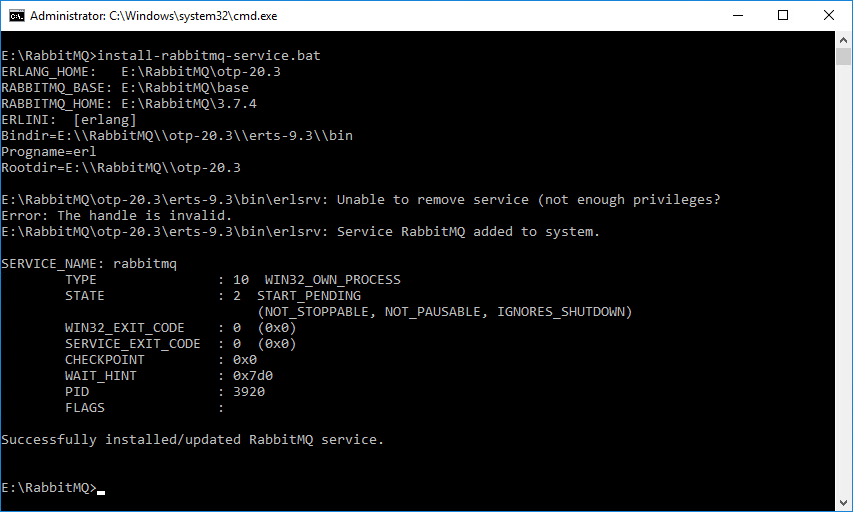
The error message:
The handle is invalidin the image above is normal during an installation and can be ignored. -
Access the management interface for RabbitMQ at https://dns_name:15671. You may need to open this port in the firewall.
Changing the Administrator Password
As a best practice, you should change the default administrator password for RabbitMQ before performing any administrative work.
-
Access the web-based RabbitMQ management interface at https://server:15671, where server is the address or DNS name of the server on which RabbitMQ is installed.
-
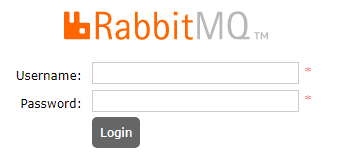
Enter
adminin the Username field andsrsadminin the Password field, then click Login.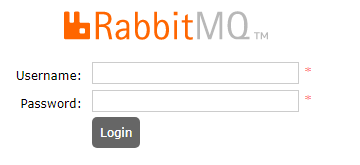
-
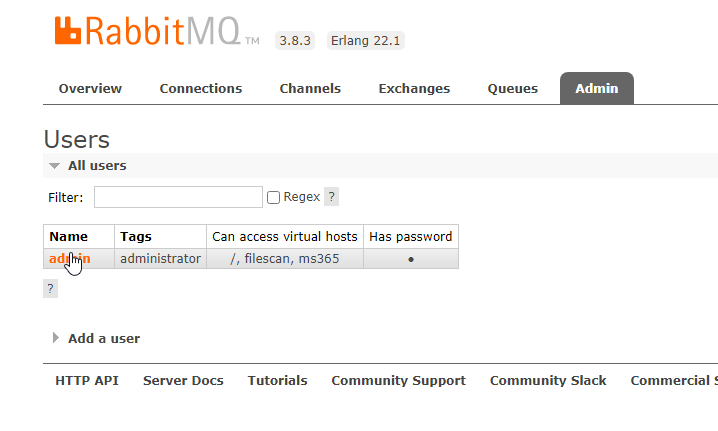
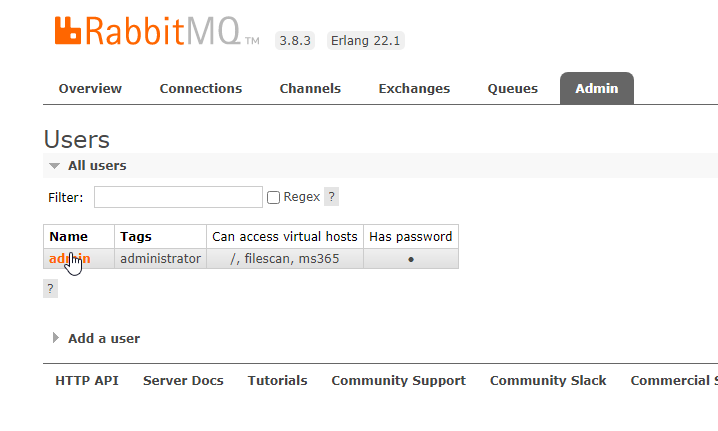
Click the Admin tab.
-
Click admin under the Name column.
-
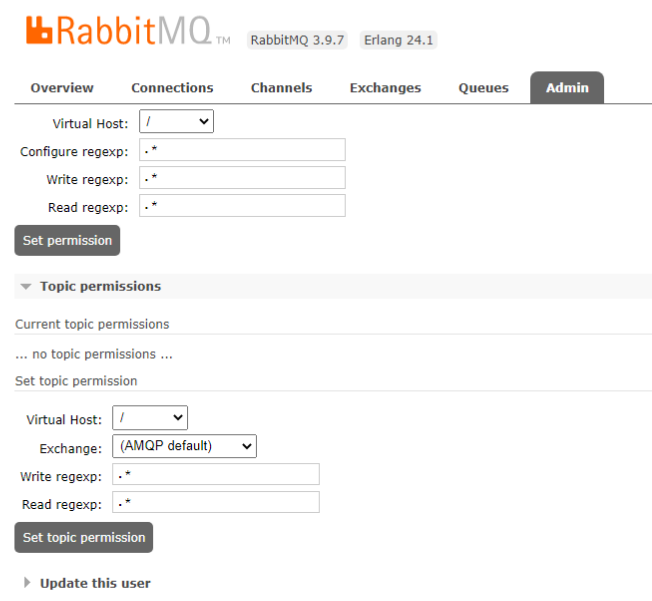
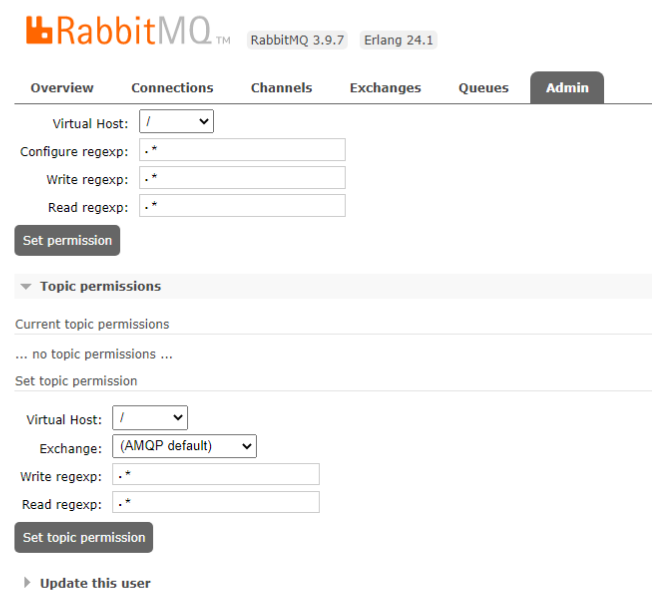
Scroll down in the new window and select Update this user.
-
Enter and confirm the new password, and click Update user.