Report Scheduling
Setting a Report Schedule
You can generate reports on a one-time or regularly-scheduled basis.
-
Select Report Definitions in the Reports menu.
-
Check the box for the report definition you want to schedule.
-
Select Edit Schedule in the Schedule menu.
-
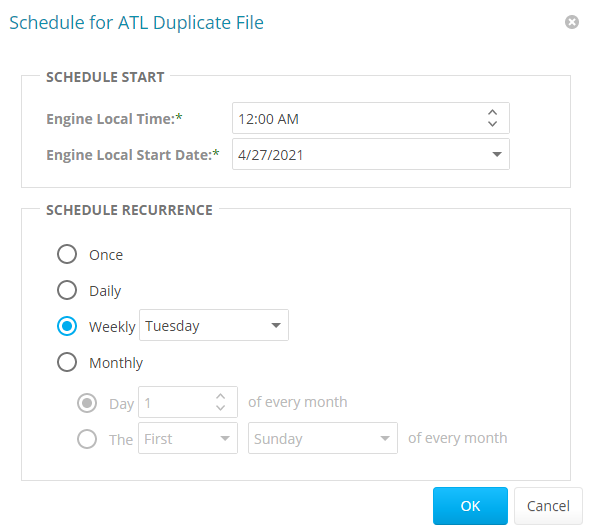
Engine Local Time: Specify the time you want to generate the report .
NOTE: The selected time is based on the time zone in which the Engine is located, not the time zone of the workstation you use to access the Web Application.
-
Engine Local Start Date: Specify the date on which you want the report schedule to take effect.
NOTE: Entering a start date does not mean the report generates on that date, it means the schedule starts on that date. If the Engine Local Start Date is set for a Monday but Schedule Recurrence is set for Weekly on Sunday, then the report itself does not generate until the Sunday following the scheduled Engine Local Start Date.
-
Schedule Recurrence: Set the frequency of generated reports.
-
Once: Select to generate the report one time only.
-
Daily: Select to generate the report at a designated time each day.
-
Weekly: Select and specify a day on which to generate the report each week.
-
Monthly: Select and specify a day on which to generate the report each month.
-
-
-
Specify the scheduling parameters and click OK. The new schedule is displayed in the Schedule column of the Report Definitions page.
Editing a Report Schedule
-
Select Report Definitions in the Reports menu.
-
Check the box for the report definition you want to reschedule.
-
Select Edit Schedule in the Schedule menu.
-
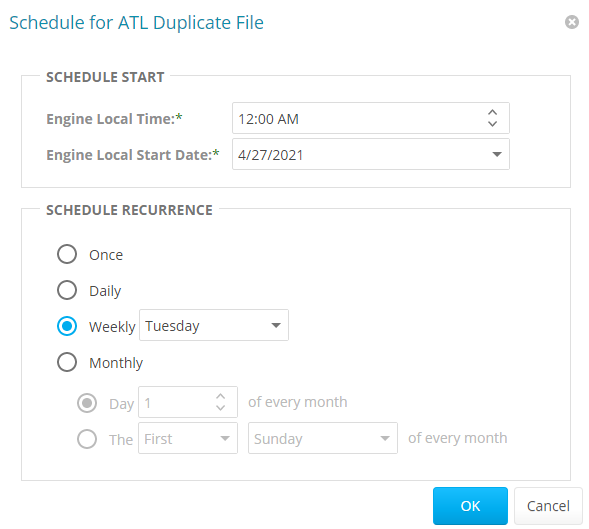
Make the schedule changes you want.
-
Click OK.
Clearing a Report Schedule
-
Select Report Definitions in the Reports menu
-
Check the box for the report definition with the schedule you want to remove.
-
Select Clear Schedule in the Schedule menu.
-
When the confirmation screen appears, clickYes. The status of the report definition appears in the Schedule column as Not Scheduled.