File Content Search Patterns
Search patterns specify the conditions for content scanning, and establish how to classify and categorize the results.
To conduct content scans, File Reporter uses regular expression (regex) search strings, which describe and define a search pattern. Regex search strings are ideal for locating files containing specified patterns (e.g., Social Security numbers, credit card numbers, etc.) or other user-defined patterns.
File Reporter currently makes use of Microsoft's .NET regular expressions engine. For basic information and tutorials on compiling regular expression search strings, visit the following sites:
NOTE: This version of File Reporter makes use of the C# (.NET) regular expression variant for cases in which different regex engines or languages are mentioned.
Creating a New Search Pattern
-
Select Search Patterns in the File Content menu.
-
Click Add.
-
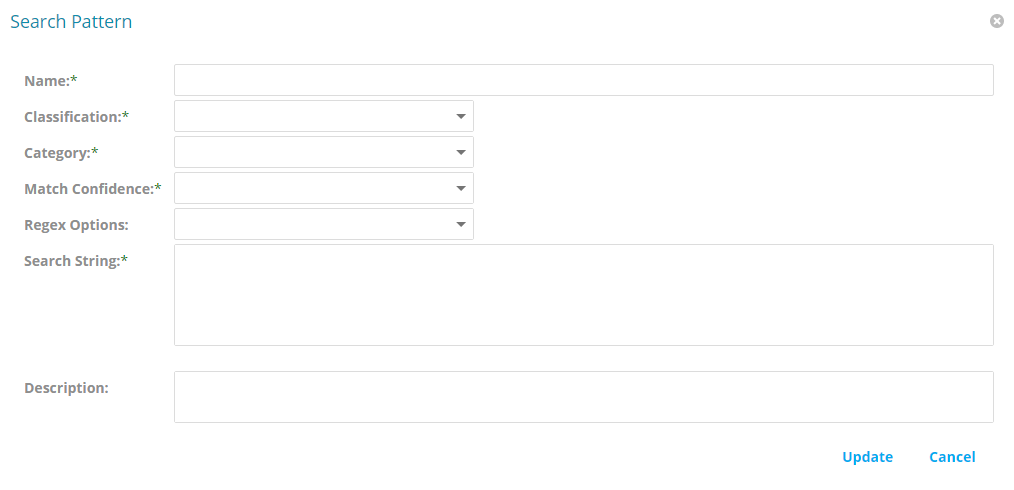
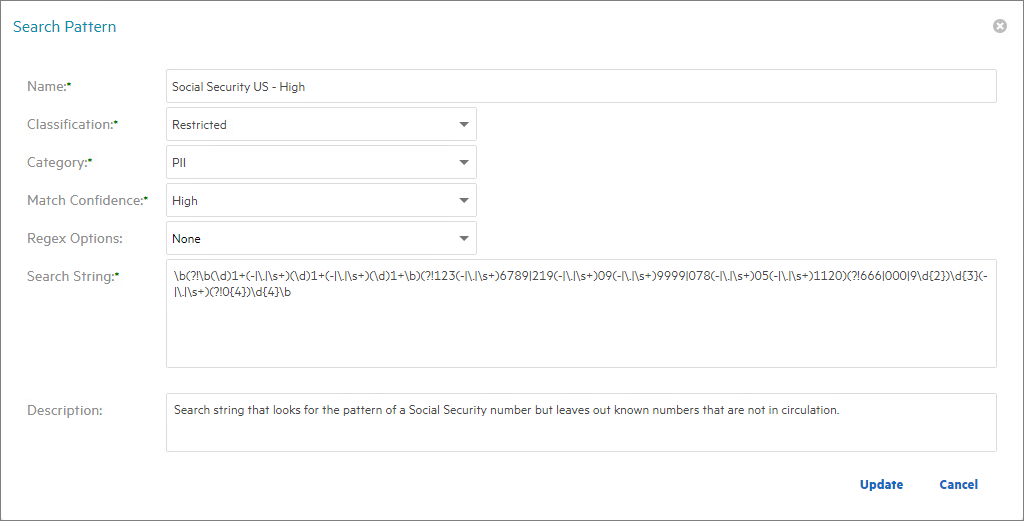
Enter a descriptive name for the search pattern in the Name field (e.g., "Social Security US - High"). Names are restricted to the following characters: A-Z, a-z, 0-9, space, - (hyphen), and _ (underscore).
-
Select a Classification from the drop-down menu.
-
Select a Category from the drop-down menu.
-
Select Match Confidence from the drop-down menu to indicate your confidence in the search results: Low, Medium, or High, based on the accuracy of the search string (e.g., a search of all Social Security numbers might have Low confidence of a match, while a search for a particular Social Security number specified in the search string would have High match confidence).
-
Select any applicable options in the Regex Options drop-down menu. Refer to the following documentation for an explanation of these options: https://docs.microsoft.com/en-us/dotnet/standard/base-types/regular-expression-options.
-
Enter or paste the Search String in the text field.
-
Enter a Description of the search pattern in the text field.
-
Click Update.
Editing a Search Pattern
-
Select Search Patterns in the File Content menu.
-
Select the search pattern you want to edit.
-
Click Edit.
-
Edit the fields.
-
Click Update.