Installing the Engine
IMPORTANT: To install the Engine, you must be logged in as a domain administrator for the domain in which the computer is a member.
-
Double-click
FileReporter-Engine-25.4-x64-xxx.exeat the root of theFileReporter-25.4.isoimage. -
Click Run when prompted.
-
Agree to the license terms and conditions, and click Install.
If your File Reporter deployment uses Microsoft SQL Server as the database, a dialog instructs you to update your OLE DB driver for SQL Server.
-
(Conditional) Update the OLE DB driver.
-
Click Yes to launch the installation wizard.
-
Click Next.
-
Accept the license terms and click Next.
-
Click Next to accept the default feature selections.
-
Click Install.
-
(Conditional) If notified that there are applications running which prevent the driver from updating, close the listed applications and click Retry.
-
-
Click Next.
-
Either accept the installation path or indicate a new path with the Browse button, and click Next.
-
Click Install.
-
Click Finish.
-
Finally, either:
-
Restart the server, if prompted, to activate the updated OLE DB driver. Then, select the File Reporter Configuration Dashboard under File Reporter in the Start menu; or
-
Click Run Config Utility to open the File Reporter Configuration Dashboard.
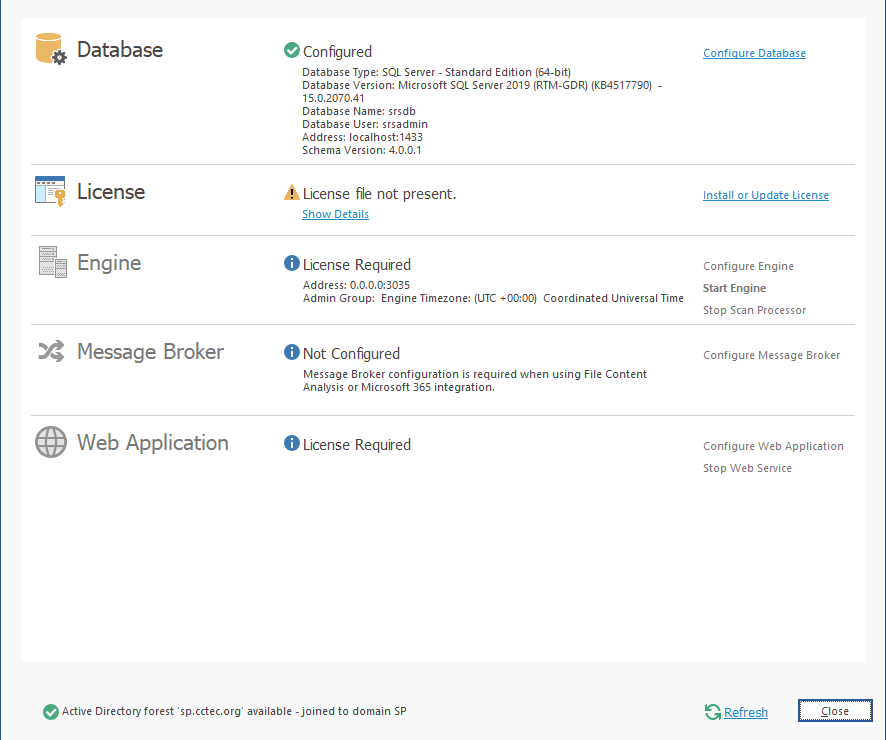
-
NOTE: Each step in the Configuration Utility should be run in sequential order, from top to bottom. If you chose not to install RabbitMQ, you can skip the Message Broker section.