Report Definitions
Creating a Report Definition
To create a report definition:
-
Select Report Definitions in the Reports menu.
-
Click Add in the toolbar.
-
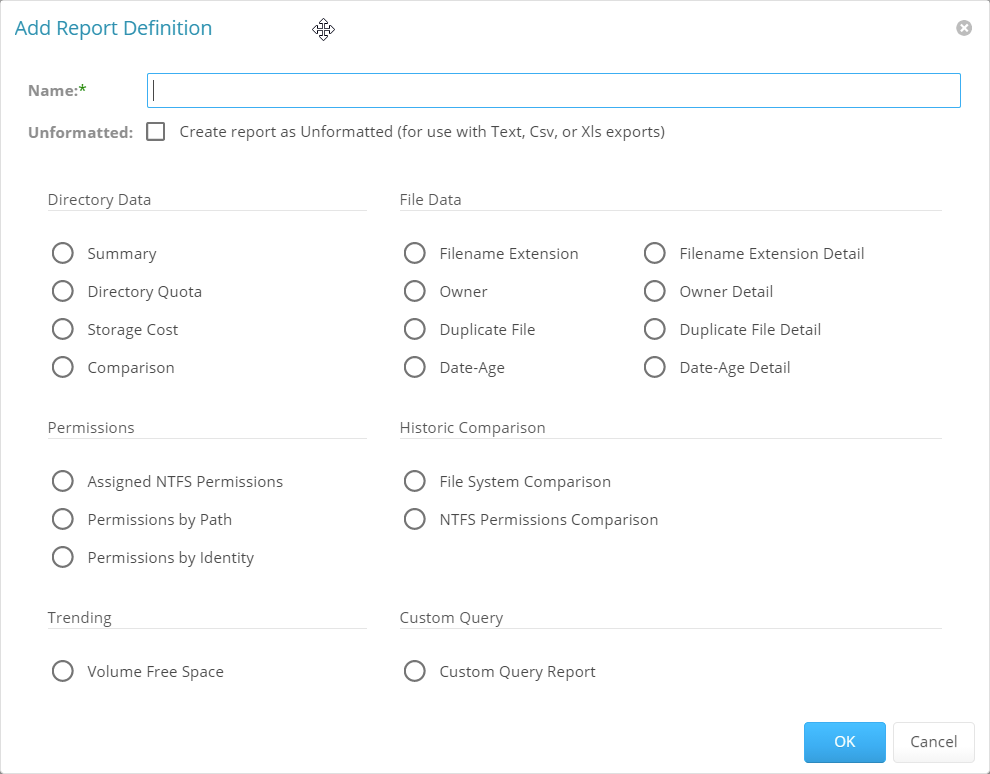
Enter a Name for the report in the text field.
-
(Optional) Select Unformatted to create a report that is delimited text only, with no report layout assigned.
-
Click a radio button to select a report type.
NOTE: If you're familiar with writing SQL queries, a Custom Query report definition may provide better control and performance than a comparable unformatted report definition.
-
Click OK to create the report definition.
Depending on the report definition type, set any remaining report definition parameters, or for Custom Query reports, write the necessary SQL query and report definition layout — See Built-in Reports and Custom Query Reports for details.
Deleting a Report Definition
To delete a report definition:
-
Select Report Definitions in the Reports menu.
-
Select a report definition you want to delete from the list.
-
Click Delete in the toolbar.
-
Click Yes in the confirmation dialog to confirm deletion of the report definition.
NOTE: Editing or deleting a Report Definition does not affect any Stored Reports generated previously from that Report Definition.
Copying a Report Definition
You can copy an existing report definition to save time in creating a new report definition and its associated properties. When you copy a Built-in Report, the following properties are included:
-
Report Parameters
-
Report Targets Paths
-
Report Identity Targets
-
Filters
-
File Dynamics Policies
When you copy a Custom Query report, the following properties are included:
-
SQL Query
-
Report Layout
NOTE: Copying a report definition does not copy the content in the Description field or the report schedule.
-
Select Report Definitions in the Reports menu.
-
Select a report definition you want to copy from the list.
-
Click Copy in the toolbar.
-
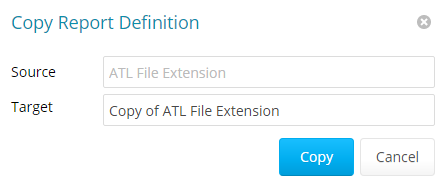
Click Copy to add the new report definition to the list, under Copy of preceding the name of the original report definition.
-
Select the copy of the report definition.
-
Select Rename in the toolbar.
-
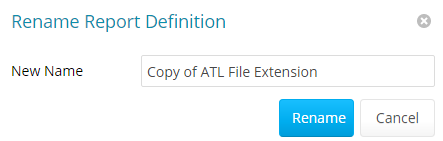
Enter a New Name for the new report definition in the text field, then click Rename.
-
Select Edit Schedule in the Schedule menu.
-
Set the scheduling parameters for the new report definition, then click OK.
-
Click Edit in the toolbar.
-
Enter a new Description in the text field.
-
Click Save.