Adding Custom Tag Values
If you are a Fortify Software Security Center administrator, you can add values to the list-type custom tags During audits, users assign values to custom tags to indicate which issues to address and in what order. The system supplies the default Analysis tag. Administrators and security leads can add custom tags to the system. To be considered audited, an issue must have a value assigned to its primary custom tag. in the system.
Note: If a custom tag is assigned the extensible attribute, then you can add values to it as you auditThe process of assessing an application or program for security vulnerabilities. issues.
To add a value to a list-type custom tag:
-
On the Fortify header, click ADMINISTRATION.
-
In the left panel, click Templates, and then click Custom Tags.
The Custom Tags page lists the custom tags in the system.
-
Click the row for the tag to which you want to add a value.
The row expands to display the details for the tag.
-
Below the table of values, click EDIT.
-
Above the table of values, click + ADD.
-
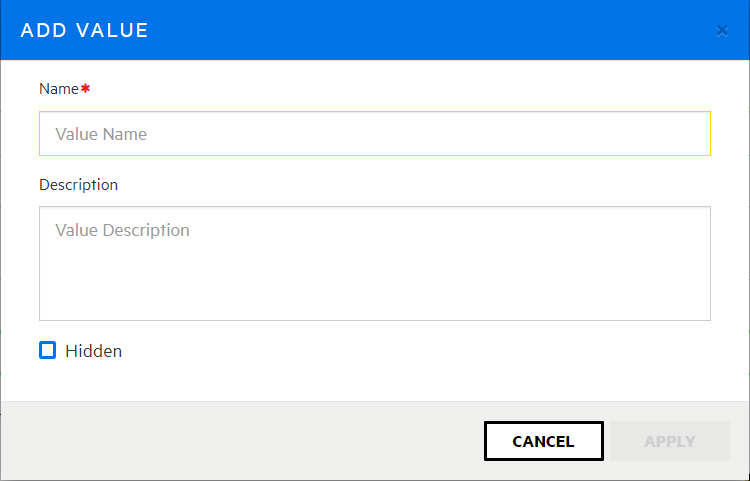
In the ADD VALUE dialog box, type a name and, optionally, a description for the new value.
If Fortify Software Security Center is configured to use Audit Assistant
An optional tool used to connect Fortify Software Security Center to Fortify Scan Analytics. Audit Assistant (through Fortify Scan Analytics) helps determine whether the issues returned from Fortify Static Code Analyzer scan results represent true vulnerabilities, or are false positives. and if auto-apply is enabled, you must map an Audit Assistant tag to the new tag value.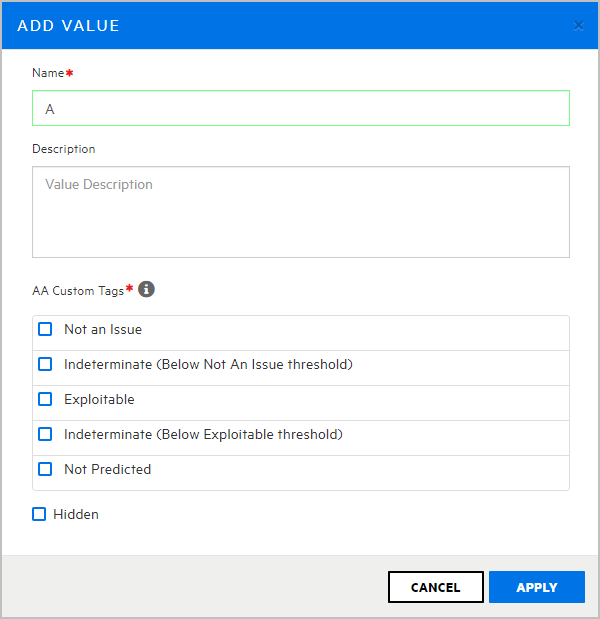
-
To map an Audit Assistant tag to the new tag value, under AA Custom Tags, select the check box for the Audit Assistant tag that corresponds to your new tag value. (If necessary, you can change the mapping later.)
- To prevent the tag from being displayed in the Assign dialog box or in Audit Workbench, select the Hidden check box.
-
Click APPLY.
-
On the Custom Tags page, under Audit Assistant Training, the new value is listed in the Non-Issue list. If it is not a real issue, leave it as is. If the value does, in fact, apply to real issues, then select it and move it to the True Issue list.
Note: Both the Non-Issue list and the True Issue list must each contain at least one value.
-
Click SAVE.
See Also
Adding Custom Tags to the System