Searching Globally in Fortify Software Security Center

Regardless of where you are in the Fortify Software Security Center user interface, you have access to the global Search field on the Fortify header. Any search string you type here is applied across all application A customer codebase evaluated by Fortify software. The top-level container for one or more application versions. When you work with a new codebase, the application and first application version are automatically created. An application includes one or more application versions that users create and configure. versions, issues, reports, comments, and users.
Note: The search box is visible only if Enable global search was selected during Fortify Software Security Center setup. For more information, see Configuring Fortify Software Security Center for the First Time.
To use the global Search field:
-
From any view, type a search string into the Search box.
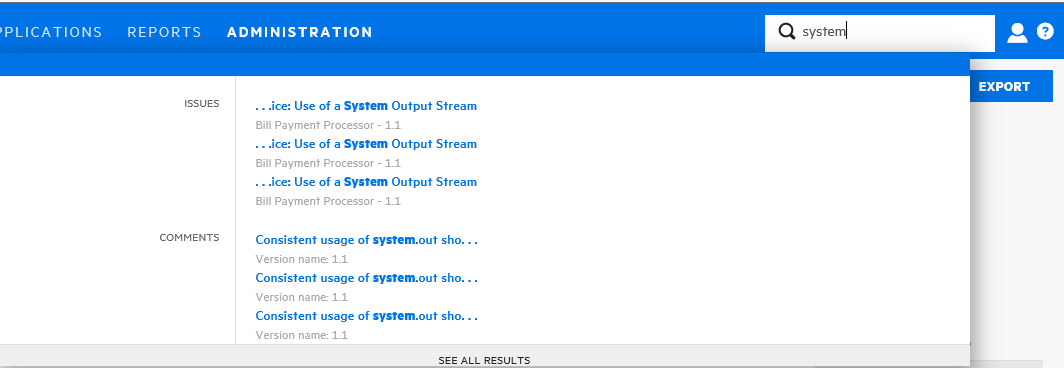
Fortify Software Security Center displays the first several items that match your search string, grouped by category. The application version
A particular iteration of the analysis of a codebase as it applies to Fortify Software Security Center. An application always begins with a first version. An administrator adds new versions, as needed. is also displayed. -
To go to a specific item listed, click the item.
Fortify Software Security Center opens the user interface where you can view or work on the item.
-
To see a list of all search results, below the listed items, click See All Results.
Example: Finding issues
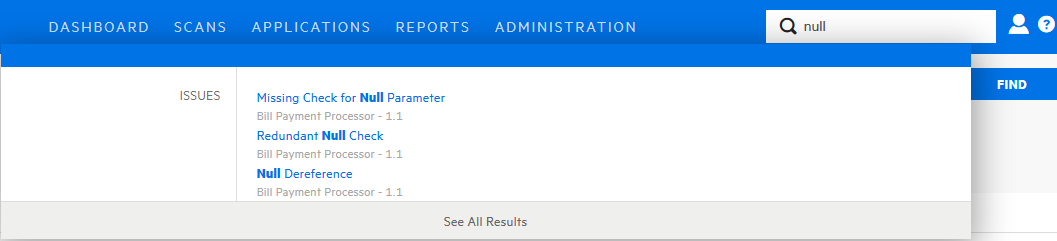
After you select an issue from the listed results, Fortify Software Security Center takes you to the corresponding version page with the issue expanded to full view.
If you select See All Results, Fortify Software Security Center takes you to the Search Results page. From here, you can open the first match with the issue expanded to full view. From there, you can use the next and previous buttons  to page through all of the findings.
Note: The search results for issues may include removed, hidden or suppressed issues. If the AUDIT page does not display an item you selected, check the viewing preferences set for the application version to make sure that you have the appropriate flags enabled on the ADVANCED OPTIONS tab to display removed, hidden, and suppressed issues. For instructions, see Setting Issue Viewing Preferences .
Example: Finding users

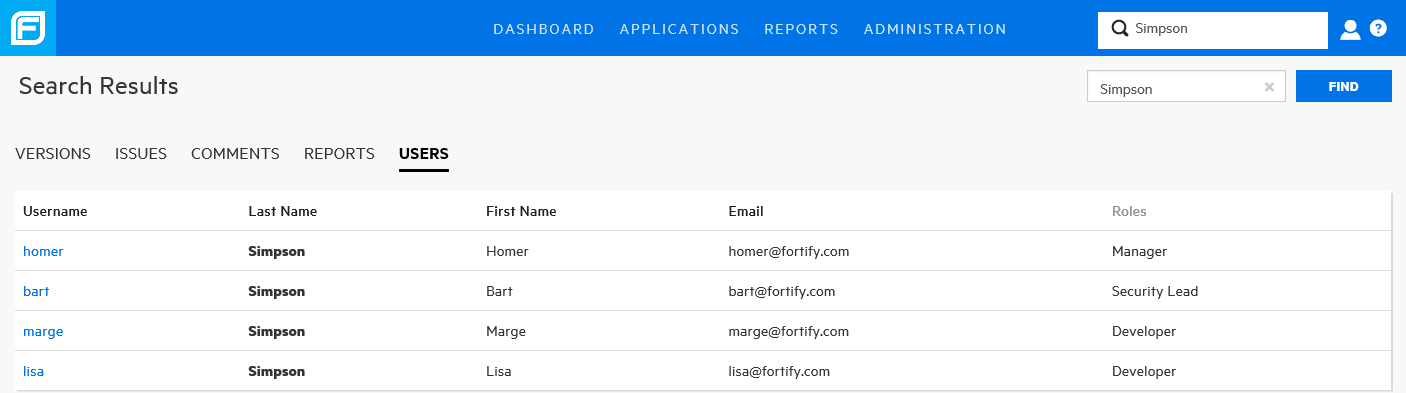
After you select a single user from the listed results, assuming you have the required permission, Fortify Software Security Center takes you to the details for the user account in the ADMINISTRATION view.
If you select See All Results, Fortify Software Security Center takes you to the Search Results page.
See Also
Searching Applications and Application Versions from the Applications View