Mapping Audit Assistant Analysis Tag Values to Fortify Software Security Center Custom Tag Values
If, when you configured Audit Assistant (Configuring Audit Assistant), you enabled Audit Assistant auto-apply, you must next map Audit Assistant analysis tag values to Fortify Software Security Center custom tag values for one or more list-type custom tags. After you do, you can start using the automated auditing feature.
Note: For Audit Assistant auto-apply to work, you must designate the mapped custom tag as the primary custom tag from the APPLICATION PROFILE dialog box for the application version.
To map Audit Assistant analysis tag values to Fortify Software Security Center list-type custom tag values:
-
After you configure Audit Assistant (and enable Audit Assistant auto-apply), do one of the following:
- In the left pane of the ADMINISTRATION view, select Templates, and then select Custom Tags.
Or

- If you enabled auto-apply, click the here link at the bottom of the Audit Assistant page.
-
On the Custom Tags page, expand the row for a list-type custom tag (such as Analysis) for which you want to map values.
-
At the bottom right of the expanded section, click EDIT.
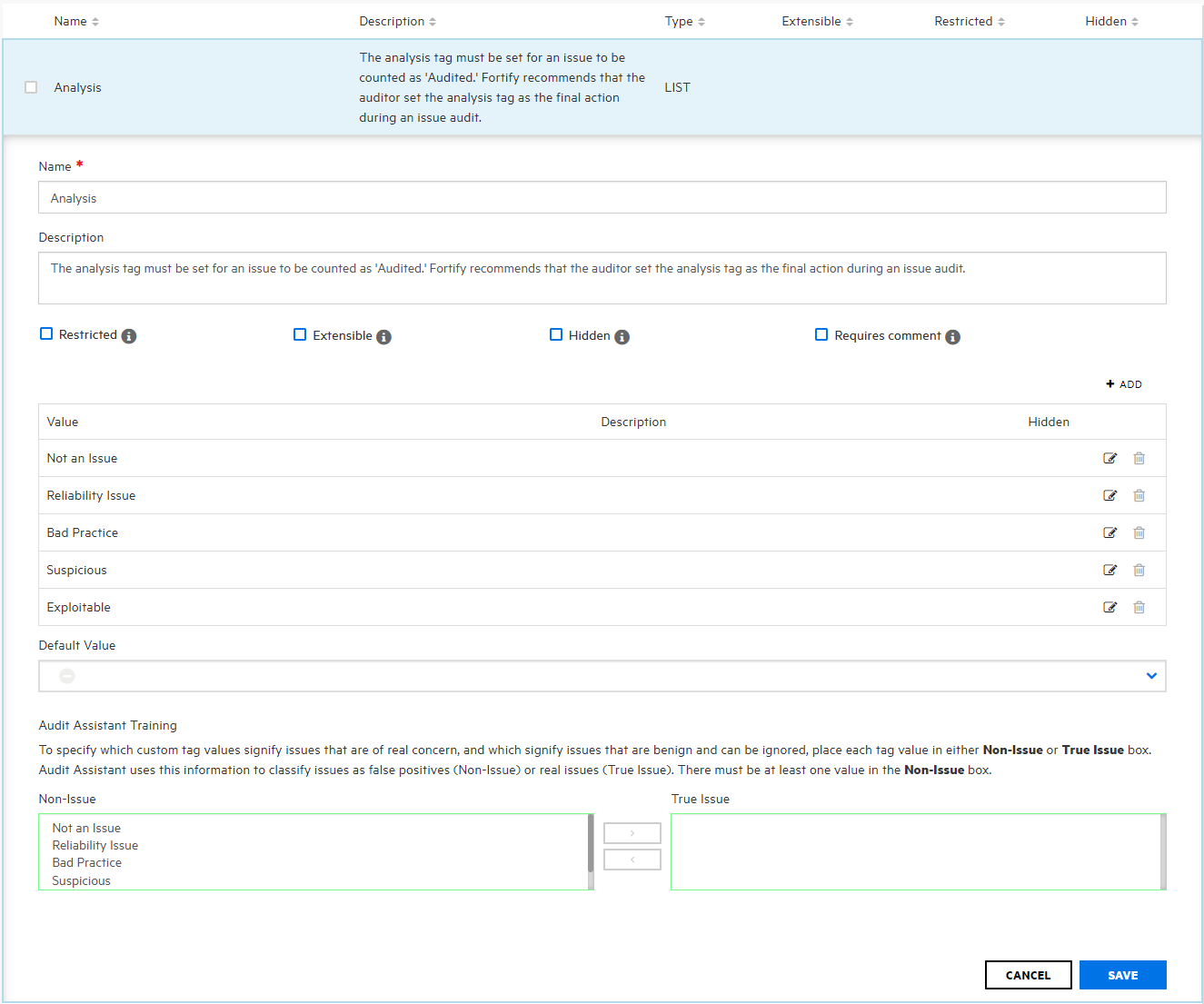
The custom tag values listed in the table become editable, and the Audit Assistant Training section is visible.

-
In the table of tag values, select the Edit value icon (
 ) for a listed value.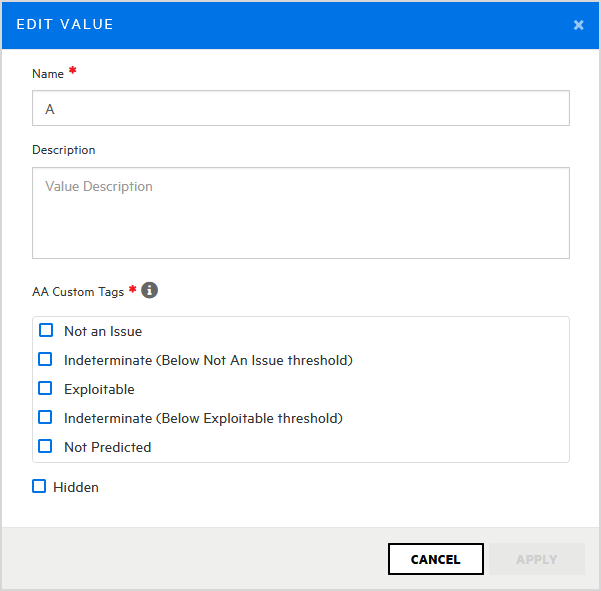
-
In the EDIT VALUE dialog box, under AA Custom Tags, select the check box for the AA custom tag value to map to this custom tag value.
-
Click APPLY.
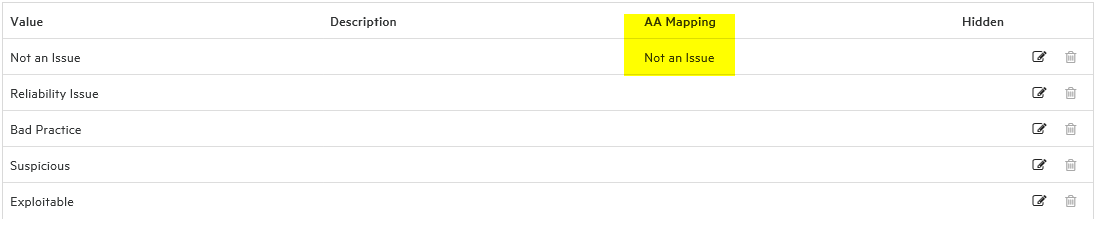
The list of custom tag values now shows the value you just mapped for Audit Assistant.
- Complete steps 4 through 6 for all of the values that you want to map for automated auditing.
-
Click SAVE.

Note that after you save your mapping, Fortify Software Security Center displays a gavel icon to the right of the custom tag name.
Note: The Audit Assistance Training section is used for data training purposes. For information about how to configure this section, see Adding Custom Tags to the System.