Generating and downloading reports
To generate and download a report:
-
On the header, select Reports.
-
On the Reports toolbar, click + NEW REPORT.
-
Select the report template you want to use.
The Parameters pane displays the configuration fields for the template you select.
-
Specify the required report settings, including the report name and output format.
-
To specify the application versions to include in the report:
-
Under Application version, click BROWSE.
-
In the SELECT APPLICATION VERSION dialog box, under APPLICATION, select one of the applications listed, or, in the Filter applications box, enter part or all of the application name, press Enter, and then select the application name.
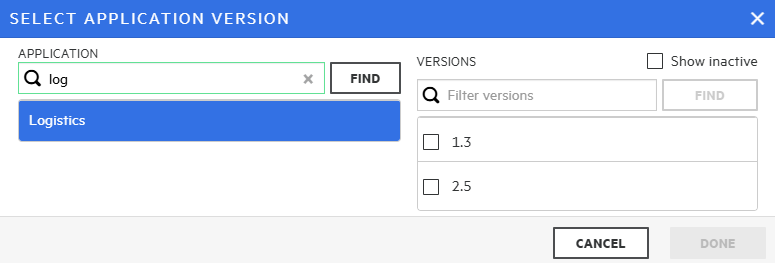
The active versions of the selected application are listed under VERSIONS.
-
Select the check box for the version to include in the report. (You can select only one.)
For Portfolio Reports, you can select multiple application versions to include in the report.
- Click DONE.
-
-
On the Parameters pane, do the following:
-
If multiple editions of a report template are available, from the Options list, select the edition you want to generate.
-
Depending on the report type, additional settings might be required or available.
-
-
Click GENERATE.
Fortify Software Security Center adds the report to the Reports table, which lists all reports, grouped by the report template. After the report generation is completed, the Status column displays the value Complete.
Note: If you typed content in the Notes box when you configured the report, the Notes column contains a note icon.
-
To download the report, point to the report name, and then click the Download button
 .
.
For information about how to specify the number of days to keep reports before they are automatically removed from the system, see Configuring job scheduler attributes.
See also