Enabling auto-apply and auto-predict for an application version
If your Administrator has configured Fortify Audit Assistant, enabled auto-apply system-wide, and mapped the appropriate primary custom tags, you can enable auto-apply for a specific application version.
If you enable auto-apply for an application version, then whenever you use Fortify Audit Assistant to request a prediction on your static analysis issues, Application Security applies those predictions to your custom tag values.
When Fortify Audit Assistant automatically applies custom tag values to issues, the metadata saved for the issue shows that it was audited by Fortify Audit Assistant. A gray gavel displayed next to the custom tag name informs users that Fortify Audit Assistant predicted the issue.
To enable auto-apply for an application version:
From the Dashboard or Applications view, select the application version for which you want to enable auto-apply.
On the toolbar, click PROFILE.
Select AUDIT ASSISTANT OPTIONS.
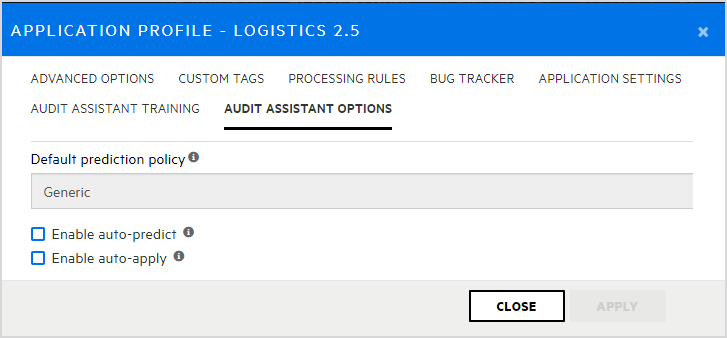
To have Fortify Audit Assistant automatically assess unaudited issues, select the Enable auto-predict check box.
For information on auto-prediction, see About Audit Assistant auto-prediction.
Select the Enable auto-apply check box.
If your primary tag values are not mapped to Audit Assistant, Application Security displays a warning to that effect and advises you to contact your Administrator.
Click APPLY.
- To save your settings, click OK.
- Click CLOSE.
See Also