Reactivating application versions
If a specific application version has been deactivated and is not listed on the Dashboard or the Applications view, you can reactivate it to make it visible again.
If the deactivated application version is the only version of the application that exists, you must first create a new version of the deactivated application, and then use the following procedure to reactivate it.
To reactivate an application version when another version of the application exists:
On the header, select Applications.
- Under Filters, turn on the Include inactive versions switch (or in Legacy View, select the Show inactive versions check box).
Select the inactive application version.
On the toolbar, click PROFILE.
In the APPLICATION PROFILE dialog box, select the APPLICATION SETTINGS tab.
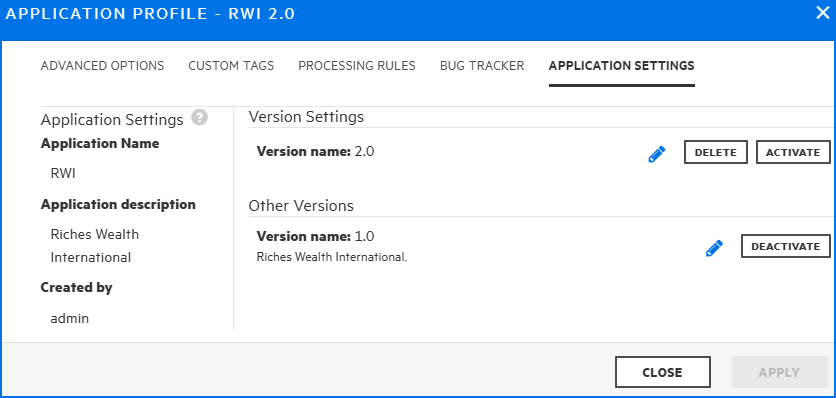
Click ACTIVATE.
To confirm the activation, click OK.
Click CLOSE.
The application version is again displayed on the Dashboard and Applications views.