Generating authentication tokens
You can generate authentication tokens from either the Administration view in Application Security, or from the command line using the fortifyclient utility. Only you can see the details of your tokens. A Application Security Administrator can extend the life of a token you create, but not beyond the maximum days to live for that token.
You can create a token of any type, but if you do not have the permission required to perform the action that the token is designed to perform, you cannot use the token.
To generate an authentication token:
- On the header, select Administration.
- On the navigation pane, expand Users, and then select Token Management.
Click NEW to open the Create Token dialog box.
From the Token Type list, select the type of token you want to create.
For a list of available token types, see the table in Authentication token types.
The Create Token dialog box displays a description of the selected token type.
Use the Expiration calendar to specify the date on which the token is to expire.
The expiration time is set to the current time on the specified date. By default, the expiration date value is set to the maximum number of days to live for the selected token type. You can set this to an earlier date to give the token a shorter life.
- In the Description box, type a description of the intended use of the new token.
Click SAVE.
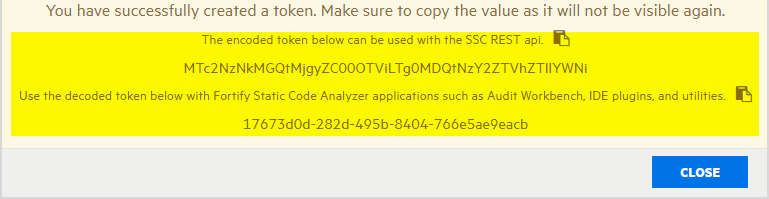
The Create Token dialog box displays a message to let you know the token was successfully created.
Copy either the encoded or decoded token string and save it.
These token values will not be displayed again.
Click CLOSE.
The Token Management page lists the new token.
Authentication tokens are defined at runtime in <ssc_deploy_dir>/WEB-INF/internal/serviceContext.xml.
See Also
Generating an authentication token from the command line
Specifying DaysToLive for fortifyclient authentication tokens