Overriding assigned issue priority
When analysis results are parsed and loaded into Application Security, the scan parser for each supported engine type assigns a priority value to each issue. However, this priority value does not reflect the full context of the affected code or application. Other factors that concern the use of the affected code might justify assigning a different priority. For example, a vulnerability assigned the "critical" priority value might be better classified as "medium" or "low" priority if the section of code in question is never invoked in the application, or if the application is intended for use exclusively by a small department and has no connections to other applications and systems, so the identified vulnerability would have a low likelihood of being exploited. To enable such a use case, Application Security provides the capability for trusted users to change the priority originally assigned to an issue. Such priority changes are reflected in generated reports.
Use of this feature must be considered as a long-term change in that it affects generated reports, computed metrics, and so on, depending on the data in the system. Ensure that, before you use it, you discuss the planned change with your security lead.
Enabling the priority override capability
You can enable priority overrides on your system either during a new deployment or on an existing Application Security instance.
To enable the priority override capability:
-
On the navigation pane of the Administration view, expand Configuration, and then select Issue Audit.
-
Select the Enable Priority Override check box.
-
Click SAVE.
-
Restart the server.
After server restart, the feature is enabled and is applied to all application versions. On the AUDIT page, the issue details (AUDIT tab) now includes the PRIORITY OVERRIDE list tag.
To enable your users to make use of this functionality, create a new user role for them that includes the "Edit restricted custom tag values" permission. Grant these roles only to trusted users who have the knowledge and diligence to accurately assess issue priority. For information about how to create a user role, see Creating custom roles.
Any user roles with permission to edit restricted custom tag values can override issue priority. The system-defined Security Lead role can edit restricted custom tags.
To turn off the priority override capability:
-
On the navigation pane of the Administration view, expand Configuration, and then select Issue Audit.
-
Clear the Enable priority override check box.
-
Click SAVE.
-
Restart the server.
After server restart, the feature is disabled system-wide, and the PRIORITY OVERRIDE list tag is no longer visible in the issue details.
Overriding priority values during an audit
To override the priority value for an issue during an audit:
-
On the AUDIT page, expand the row that contains the issue.
-
On the AUDIT tab in the right pane, from the PRIORITY OVERRIDE list, select the preferred priority value.
-
(Required) In the box outlined in red below the list, type a comment to explain why you changed the value.
If you want to undo the override before you save the audit, click UNDO.
- To save the new priority value and associated comments, click SAVE.
Viewing issues that have changed priority values
To view issues that have priority values that you and others have manually assigned, from the Group by list, select Priority Override.
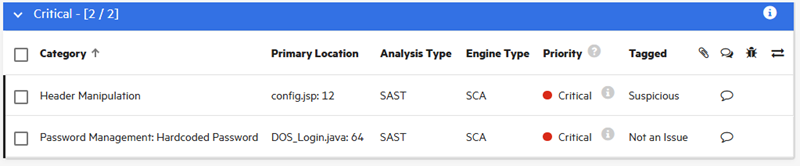
The issues table lists issues with overridden priorities, grouped by the priority override tag value. Issues with unchanged priority values are grouped under Not Set.
To see how the Priority value was changed, point to the information icon.
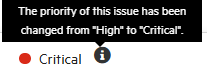
Viewing priority override information in issue reports
If the priority override tag was used in auditing an application version, you can include the information in the issue reports you generate.
To include priority override information in a new issue report, as you specify the parameters for the report, leave the Detailed Report and Categories by Fortify Priority check boxes selected.
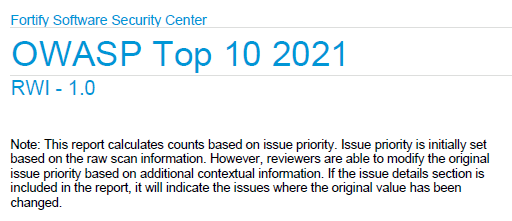
If an issue report includes issues that have overridden priority values (and have Detailed Report and Categories by Fortify Priority options selected), a note to that effect is displayed on the cover page, as shown here:
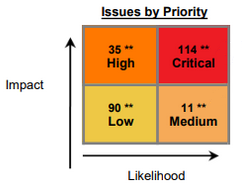
If the priority override feature is used, and the Detailed Report and Categories by Priority parameters are selected (either manually or by default), the Issues by Priority cube in the Executive Summary displays a double asterisk where issues have changed priority values.
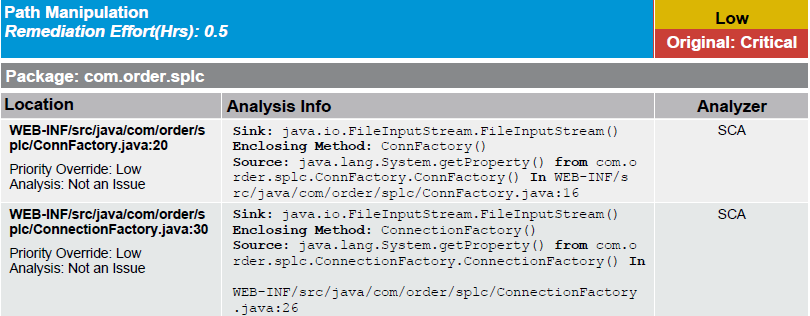
The Issue Details sections of these reports show the current priority values, along with the original priority values.
Reverting to original priority values
If you overrode the original priority value for an issue, and saved it, but you now want to revert the priority value to its original value:
-
On the AUDIT page, expand the row that contains the issue.
-
To the right of the PRIORITY OVERRIDE list tag, click the revert button
 .
. -
(Required) In the box outlined in red below the list, type a comment to explain why you changed the value.
- To save the new priority value and associated comments, click SAVE.
Reports reflect the current effective priority value, whether that is the original priority set by the engine (if unmodified) or the overridden value. If a user changed the priority value, those reports show the changed value. If not, the reports show the original priority.