Viewing issues based on folders
The OVERVIEW and AUDIT pages include Critical, High, Medium, Low, and All links, which you can use to view issues based on their assignment to a Fortify folder. By default, the folders correspond to Fortify priority values (and the potential risk they pose to the enterprise), However, the folders displayed can include any custom folders created in and added to a filter set (and then an issue template) from Fortify Audit Workbench (see the OpenText™ Fortify Audit Workbench User Guide).
When you edit or create filter sets and folders in Fortify Audit Workbench, be aware that the search modifiers used by Fortify Audit Workbench and Application Security might not match. Not all searches, filters, or folders based on search expressions produce the same results. In addition, if your search expression contains external metadata categories such as OWASP or CWE, your results might not match because the expressions might differ on Application Security and Fortify Audit Workbench. When there are multiple matched external categories, Application Security matches any of them, but Fortify Audit Workbench expects an exact match of all external categories. If you encounter this issue when editing or creating issue templates for use in Application Security, contact Customer Support for assistance.
To view issues from the OVERVIEW page based on Fortify folder assignment:
From the Dashboard or Applications view, select the application version of interest, and then select Overview.
The OVERVIEW page for the application version opens. To the left of the Group by and Filter by lists, the total number of issues in their respective folders is displayed. By default, all issues are shown. If you select attributes to filter by, the numbers displayed for the folders change accordingly.
To see the number of issues in a folder that have been reviewed, point to the folder.
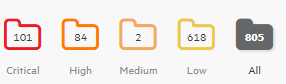
The number of reviewed issues is shown first, followed by the total number of issues. For example, High - [79 / 84] indicates that 79 of 84 total high priority issues were reviewed.
- To view issue charts on the OVERVIEW page based on an assigned folder, select the folder.
To view issues from the AUDIT page based on the Fortify folder assignment:
On the Dashboard, point to the version of the application of interest, and then select Audit.
The AUDIT page for the application version opens. Below the search box, the total number of issues in their respective folders is displayed. By default, all issues are shown. If you select attributes to filter by, the numbers displayed for the folders change accordingly.
To see the number of issues assigned to a given folder that have been reviewed, point to the folder.
The number of reviewed issues is on the left, and the total number of issues is on the right. For example, High - [79 / 84] indicates 79 of 84 total high priority issues were reviewed.
- To list issues on the AUDIT page based on folder assignment, select the folder.
See Also
Filtering issues for display on the OVERVIEW and AUDIT pages