Using Smart view
Smart View provides a visual representation of the dataflow issues in your code so that you can quickly identify optimal remediation or triage strategies for multiple issues at once. To use Smart View:
-
Select Tools > Smart View.
Smart View uses the currently selected folder and grouping option.
The number of issues for the currently selected folder and grouping selection determines the relative size of the Smart View tiles.
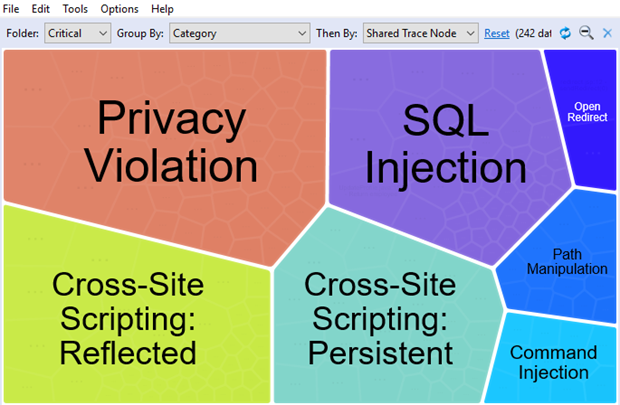
You can adjust the opacity of the parent tile. For instructions, see Customizing the Issues View.
-
To filter the issues that are displayed, you can:
-
Select a grouping from the Folder list (for example, Critical, High, Medium, Low, or All)
This list includes any custom folders and folders specific to the current filter set.
- Select a subfolder in the Group By list to further sort the issues.
-
From the Then By list, select whether you are interested in viewing data by Source, Sink, or Shared Trace Node.
Shared Trace Node is a node (or function) in the code that multiple dataflows pass through.
To reset the display to the default Smart View settings, click Reset. This resets Folder to Critical, Group By to Category, and Then By to Shared Trace Node.
-
-
Click a tile to see the issues in each grouping.
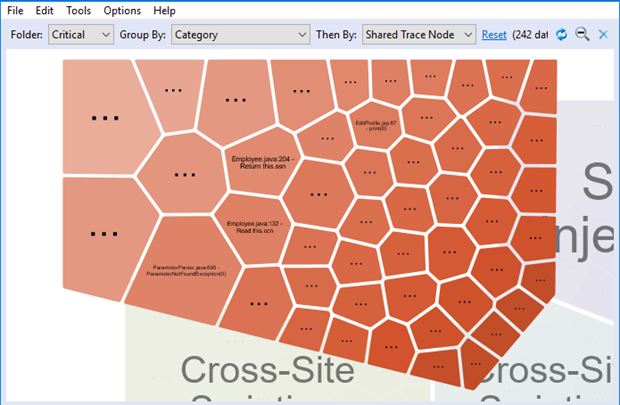
To return to the initial grouping level at any time, click the Zoom out button
 .
. -
To see the issues in the auditing interface that share a common dataflow trace node, source, or sink, move your cursor over the tile you are interested in, and then click View Issues.
This closes Smart View and returns you to the auditing interface and displays the issues for the selected grouping. The Group By category is set to SmartView to indicate that you are viewing the results filtered by the Smart View selection. The search box contains the Smart View symbol and the Smart View search criteria:
 .
.
To return to the primary auditing interface at any time, click the Exit Smart View button  .
.