Creating a custom grouping option
You can create a custom grouping option that groups issues in a hierarchical format in sequential order based on selected attributes.
To create a new grouping option:
-
In the Group By list, select Edit.
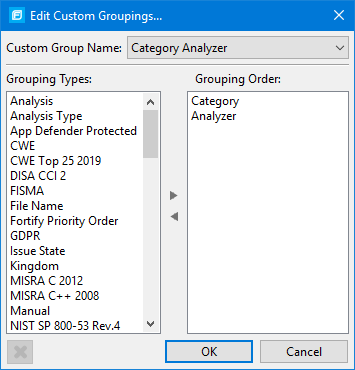
The Edit Custom Groupings dialog box opens.
-
To create a custom group by option, do the following:
- Select Create New from the Custom Group Name list.
- In the Enter Value dialog box, type a name for the new custom group.
- Click OK.
-
From the Grouping Types list on the left, select a grouping type, and then click the right arrow to move the option to the Grouping Order column.
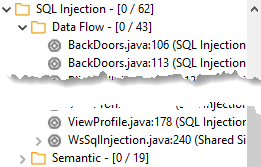
For example, selecting Category and then Analyzer creates a list that has top-level nodes that contain the category of the issue, such as SQL Injection, with the issues grouped below by analyzer (such as Dataflow or Semantic).
-
Repeat step 3 to select additional grouping types.
-
To change the order of the grouping types:
- In the Grouping Order list, select the grouping type that you want to move up or down in the grouping order.
- Right‑click the selected grouping type, and then select Move Up or Move Down.
- To delete a custom grouping, click the Delete button
 .
.