Rescanning projects
This section describes how to rescan a project that was translated locally with new or updated rules. Fortify Audit Workbench automatically loads the FPR project settings such as the build ID and source code path and enables you to change the command-line scanning options.
After OpenText SAST completes the scan, Fortify Audit Workbench merges the analysis results with those from the previous scan to determine which issues are new, which have been removed, and which were uncovered in both scans.
To rescan a project:
- Open an FPR file.
-
Select Tools > Rescan Project.
You can only rescan a project on the same machine where the project was originally scanned.
The Rescan Build ID dialog box opens.
-
If the source code has changed since the most recent scan, click Update Project Translation to re-translate the project.
If the FPR file that you opened was generated by a OpenText SAST scan that was not initiated from Fortify Audit Workbench, then Update Project Translation is unavailable.
If the source code has changed since the most recent scan, you must update the translation before you rescan the code. Otherwise, a new scan cannot uncover the issues in the updated source code.
- (Optional) Modify the OpenText SAST scan phase command-line options, as necessary.
-
To perform a quick scan, select the Enable Quick Scan Mode check box.
-
(Optional) To change the Rulepacks used to analyze the project:
- Click Configure Rulepacks.
- Click to expand the Installed Fortify Security Content.
-
To add and remove Rulepacks, select or clear the check boxes, as necessary.
For instructions on how to add custom security content, see Importing Custom Security Content.
- Click OK.
-
Click Scan.
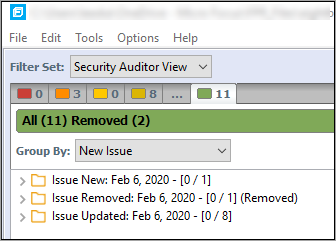
After the scan is complete, Fortify Audit Workbench displays the results. Compare the new results with the issues uncovered in the previous scan as follows:
- To display all new issues, select the All tab (green), and then, in the Group By list, select New Issue. Expand the Issue New group.
- To display removed issues, select the All tab, and then select Options > Show Removed Issues.
-
To review issues found in both the previous scan and the new scan, select the All tab, and then in the Group By list, select New Issue. Expand the Issue Updated group.