Scanning Visual Studio solutions
If you have Visual Studio and the Fortify Extension for Visual Studio installed on the same machine as Fortify Audit Workbench, you can analyze Visual Studio solutions and projects.
To scan a Visual Studio solution:
- Start Fortify Audit Workbench.
-
Under Start New Project, click Visual Studio Build Integration.
The Visual Studio Build Integration command is only available if you have installed the Fortify Extension for Visual Studio with the OpenText™ Application Security Tools installation.
-
Select the folder that contains the solution you want to analyze, and then click Select Folder.
OpenText SAST uses the selected folder name as the build ID.
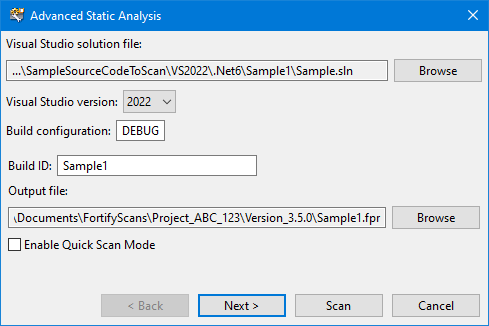
The Advanced Static Analysis wizard opens.
-
Configure the solution settings as follows:
- (Optional) Next to the Visual Studio solution file box, click Browse. Navigate to and select your Visual Studio solution file.
- From the Visual Studio version list, select the Visual Studio version used for the solution.
- In the Build configuration box, leave the default value
DEBUG. - (Optional) In the Build ID box, type a different build ID.
- (Optional) To change the output location and file name, click Browse to the right of Output file.
- To run the scan in quick scan mode, select the Enable Quick Scan Mode check box.
- Click Next.
The Advanced Static Analysis wizard displays details about the OpenText SAST analysis phases for the scan.
- During the clean phase, OpenText SAST removes files from previous translation of the project.
- During the translation phase, OpenText SAST translates source code identified in the previous page into an intermediate format that is associated with a build ID. The build ID is typically the project.
- During the scan phase, OpenText SAST scans source files identified during the translation phase and generates analysis results, in the Fortify Project Results (FPR) format.
-
(Optional) To skip a scanning phase, clear the Enable clean, Enable translation, or Enable scan check box.
For example, if the Rulepacks have changed but the project has not changed, you might want to skip both the clean and the translation phases so that OpenText SAST scans the project without retranslating the source code.
- Modify the command-line options for each OpenText SAST phase, if necessary.
-
(Optional) To specify the amount of memory OpenText SAST uses for scanning:
- Click Configure Memory.
-
Adjust the slider to the amount of memory required.
Fortify Audit Workbench displays the amount of memory you set for OpenText SAST followed by the amount of memory on your system.
- Click OK.
-
(Optional) To analyze the source code using an installed custom Rulepack, or to turn off a Rulepack, do the following:
- Click Configure Rulepacks.
-
In the Installed Fortify Security Content list, clear the check boxes that correspond to any Rulepacks you want to make unavailable during the scan.
For instructions on how to add custom security content, see Importing Custom Security Content.
- Click OK.
- From the Advanced Static Analysis wizard, click Next.
- Select your scan settings, and then click Scan.
OpenText SAST starts the scan and displays progress information throughout the process. If OpenText SAST encounters any problems scanning the source code, it displays a warning.
After the scan is completed, Fortify Audit Workbench loads the audit project and displays the analysis results.