Scanning Java projects
The Audit Guide Wizard combines the translation and analysis phases of the scanning process into a single step. Use this wizard to scan small Java projects that have source code in a single directory.
To scan a new Java project:
- Start Fortify Audit Workbench.
-
Under Start New Project, click Scan Java Project.
-
Select the folder that contains all the source code you want to analyze, and then click Select Folder.
OpenText SAST sets the build ID to the folder name.
-
Select the Java version used for your project, and then click OK.
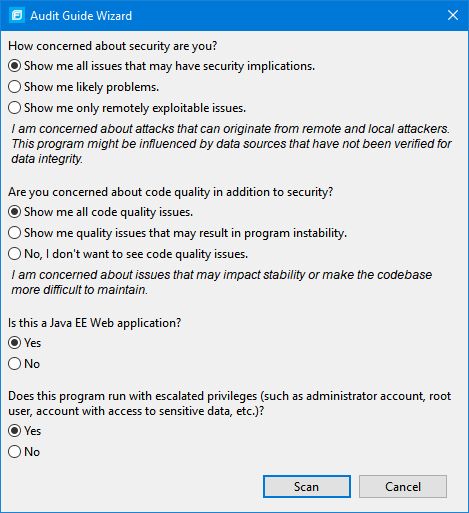
The Audit Guide Wizard opens.
-
Select the settings for the types of issues you want to display in the results, and then click Scan.
OpenText SAST analyzes the source code. If OpenText SAST encounters any problems as it scans the source code, Fortify Audit Workbench displays a warning.
- If a warning is displayed, click OK.
-
After the scan is complete, Fortify Audit Workbench displays the analysis results.
Fortify Audit Workbench stores the analysis results (FPR file) in the following directory:
- Windows:
C:\Users\<username>\AppData\Local\Fortify\AWB-<version>\<build_ID> - Non-Windows:
<userhome>/.fortify/AWB-<version>/<build_ID>
- Windows:
OpenText SAST scans started from Fortify Audit Workbench are invoked with the server Java Virtual Machine.