Performing advanced searches
Use the advanced search feature to build complex search strings.
To use the advanced search feature:
-
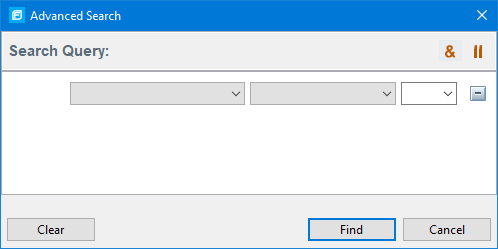
To the right of the search box, click Advanced.
-
To create your search query:
- From the list on the left, select a search modifier.
- From the middle list, select the comparison and type.
- From the list on the right, select a search term.
The list for the search term includes the known values in the current scan for the specified attribute. However, you can type any value into this box. To specify an unqualified search term, select Any Attribute from the bottom of the modifier list.
-
To add another query row, do one of the following:
- To add an AND query row, in the top right corner of the dialog box, click the AND button
 .
. - To add an OR query row, in the top right corner of the dialog box, click the OR button
 .
.
- To add an AND query row, in the top right corner of the dialog box, click the AND button
- Add as many query rows as you need for the search query.
- To delete a row, to the right of the row, click the Delete button
 . To remove all rows, click Clear.
 -
To change a query row condition, double-click the current (underlined) query row operator AND or OR.
In the following example, you can double-click AND to change the query operator to OR.

- Click Find.
As you build your search string, the Advanced Search dialog box displays any errors in the status below the search string builder. Find is only enabled when the search query is error free.