Generating issue reports
To generate an issue report:
-
Select Tools > Reports > Generate BIRT Report.
The Generate BIRT Report dialog box opens.
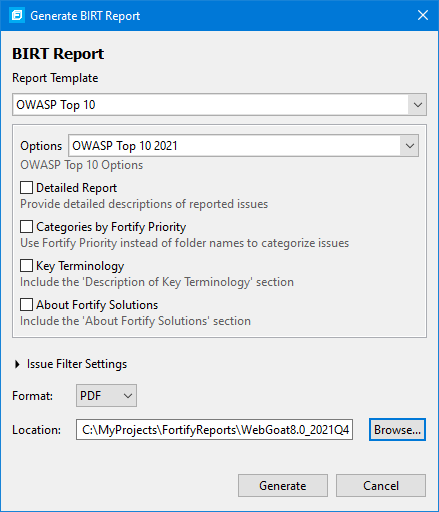
- From the Report Template list, select the type of report you want.
- From the Options list, select the template version (if multiple versions are available).
-
Select the information to include in the report.
Not all options are available for all report templates.
- To include detailed descriptions of reported issues, select the Detailed Report check box.
- To categorize issues by Fortify Priority instead of folder names, select the Categories By Fortify Priority check box.
- To include descriptions of key terminology in the report, select the Key Terminology check box.
- To include the About Fortify Solutions section in the report, select the About Fortify Solutions check box.
-
To filter information from the report, click Issue Filter Settings.
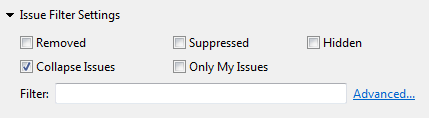
You can filter the issues as follows:
- Click Removed to include removed issues in the report.
- Click Suppressed to include suppressed issues in the report.
- Click Hidden to include hidden issues in the report.
- Click Collapse Issues to collapse issues of the same sink and type into a single issue.
- Click Only My Issues to include only issues assigned to your user name.
- Click Advanced to build a search query to further filter the issues to include in the report. For more information about the search modifiers, see Search Modifiers.
-
From the Format list, select the format for the report.
You can save the report in the following formats: Portable Document Format (PDF), HTML, and Microsoft Word (DOC).
- To specify an alternative location to save the report, click Browse, and then select a directory.
- Click Generate.
-
If a report with the same file name already exists, you are prompted to either:
- Click Overwrite to overwrite the existing report.
- Click Append Version Number to have the report saved to a file with a sequential number appended to the file name (for example:
buildABC CWESANSTop25(1).pdf).