Synchronizing filter sets and folders
To download filter sets and folders configured from Application Security:
-
Select Fortify > Project Configuration.
- Select the Filter Sets tab.
-
Click Synchronize.
A message advises you that downloading filter sets and folders from Application Security overwrites your local filter sets and folders.
-
To proceed with the synchronization, click Yes.
-
If required, provide your Application Security credentials, and then click OK.
For information about logging into Application Security, see Logging in to Application Security.
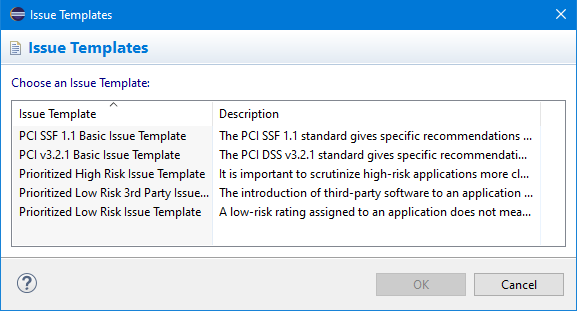
If the current issue template does not exist in Application Security, do the following:
- In the Issue Template column, select an issue template name.
- Click OK.
-
The Fortify Eclipse Complete Plugin downloads the filter sets and folders from the selected issue template in Application Security, and overwrites your current issue template.