Updating Security Content
To optimize the Fortify Eclipse Complete Plugin functionality to scan with OpenText SAST, you must have up-to-date security content. You can update Fortify security content from a configured server or from your local system.
To update security content, you must have OpenText SAST locally installed.
To update security content:
- Select Fortify > Options.
In the left pane, select Security Content Management.
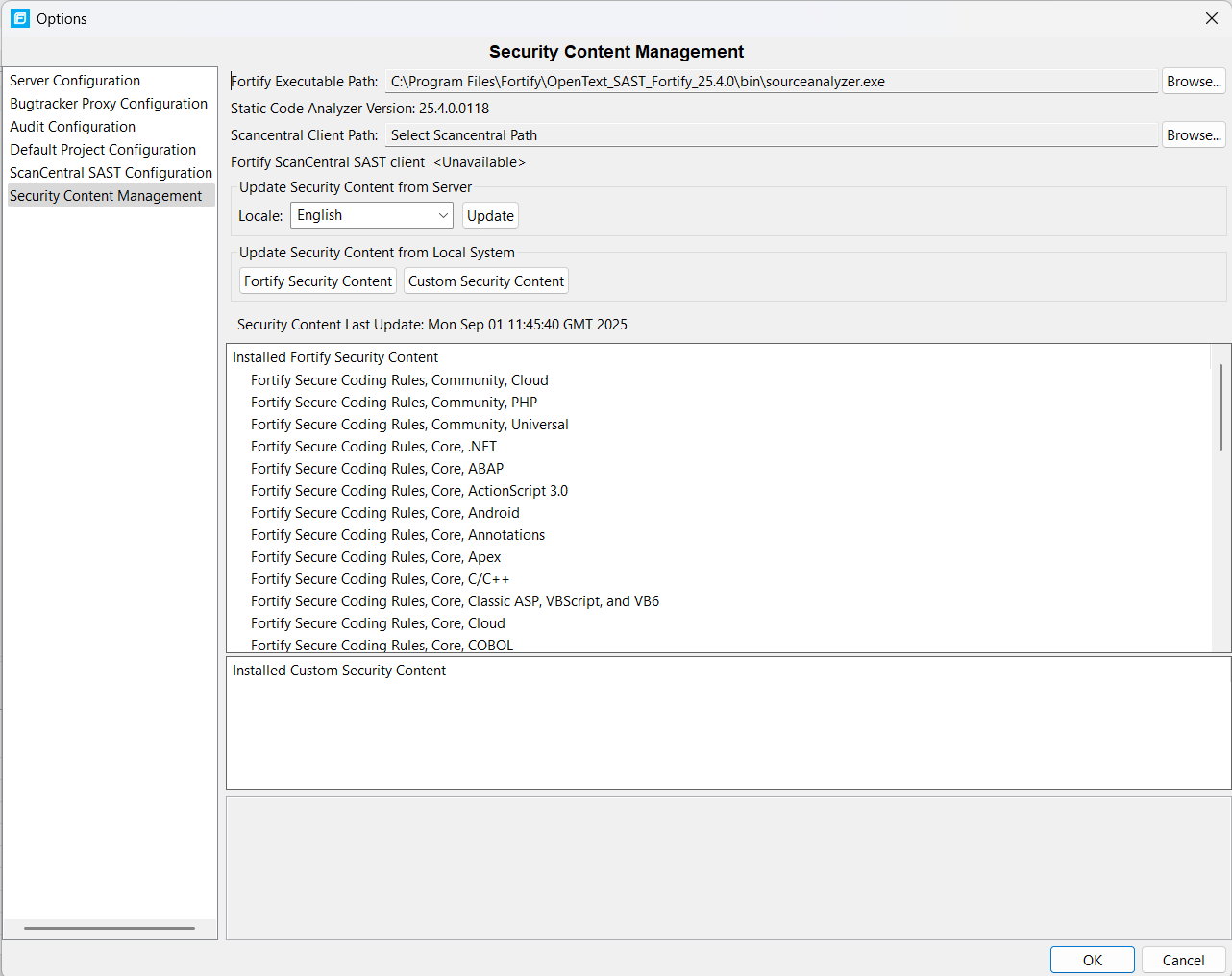
Scroll to the bottom of the Installed Fortify Security Content list to see the external mappings.
Any custom rules and custom external mappings appear in the Installed Custom Security Content list.
You must provide the location of a locally installed OpenText SAST. If the Fortify Executable Path shows <Unavailable>, do the following:
Click Browse to the right of Fortify Executable Path.
Go to the OpenText SAST installation directory and select the executable file.
Make sure to set the file type to sourceanalyzer executable.
- Click OK.
To update Fortify security content from a server, do the following:
(Optional) From the Locale list, select a language.
OpenText provides security content in English, Simplified Chinese, Traditional Chinese, Japanese, Korean, Spanish, or Brazilian Portuguese. Issue descriptions and recommendations are available in the selected language and the Fortify categories are in English.
Click Update.
To update Fortify security content from your local system, under Update Security Content from Local System, do the following:
Click Fortify Security Content.
Navigate to a Fortify security content ZIP file, and then click Open.
All existing security content is replaced with the selected Fortify security content. Any existing custom security content is unchanged.
See Also