Installing the Fortify Eclipse Complete Plugin
You can install the Fortify Eclipse Complete Plugin from either the Eclipse Marketplace or from the plugin component installed with OpenText™ Application Security Tools.
To update from an earlier Fortify Eclipse Complete Plugin version, you must first remove the existing version.
These instructions describe a third-party product and might not match the specific, supported version you are using. See your product documentation for the instructions for your version.
To install the Fortify Eclipse Complete Plugin locally:
- Start Eclipse.
Select Help > Install New Software.
Click Add.
- (Optional) In the Name box, type a name for your local repository.
Select the Fortify Plugin for Eclipse to install by doing one of the following:
To install the plugin from the Eclipse Marketplace, in the Location box type
https://tools.fortify.com/fortifyeclipseplugin.You might need to configure a proxy in Eclipse to reach the location.
To install the plugin from a OpenText™ Application Security Tools installation, click Archive, browse to and select the
<tools_install_dir>/plugins/eclipse/Fortify_Eclipse_Complete_Plugin_<version>.zipfile, and then click Open.
- Click Add.
Expand the Fortify Eclipse Plugins node and select the check boxes for the features you want to install.
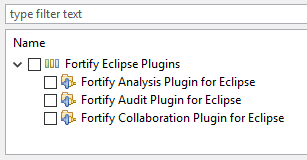
Any required third-party dependencies are automatically installed if they do not already exist on your system.
If you have Eclipse Java Development Tools (JDT) installed, you can clear the Contact all update sites during install to find required software check box to reduce the installation time.
Only the Fortify Analysis Plugin for Eclipse feature requires JDT.
Click Next.
- To display version and copyright information for a plugin in the Details section, click the feature name.
- Click Next.
- On the Review Licenses page, review and accept the terms of the license agreement.
Click Finish.
- To complete the installation and restart Eclipse, click Restart Now when prompted.
After Eclipse restarts, the menu bar includes the Fortify menu.