Configuring ScanCentral SAST options
This section describes how to configure the default ScanCentral SAST options to use when you submit a project for analysis. You can specify how to connect to the ScanCentral SAST Controller, whether to upload analysis results to Application Security, and other ScanCentral SAST settings such as inclusion of test files, sensor pool selection, and notification email address). You can also specify OpenText SAST translation and scan options to include in the analysis.
To configure the ScanCentral SAST options:
Select Fortify > Options.
In the left pane, select Security Content Management
For local translation, you must provide the location of a locally installed OpenText SAST. If the Fortify Executable Path shows <Unavailable>, do the following:
Click Browse to the right of Fortify Executable Path.
Go to the OpenText SAST installation directory and select the executable file.
Make sure to set the file type to sourceanalyzer executable.
- Click OK.
- To configure the ScanCentral SAST client location:
- Click Browse to the right of ScanCentral Client Path
- Go to the ScanCentral SAST installation directory and do one of the following:
- If you are using a standalone client installed with OpenText™ Application Security Tools, navigate to
<tools_install_dir>/bin/scancentral.bat(on Windows) orscancentral(on non-Windows). - If you are using a standalone client installed in a different location, navigate to the installation directory and select
scancentral.bat(on Windows) orscancentral(on non-Windows).
- If you are using a standalone client installed with OpenText™ Application Security Tools, navigate to
In the left pane, select ScanCentralSAST Configuration.
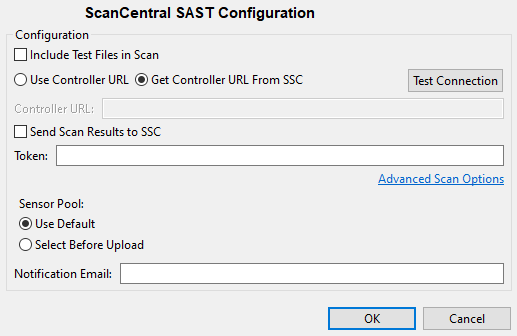
(Optional) Select Include Test Files in Scan to include the test source set (Gradle) or a test scope (Maven) with the scan.
To specify how to connect to ScanCentral SAST, do one of the following:
Select Use Controller URL, and then in the Controller URLbox, type the URL for the ScanCentral SAST Controller.
Example:
https://<controller_host>:<port>/scancentral-ctrlClick Test Connection to confirm that the URL is valid, and the Controller is accessible.
Select Get Controller URL from SSC, and then in the Token box, paste the decoded token value for an authentication token of type ToolsConnectToken.
Make sure that you have the Application SecurityURL that is associated with the ScanCentral SAST Controller provided in the Server Configuration options (see Configuring a Connection to Application Security).
Click Test Connection to confirm that the URL and token is valid, and the server is accessible.
To upload the analysis results to Application Security, select the Send Scan Results to SSCcheck box.
If you have not already specified a Application Security authentication token, do the following:
If you connect to ScanCentral SAST using a Controller URL, analysis results are uploaded to the Application Security server specifically integrated with the ScanCentral SAST Controller.
In the Token box, paste the decoded token value for an authentication token of type ToolsConnectToken.
(Optional) To specify OpenText SAST command-line options for the translation or scan phase (or to specify whether to scan resources in dependent projects):
Click Advanced Scan Options.
Select the Advanced Analysis Options tab.
Select the Use additional SCA options check box and type OpenText SAST command-line options for the translation or scan phase. For detailed information about the available OpenText SAST options and the proper syntax, see the OpenText™ Static Application Security Testing User Guide.
Click OK.
Under Sensor Pool, specify whether to use the default sensor pool or to be provided a list of sensor pools to choose from when you start a ScanCentral SAST scan.
If ScanCentral SAST has SSClockdown mode enabled, ScanCentral SAST automatically uses either the sensor pool associated with a selected application version or the default sensor pool.
(Optional) In the Notification Email box, type an email address for job status notification.
Click OK to save your configuration.