Performing an advanced local scan
Use the advanced scan to change the analysis options from those configured in the analysis settings and perform a local scan for a specific project. Use the advanced scan to translate and analyze Java projects that have source code in multiple directories, have special translation or build conditions, or have files that you want to exclude from the project.
To perform an advanced scan:
Select Tools > Fortify > Advanced Scan.
The Advanced Scan wizard automatically includes all source files configured in the IDE.
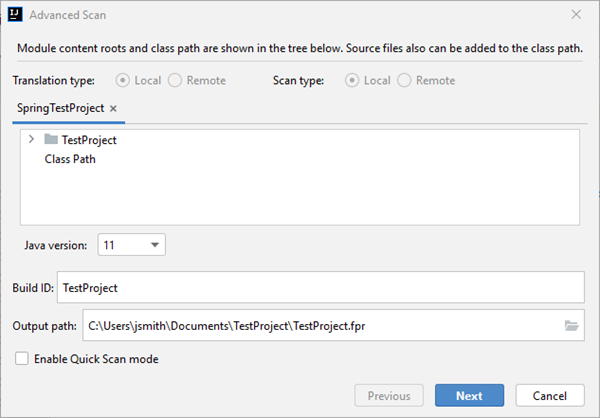
If you scan several modules, the wizard displays several tabs, one for each module. All modules are translated separately but analyzed together. If you want to exclude a module, close its tab.
Make sure that Translation type and Scan type are set to Local.
To run an advanced scan with ScanCentral SAST, see Performing an Advanced Scan with ScanCentral SAST.
- To exclude files or directories that contain, for example, test source code, right-click the file or directory, and then select Exclude.
- The Fortify Analysis Plugin automatically detects the class path from the IntelliJ or Android Studio project settings. To add folders that the plugin has not detected as in the class path, right‑click a build directory, and then select Add to ClassPath.
- From the Java version list, select the Java version for the project.
In the Build ID box, type the build ID.
The project name is the default build ID with unacceptable file system symbols escaped.
- To specify a different output file path than the default, in the Output path box, type the path and file name for the Fortify Project Results (FPR) file that OpenText SAST will generate.
To perform a quick scan, select the Enable Quick Scan mode check box.
For information about quick scans, see About Quick Scan.
Click Next.
A preview of the OpenText SAST command-line options to be used in the analysis is displayed.
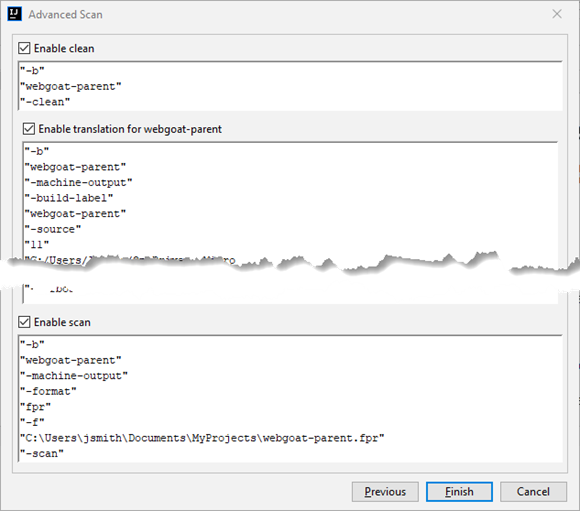
The analysis process includes the following phases:
During the clean phase, OpenText SAST removes files from a previous translation of the project.
During the translation phase, you can see one translation section for each of the selected modules. You can modify the class path and all build parameters for each module separately. OpenText SAST translates source code identified in the previous page into an intermediate format associated with the build ID. (The build ID is typically the project name.)
During the scan phase, OpenText SAST analyzes the source files identified during the translation phase and generates analysis results in the FPR format.
Any additional OpenText SAST options configured on the Advanced Options tab in analysis settings are shown here. You can modify any of the OpenText SAST options. For information about the available command-line options, see the OpenText™ Static Application Security Testing User Guide.
(Optional) To skip an analysis phase, clear the Enable clean, Enable translation, or Enable scan check box.
For example, if the security content has changed but the project has not changed, you might want to disable the translation phase so that OpenText SAST scans the project without retranslating.
- Click Finish.