Configuring advanced local analysis options
Use the advanced analysis settings to customize OpenText SAST translation and scan command-line options. You can also specify whether quick scan mode is enabled, whether to exclude dependent or nested modules, and the location for the analysis results file.
To change the advanced local analysis options:
Select Tools > Fortify > Analysis Settings.
Select the Advanced Options tab.
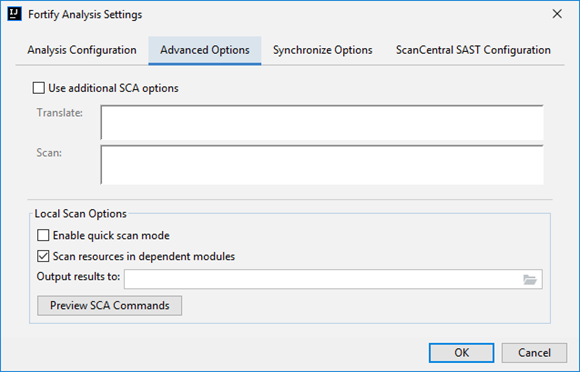
- Select the Use additional SCA options check box.
In the Translate and Scan boxes, type command‑line options for the translation and scan phases, respectively.
For example, if you include the
-verbosecommand‑line option, the Fortify Analysis Plugin sends detailed status messages to the console during the analysis. For information about the available command-line options, see the OpenText™ Static Application Security Testing User Guide.To change the output location for your analysis results, click Browse to the right of the Output results to box, and then, in the Select output directory dialog box, specify the directory in which to save the results.
By default, the analysis results are saved in the source project folder.
To enable quick scan, select the Enable quick scan mode check box.
For more information about quick scans, see About Quick Scan.
By default, the Fortify Analysis Plugin includes all source files from dependent modules in scans. To exclude dependent or nested modules from analysis, clear the Scan resources in dependent modules check box.
Although you can scan individual modules, analysis results are more accurate if you scan an entire project together.
- (Optional) Click Preview SCA Commands to see the OpenText SAST command-line options to be used in the analysis.
- Click OK.
See Also