Scanning projects with ScanCentral SAST
Before you can scan your project with ScanCentral SAST, you must configure the ScanCentral SAST options as described in Configuring ScanCentral SAST Options. To override the default ScanCentral SAST options for a specific project, use the Advanced Scan wizard (Performing an Advanced Scan with ScanCentral SAST.
To scan a project with ScanCentral SAST:
-
Start the scan by doing one of the following:
-
To perform a remote translation and remote scan, select Tools > Fortify > Analyze Project with ScanCentral > Remote Translation.
-
To perform a local translation and remote scan, select Tools > Fortify > Analyze Project with ScanCentral > Local Translation.
-
-
If prompted, select the application version where you want to upload the analysis results, and then click OK.
-
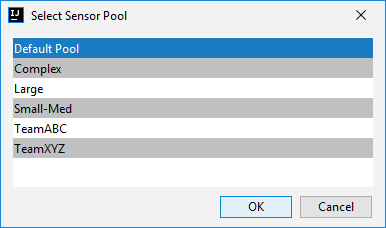
If prompted, select a sensor pool from the Select Sensor Pool dialog box, and then click OK.
If ScanCentral SAST is in SSC lockdown mode, then you must select the default sensor pool.
To view the analysis results, you can either:
-
Copy the provided job token and use it in the ScanCentral SAST command-line interface to check the status and retrieve the analysis results (see the OpenText™ ScanCentral SAST Installation, Configuration, and Usage Guide). You can then open the analysis results (FPR) file in Fortify Audit Workbench.
If you need to retrieve the job token, you can find it in the ScanCentral SAST log file. For default log file locations, see Locating Log Files.
-
If you uploaded the analysis results to Fortify Software Security Center, you can check the status of the job (and view the analysis results) on the Fortify Software Security Center server. After the scan is complete, you can use the OpenText™ Fortify Remediation Plugin for IntelliJ IDEA and Android Studio to view the analysis results in IntelliJ or Android Studio (see the OpenText™ Fortify Remediation Plugin for IntelliJ IDEA and Android Studio User Guide in Fortify Remediation Plugin for IntelliJ IDEA and Android Studio Documentation).