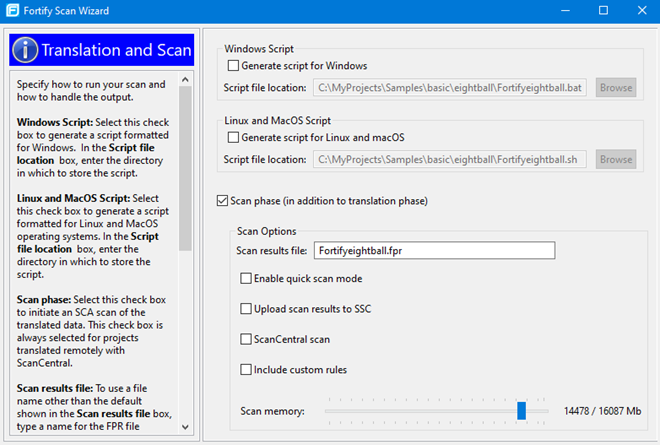
Fortify Scan Wizard uses the information you provide to create a script with the commands for OpenText SAST to scan project code and optionally upload the analysis results to Application Security. You can use Fortify Scan Wizard to create a script that runs your scans locally or sends them to ScanCentral SAST for all or part of the analysis.
To use Fortify Scan Wizard, you need access to the build directory of the projects you want to scan. The following table describes some of the required information you will need, depending on how you will analyze the project and if you want to upload the scan results to Application Security.
If Application Security or the ScanCentral SAST Controller uses an SSL connection from an internal certificate authority or a self-signed certificate, you must add the certificate to the Java keystore for OpenText SAST (see the OpenText™ Static Application Security Testing User Guide).
| Task |
Requirements |
Perform a local analysis with OpenText SAST
|
-
OpenText SAST installed on the system where the generated script will be run.
You can generate the script on a different platform without OpenText SAST, and then transfer the script to the system where it will be run.
|
| Perform a remote analysis (translation and scan phases) with ScanCentral SAST |
-
Either a ScanCentral SAST client installed with the OpenText™ Application Security Tools installation or a standalone ScanCentral SAST client installation (see the OpenText™ ScanCentral SAST Installation, Configuration, and Usage Guide for instructions)
The ScanCentral SAST client is no longer included in the OpenText SAST installer. -
A ScanCentral SAST Controller URL
If you are also uploading analysis results to Application Security, then you do not need to specify a Controller URL. The ScanCentral SAST that is integrated with the Application Security server is used in this case.
-
Your project must be in a language that ScanCentral SAST supports for translation. See the OpenText™ Application Security System Requirements for a list of supported languages.
|
| Perform a local OpenText SAST translation and a remote scan with ScanCentral SAST |
-
A ScanCentral SAST client installed with the OpenText™ Application Security Tools installation or a standalone ScanCentral SAST client installation
-
A ScanCentral SAST Controller URL
-
A Source Analyzer Path to the OpenText SAST sourceanalyzer.exe file.
|
| Upload analysis results to Application Security |
-
An Application Security server URL
If you are using ScanCentral SAST, the Application Security server must be integrated with the ScanCentral SAST Controller.
-
Your Application Security login credentials
If you do not have Application Security login credentials, you must have an application name and version that exists in Application Security.
-
An authentication token of type ToolsConnectToken
If you do not have a token, you can use Fortify Scan Wizard to generate one. To do this, you must have Application Security login credentials.
|
If you generate a script for a Windows system, you cannot run that script on a non-Windows system. Likewise, if you generate a script for a non-Windows system, you cannot run it on a Windows system.