Removing a folder
You can remove a folder from a specific filter set without removing it from other filter sets.
To remove a folder:
-
From the Fortify extension menu, select Project Configuration.
- Select the Folders tab.
-
From the Folders for Filter Set list, select a filter set, other than (All Folders), that contains the folder you want to remove.
The folders in the selected filter set are listed.
-
In the Folders list, select the folder you want to remove.
-
To the right of Folders, click the Remove Folder button
 .
.The folder is only removed from the selected filter set.
If the folder is a target of a folder filter, the Conflicts Occurred Removing Folder dialog box opens.
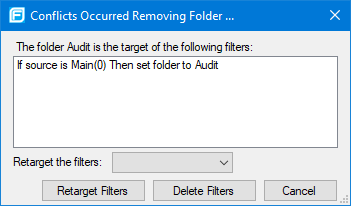
Do one of the following:
- To target the filter to a different folder, select a folder from the Retarget the filters list, and then click Retarget Filters.
- To delete the filter, click Delete Filters, and then click Yes to confirm the deletion.
- Click OK to close the Project Configuration dialog box.
The folder is no longer displayed as a tab in the Analysis Results window.