Advanced scanning of solutions with ScanCentral SAST
You can customize the ScanCentral SAST scan configuration for the current solution. You can adjust the translation type (local or remote), OpenText SAST options for translation and scan, whether to upload analysis results to Application Security, and the sensor pool selection.
To run a customized scan using ScanCentral SAST:
-
From the Fortify extension menu, select ScanCentral > Advanced Scan.
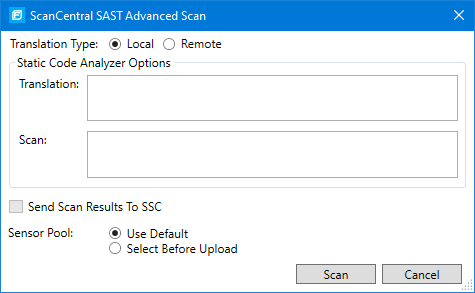
Any existing ScanCentral SAST configuration options are displayed in the ScanCentral SAST Advanced Scan dialog box.
-
Specify where to run the translation phase of the analysis by selecting one of the following:
-
Local—Run the translation phase on the local system and the scan phase with ScanCentral SAST.
-
Remote—Run the entire analysis using ScanCentral SAST.
-
-
To specify OpenText SAST command-line options for the translation or scan phase, under Static Code Analyzer Options, type command-line options for the translation and scan phase.
For detailed information about the available OpenText SAST options and the proper syntax, see the OpenText™ Static Application Security Testing User Guide.
-
To upload the analysis results to Application Security, select the Send Scan Results to SSC check box.
If this check box is not available, you must first configure an authentication token in the ScanCentral SAST Configuration options (see Configuring ScanCentral SAST Options).
-
Specify whether to use the default sensor pool or be prompted to select a sensor pool from a list.
-
Click Scan.
-
If prompted, select the application version where you want to upload the analysis results, and then click OK.
-
If prompted, select a sensor pool from the Select Sensor Pool dialog box, and then click OK.
To view the analysis results, you can either:
-
Copy the provided job token and use it in the ScanCentral SAST client command-line to retrieve the analysis results (FPR) file from the ScanCentral SAST Controller (see the OpenText™ ScanCentral SAST Installation, Configuration, and Usage Guide for instructions), and then open it in Visual Studio (see Opening Audit Projects).
-
If you uploaded the analysis results to Application Security, you can check the status of the job (and view the results) on the Application Security server. After the scan is complete, you can open the analysis results in Fortify Extension for Visual Studio (see either Performing a Collaborative Audit or Remediating Results from Application Security).