Configuring security content updates
You can configure the server from which to update security content and whether to have the security content updated from a server automatically. To configure these settings, you must provide the location of a locally installed OpenText SAST. You can specify the location of OpenText SAST on the Security Content Management options page.
To update security content from your local system (if you do not have an internet connection or a Application Security server), see Updating Security Content.
To configure the server from where you will obtain security content:
From the Fortify extension menu, select Options.
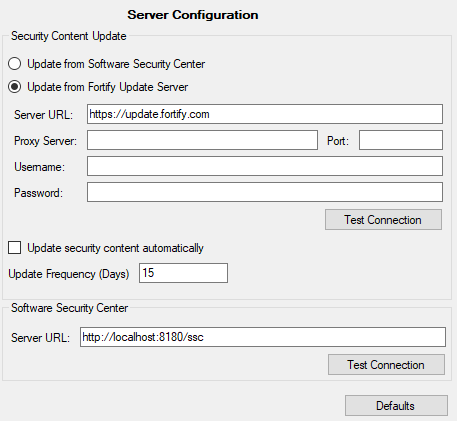
The Options dialog box opens to the Server Configuration page.
To update security content from your Application Security server:
Under Security Content Update, select the Update from Software Security Center check box.
- Under Software Security Center, specify the Server URLfor Application Security (for example,
http://my.domain.com:8080/ssc).
To update security content from the Fortify Rulepack update server:
Under Security Content Update, select the Update from Fortify Update Server check box.
- In the Server URLbox, type the URL for the Fortify Rulepack update server.
If required, specify the proxy server, port number, and credentials for proxy authentication.
When you specify the proxy settings, exclude the protocol from the proxy server (for example,
some.secureproxy.com). You must specify a proxy port number.
To update security content from a server automatically and with a specific frequency:
- Under Security Content Update, select the Update security content automatically check box.
- In the Update Frequency (Days) box, specify how often to update Application Security content.
See Also