Logging in to Application Security
The first time you perform an operation that requires a connection to Application Security such as uploading an audit project or opening a collaborative application, you are prompted to log in. Before you can log in, you must have already configured the Application Security URL as described in Configuring a Connection to Application Security.
To log in to Application Security:
-
From the Login method list, select the login method set up for you in Application Security.
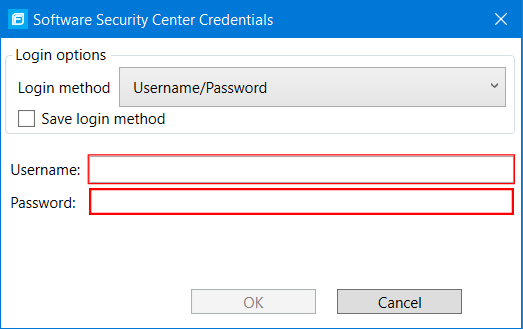
-
To save your login information, select the Save login method check box.
The Fortify Extension for Visual Studio saves your login information for all future use of this extension until you install a new Fortify Extension for Visual Studio.
-
Depending on the login method you selected, do one of the following:
Login Method Procedure Username/Password Type your Application Security user name and password. Authentication Token Specify the decoded value of a Application Security authentication token of type ToolsConnectToken.
For instructions on how to create an authentication token from Application Security, see the OpenText™ Application Security User Guide
X.509 SSO Application Security must be configured to use X.509 Certification-based SSO.
Your certificate must be in the current user certificate store and in the Personal store.
- Click the Browse for Certificate button
 .
. - Select the certificate for the sign-on, and then click OK.
Kerberos <<deprecated in SSC 24.4 and will be removed in 25.2 Remove now?>>Application Security must be configured to use SPNEGO-based Kerberos authentication.
Support for Kerberos SSO is limited to Windows systems.
- Click the Browse for Certificate button
- Click OK to connect to Application Security.