Running an Enterprise Scan
An enterprise scan provides a comprehensive overview of your Web presence from an enterprise network perspective. Fortify WebInspect will automatically discover all available ports for a range of IP addresses. You can then select which servers to assess for vulnerabilities from all servers that are discovered.
To start an Enterprise Scan:
-
Do one of the following to launch the Enterprise Scan Wizard:
-
On the Fortify WebInspect Start Page, click Start an Enterprise scan.
-
Click File > New > Enterprise Scan.
-
Click the drop-down arrow on the New icon (on the toolbar) and select Enterprise Scan.
-
On the Fortify WebInspect Start Page, click Manage Scheduled Scans, click Add, and then select Enterprise Scan.
-
-
On Step 1 of the Enterprise Scan Wizard, specify when you want to conduct the scan. The choices are:
-
Immediately: The scan will run immediately after finishing the Scheduled Scan Wizard.
-
Run Once Date / Time: Modify the date and time when the scan should begin. You can click the drop-down arrow to reveal a calendar for selecting the date.
-
Recurrence Schedule: Use the slider to select a frequency (Daily, Weekly, or Monthly). Then specify the time when the scan should begin and (for Weekly or Monthly) provide other schedule information.
-
-
Click Next.
-
On Step 2 of the Enterprise Scan Wizard, in the Enterprise Scan Name box, enter a unique name for this enterprise scan.
-
At this point, you can perform one or more of the following functions:
-
 Instruct Fortify WebInspect to discover all available servers within a range of IP addresses and ports that you specify.
To discover Web servers:
-
Click Discover.
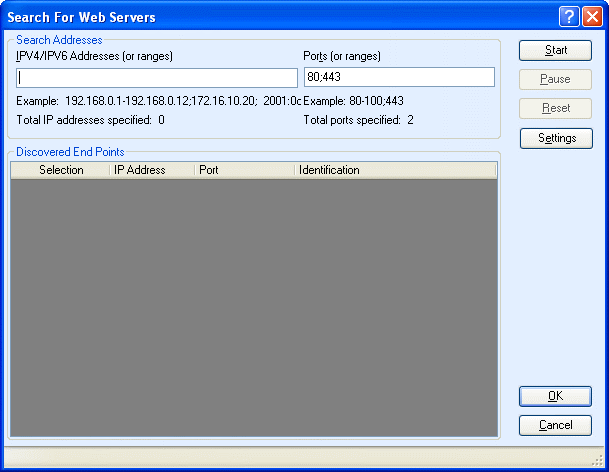
The Search for Web Servers window appears.
-
In the IPV4/IPV6 Addresses (or ranges) box, type one or more IP addresses or a range of IP addresses.
-
Use a semicolon to separate multiple addresses.
Example: 172.16.10.3;172.16.10.44;188.23.102.5 -
Use a dash or hyphen to separate the starting and ending IP addresses in a range.
Example: 10.2.1.70-10.2.1.90.
Note: IPV6 addresses must be enclosed in brackets. See Internet Protocol Version 6.
-
-
In the Ports (or ranges) box, type the ports you want to scan.
-
Use a semicolon to separate multiple ports.
Example: 80;8080;443 -
Use a dash or hyphen to separate the starting and ending ports in a range.
Example: 80-8080.
-
-
(Optional) Click Settings to modify the number of sockets and timeout parameters used for the discovery process.
-
Click Start to initiate the discovery process.
Results display in the Discovered End Points area.
-
Click an entry in the IP Address column to view that site in a browser.
-
Click an entry in the Identification column to open the Session Properties window, where you can view the raw request and response.
-
-
To remove a server from the list, clear the associated check box in the Selection column.
-
Click OK.
The IP addresses appear in the "Hosts to Scan" list.
-
-
Enter individual URLs or IP addresses of hosts to scan.
To manually enter a list of URLs or IP addresses you want to scan.
-
Click Add.
The Scan Wizard opens.
-
Provide the information described in Running a Basic Scan (Web Site Scan).
-
Repeat for additional servers.
-
-
Import a list of servers that you want to scan (using a list that you previously created).
If you previously used the Enterprise Scan feature or the Web Discovery tool to detect servers and then exported your findings to a text file, you can load those results by clicking Import and then selecting the saved file.
-
Edit the 'Hosts to Scan' List
After building a list of servers using one or more of the above methods, you can modify the list .
To modify the settings for a specific scan:
-
Select a server.
-
Click Edit.
The Scan Wizard opens.
-
Change the settings.
-
Click Finish (on the Edit Basic Scan window).
To delete a server from the list:
-
Select a server.
-
Click Delete.
Export a List
To save the "Hosts to Scan" list:
-
Click Export.
-
Using a standard file-selection window, specify the file name and location.
Start the Scan
To begin the enterprise scan, click Schedule. Each server's scan results will automatically be saved upon completion in your default Scans folder. The name of the server, along with a date and timestamp, will be included in the file name.
Note: Fortify WebInspect licenses permit users to scan specific IP addresses or a range of addresses. If a server has an IP address that is not permitted by your license, that server will not be included in the scan.