Using filters and groups in the Summary pane
This topic describes how to use filters and groups in the Summary pane.
Using filters
You can display a subset of items that match the criteria you specify using either of two methods:
-
Enter filter criteria using the combo box in the top right corner of the pane.
Note: Click the filter criteria box and press CTRL + Space to view a pop-up list of all available filter criteria, and then enter a value for that criterion.
-
Right-click a value in any column and select Filter by Current Value from the shortcut menu.
This filtering capability is available on all Summary pane tabs except Scan Log.
No filters
The following example shows unfiltered items on the Findings tab.
 Summary Pane with No Filters Image
Filtered by Method:Get
The following example is rendered after entering "Method:Get" in the filter criteria box.

Note that the filtering criteria (Method:Get) appears in the combo box, which also contains a red X. Click it to remove the filter and return the list to the original contents.
Specifying multiple filters
To specify multiple filters when typing criteria in the filter criteria combo box, insert a comma between filters (such as Parameter:noteid, Method:GET).
Filter criteria
You can enter the following identifiers:
-
application - Application or framework in which the vulnerability is found
-
check - Check name
-
checkid - Check ID number from SecureBase
-
cookienamerp - Cookie name in the HTTP response
-
cookienamerq - Cookie name in the HTTP request
-
cookievaluerp - Cookie value in the HTTP response
-
cookievaluerq - Cookie value in the HTTP request
-
cwe - Common Weakness Enumeration (CWE) ID
-
duplicates - Duplicates detected by OpenText DAST Agent
-
filerq - File name and extension in the HTTP request
-
headernamerp - Header name in the HTTP response
-
headernamerq - Header name in the HTTP request
-
headervaluerp - Header value in the HTTP response
-
headervaluerq - Header value in the HTTP request
-
kingdom - Value from Seven Pernicious Kingdoms (for more information, see Application settings: General)
-
location - Path plus parameters identifying the resource
-
manual - A location added manually (syntax is manual:True or manual:False)
-
method - HTTP method (GET, POST)
-
methodrq - Method specified in HTTP request
-
parameters - Parameters specified in the HTTP request
-
path - Path identifying the resource (without parameters)
-
pendstatus - Status if the scan were to be published to Application Security
-
rawrp - Raw HTTP response
-
rawrq - Raw HTTP request
-
responselength - Response size in bytes for the vulnerable session
-
reteststatus - Retest Status values (for a list of values, see Retesting vulnerabilities)
-
sessiondataid - Session data identifier (right-click on a session in the Navigation pane and select Filter by Current Session)
-
severity - Severity assigned to a vulnerability (critical, high, medium, low)
-
stack - Stack tracereturned by OpenText DAST Agent (syntax is stack:True or stack:False)
-
statuscode - HTTP status code
-
typerq - Type of request: query, post, or SOAP
-
vparam - The vulnerability parameter
Using groups
You can group items into categories based on the column headings. To do so, simply drag the heading and drop it on the grouping area at the top of the pane.
The findings in the following illustration are grouped by severity and then by check name.
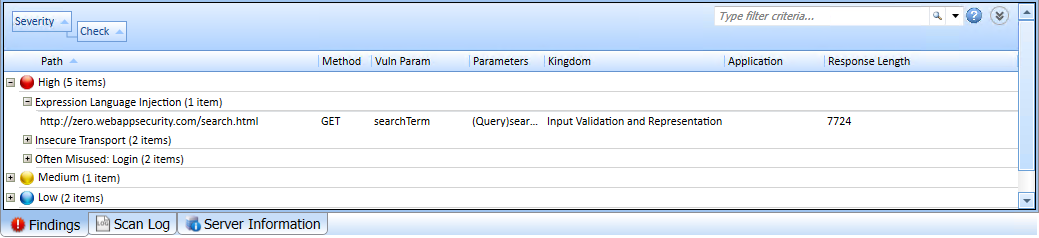
If you right-click a column header, OpenText DAST displays the following shortcut menu items related to grouping and filtering:
-
Group by Field - Groups vulnerabilities according to the field you selected.
-
Group by Box - Shows the "Group By" area in which you can arrange grouping by column headers.
-
Columns - Enables you to select which columns are displayed.
-
Save as Default View - Saves the current grouping paradigm as the default for all scans.
-
Reset Default View - Restores the grouping paradigm to the default view that you created.
-
Reset Factory Settings - Restores the grouping paradigm to the original view (Severity > Check).