This chapter describes the installation verification procedure (IVP) you
can use to check that the Mainframe Subsystem Support software is installed
and working properly. The installation verification procedure involves starting
an enterprise server and terminal emulation, signing on and running a
transaction.
The steps involved in running the installation verification procedure
are:
- Start Enterprise Server Administration
- Import an enterprise server: the installation software comes with an enterprise server configuration file that you can import and use for installation verification.
- Start the enterprise server
- Connect to the enterprise server
- Run the installation verification procedure
These steps are covered in the following sections.
To start Enterprise Server Administration, click on Micro Focus Servers in the Server Explorer pane and select Administration from the drop-down menu.
The installation software comes with an Enterprise Server configuration file. You can import this file and use the server that it configures for installation verification.
To import the Enterprise Server installation
verification configuration file:
- On the Enterprise Server Administration screen, under Actions at the left, click Import to display the Import server information screen. The Recent Directories field displays two entries. For example, with Windows XP, the verification enterprise server entry is:
C:\Documents and Settings\All Users\Application Data\Micro Focus\NetExpress\6.0\MFDS\MSSIVP\
- Select the verification enterprise server entry and click Next.
- Click Next three more times to accept the default settings, then on the Import server information (Page 4 of 4) screen, click OK.
- Select the Listeners tab, and verify the following information to enable you to use a TN3270
emulator:
| Field |
Value |
| Name |
tn3270 |
| Endpoint address |
The default endpoint address is 9010. Check with the
system administrator that this is not used by other
applications. If it is, configure another endpoint address to use. |
| Supported Conversation Type |
Check TN3270 |
Having enabled the enterprise server for CICS applications and
specified the location of the files required for the installation verification
procedure, the next step is to start the enterprise server.
To start the enterprise server for use with the installation verification
procedure:
- In the table of servers on the Home page of Enterprise Server
Administration, find the row for the server that you want to start, and click
Start in the Current Status column.
The value in Current Status changes to
"Starting". If you have Show local
console checked on the Edit Server page, the enterprise server
console daemon window appears indicating the progress of the process of
starting the server.
- After a few seconds, click Refresh on the Home
page.
The value in Current Status changes to
"Started".
Once you have configured and started the enterprise server, you need to
start a 3270 emulator from which you can run the installation verification
procedure.
To connect to the enterprise server:
- Start a TN3270 emulator.
- Specify the following connection information (if appropriate):
| Field |
Value |
| Host name |
The name of the computer the enterprise server is running on.
This is localhost if it is the current machine. |
| Port |
The number you specified for the field Endpoint
address in the section
Configuring an Enterprise
Server. |
- Connect.
Note: Micro Focus does not provide a TN3270 emulator, so you
need to use a third-party TN3270 emulator.
This section describes how to run the installation verification
procedure once you have configured and started the enterprise server and
connected to it with a 3270 emulator. When you first connect, a 3270 terminal
is displayed with a screen prompting you for a USERID and PASSWORD.
To run the installation verification procedure:
- Press Clear (3270 key).
The display clears.
- Enter the following command:
CFCR ACCTFIL
The following messages are displayed:
Base - ACCTFIL KSDS Key 1 for 5 VARIABLE 63 to 383
ACCTIX     ALTR   Key    6 for   12

CFCR - File successfully created
- Press Clear (3270 key).
The display clears.
- Enter the following command:
acct
The following screen is displayed.
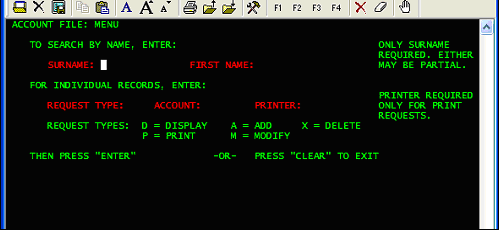
Figure 2-1: Running the Installation Verification Procedure
- Press Tab until the cursor is positioned in the
field immediately following the label REQUEST TYPE.
- Enter ACCT. A screen headed ACCOUNT FILE: MENU
appears. You can now add a record to the demonstration account file. Tab to the
REQUEST TYPE field and type in the character
A; then enter 22222 in the
ACCOUNT field.
- Fill in the fields as follows:
| Field |
Value |
| SURNAME |
SMITH |
| FIRST |
JOHN |
| MI |
S |
| TITLE |
MR |
| TELEPHONE |
501234 |
| ADDRESS (1) |
59 THE COURT |
| ADDRESS (2) |
WOODED AVENUE |
| NO. CARDS ISSUED |
1 |
| DATE ISSUED |
03 04 98 |
| REASON |
N |
| CARD CODE |
X |
| APPROVED BY |
GGC |
Other fields are optional, so you can leave them blank.
- Press Enter.
- Display the record you have just entered by typing
SMITH into the SURNAME field and
pressing Enter.
- Press Clear (3270 key).
The display clears.
- Enter exit to disconnect the 3270
emulator.
- In the table of servers on the Home page of Enterprise Server
Administration, find the row for the server that you are using, and click
Stop in the Current Status column.
The value in Current Status changes to
"Stopping". If you have Show local
console checked on the Edit Server page, the enterprise server
console daemon window appears indicating the progress of the process of
stopping the server. After a few seconds the value in
Current Status changes to "Stopped".
Copyright © 2008 Micro Focus (IP) Ltd. All rights reserved.