 Related Topics
This appendix provides you with the information you need that is specific to the Database Connector™ for Microsoft SQL Server. For information on extending an existing CICS application to use Database Connectors™ for Microsoft SQL Server, see the following chapter, Extending CICS Applications to Use Database Connectors™ for Microsoft SQL Server.
A quick overview of some basic design concepts underlying the Microsoft SQL Server (MSSQL) Database Management System (RDBMS) will help you interface your COBOL program to it.
An MSSQL "server" is one copy of the database engine executing on a computer. A server has a name, and when a program wants to access the database controlled by a server, the program asks for a connection to that server by name. Multiple servers can be executing on a single machine, controlling different databases. The default name that MSSQL gives to a server is localhost. (The naming of servers is discussed under the ACUFH configuration variable A_MSSQL_DEFAULT_CONNECTION.)
A_MSSQL_DEFAULT_CONNECTION configuration variable
Table names in MSSQL have the form database.owner.table_name. Within MSSQL, if you are the owner of a given table, you can refer to it as just table_name. If you are not the owner, you must refer to it with the owner of the table as a prefix. Different owners can thus have tables of the same name. However, this is not true when you use the Database Connector for MSSQL interface.
The Connector works a little differently: it automatically determines the owner name it will use to reference a table. It is therefore essential that there not be multiple tables with the same name in a single database, even though the tables have different owners. If there are such multiple tables, the Connector will not necessarily find the correct one, and no diagnostic will be issued.
Note that table names include dots (.) as separators. Because of this, you must make sure there are no extensions on COBOL file names that will be converted to table names. For example, if you had a COBOL file named IDX1.DTA, the Connector would attempt to open a table "DTA" with owner "IDX1." You can avoid this problem either by renaming your COBOL file in your source program or by using an ACUFH configuration file variable to map the file name to an allowable file name, such as:
IDX1.DTA IDX1
In the above example, IDX1.DTA is the name in the ASSIGN clause of the file's SELECT statement.
If you map your file name to a new name, we recommend that you simply drop the extension to form the new name. Here's why. The Compiler uses the base file name — without the extension — to create the eXtended File Descriptor (XFD) file name IDX1.XFD. (XFDs are explained in detail in the chapter XFDs.) The run-time system needs to be able to locate this file. But if you've mapped the file name to something completely different (such as MYFILE), the run-time system will look for an XFD file named MYFILE.XFD. So you'd have to remember to change the name of IDX1.XFD to MYFILE.XFD in the XFD directory. Save yourself this extra step by simply dropping the extension when you map the name. (For an alternate method of removing file extensions, see the ACUFH configuration variable 4GL_IGNORED_SUFFIX_LIST.)
Security is implemented in the MSSQL RDBMS. A user is required to log in to the RDBMS before any file processing can occur. The Connector provides both a default and a user-configurable method for implementing this.
Generally, it is best for someone with database administrator (DBA) privileges to create and drop the tables, allowing others only the permissions to add, change, or delete information contained in them.
See the Microsoft SQL Server documentation for more details on DBA privileges.
You must perform several steps before you begin using the Connector on a new system. The following topics provide this information:
The MSSQL RDBMS, version 6.5 or later, must be installed and configured prior to the installation of Database Connector for MSSQL.
Microsoft SQL Server's Query Analyzer, an interactive query tool, is also necessary for installing the reUZE Developer stored procedures.
Micro Focus does not provide these products.
Note: The default sort order for MSSQL is case-independent. Make sure that this is what you really want when you install the server. The Connector will use the sort order as installed and cannot change its behavior to do case-dependent ordering if that is not what the server uses.
First you must install the files from the Micro Focus installation media onto the client machine. Then follow the instructions below for the server machine. Final setup steps on the client machine complete the installation.
Be sure to use the 64-bit libraries with a 64-bit run-time system and 64-bit Database Connector for MSSQL, and the 32-bit libraries with a 32-bit run-time system and 32-bit Connector for MSSQL.
The Database Connector interface for MSSQL is an add-on module. The installation includes a .DLL file that is detected at run time. It is not necessary for 32-bit users to relink the run-time system.
The Connector can be executed on a machine that is running any 32-bit Windows platform from Microsoft. The following diagram shows the supported machine configurations:
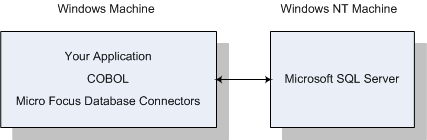
Figure C-1: Database Connectors on a Client Machine
Note that the client machine may be the same machine as the server.
Installation instructions for each of these configurations are given in the links below. The instructions describe the steps you must follow on both the client machine and the server machine.
Once the installation is complete, please return to this appendix for setting up Database Connector for MSSQL.
Installation instructions for Microsoft SQL Server are provided by Microsoft and need to be read and understood to install the Windows client. Be sure to choose your communication method at the client machine. To do this, follow the instructions provided with your SQL Server software.
The Connector must be able to connect to a user account. You may set up either one general account for all users or an account for each individual user. To set up an account, you must have DBA privileges.
For additional information on setting up user accounts, see sp_addlogin and sp_add user in the Microsoft SQL Server Commands Reference Manual.
The user's account should have been set up correctly to access the MSSQL RDBMS system. This includes environment variables such as DSQUERY. See your Microsoft SQL Server documentation for more details.
In addition to setting the variables required for MSSQL, you must do the following:
SET ENVIRONMENT "A_MSSQL_PASSWD" TO user-entryIf you are opening an existing file, all file systems linked into the run-time system will be searched for the named file. If, however, you are creating a new file, you will need to tell the run-time system which file system to use. You accomplish this with one of the following ACUFH configuration file variables:
DEFAULT_HOST filesystem
or
filename_HOST filesystem
Use the DEFAULT_HOST variable to designate the file system to be used for newly created files that are not individually assigned. For example:
DEFAULT_HOST MSSQL
means that all new files will be MSSQL tables unless otherwise specified by the second ACUFH configuration variable, filename_HOST.
Use the filename_HOST variable to assign an individual data file to a file system. Any file so assigned will use the designated file system and not the one specified by DEFAULT_HOST. The syntax is:
filename_HOST filesystem
where filename is the file name, without any extension, named in the ASSIGN TO clause of your SELECT statement. For example:
myfile_HOST MSSQL
means that myfile will be under the MSSQL file system.
You can use these ACUFH configuration file variables in combination to assign your new files in a default with exceptions manner; for example, this set of entries:
DEFAULT_HOST DB2
afile_HOST MSSQL
bfile_HOST MSSQL
means that all new files except afile and bfile will be assigned to DB2, and those two files will be assigned to MSSQL.
You can also change the values of these variables during program execution by including in your code:
SET ENVIRONMENT "filename_HOST" TO filesystem
or
SET ENVIRONMENT "DEFAULT_HOST" TO filesystem
This enables you to change file systems during the execution of your program. This is not the typical way to specify a file system; normally it is designated in the ACUFH configuration file and is not changed in the COBOL program.
Note: The Database Connectors interface to MSSQL allows you to create an MSSQL table with an OPEN OUTPUT statement, just as you can create reUZE Developer indexed files. The MSSQL equivalent of an indexed file is a table, not a database. You must create a database for your MSSQL tables before you run the COBOL program that creates the tables, just as you must create a directory for your files before you run a COBOL program that creates indexed files.
You are now ready to prepare and compile your COBOL program and run the demonstration program. For additional information, see the section "Preparing and Compiling Your COBOL Program" in the chapter Working with COBOL and the section "The Demonstration Program" in the chapter Getting Started.
filename_HOST configuration variable
DEFAULT_HOST configuration variable
Preparing and Compiling Your COBOL Program
As you prepare to work with Database Connector for MSSQL, you may find it helpful to understand the rules around filename interpretation and to understand how the names of tables and XFD files are formed and work together.
When the Compiler generates XFD files, it uses lowercase letters to name the XFD file. In addition, the Compiler changes hyphens to underscores when naming the XFD file.
Through ACUFH configuration variables, the run-time system translates the file name in the COBOL program into the filename that is passed to the open() function in the run-time system. The open() function determines which file system to pass the request to, but does not change the name of the file.
However, the Connector needs the name of the file to find the appropriate XFD file. To do this, the Connector changes the name of the file to lowercase letters and changes hyphens to underscores. Note, however, that this is performed only on a local copy of the file. Once the XFD file is found, the filename reverts to the name that was originally passed to the open() function. Characters that are illegal in identifiers, such as a hyphen ("-"), are trapped by the database, and the Connector will neither find the file nor create a new one.
Before running Database Connectors, you must set the A_CONFIG environment variable to the name of the ACUFH configuration file. You may want to make and use a personalized copy of the ACUFH configuration file to avoid impacting other users. You could use the A_CONFIG environment variable to identify a personal ACUFH configuration file. For example:
SET A_CONFIG=directory name\file name
defines a configuration file with the name of your choice in the directory of your choice.
This section lists the ACUFH configuration file variables that are specific to MSSQL. ACUFH configuration file variables that are generally applicable to any RDBMS with which Database Connectors communicates are discussed in the section "ACUFH Configuration Variables" in the chapter Run-time Configuration. For detailed descriptions of these variables, see the Reference > Configuration Variables section of your Database Connectors documentation.
For information on dynamic redirection to a custom file handler, see the section Enabling Dynamic Redirection to a Custom File Handler.
| Variable | Description |
|---|---|
| A_MSSQL_ADD_IDENTITY | Adds an extra column to any table created by the Connector |
| A_MSSQL_ADD_TIMESTAMP | Ensures that modifications made to a row are not overwriting someone else's changes |
| A_MSSQL_APPROLE_NAME | Allows the Connector to use approles |
| A_MSSQL_APPROLE_PASSWD | Allows the Connector to use approles |
| A_MSSQL_CURSOR_OPTION_1, A_MSSQL_CURSOR_OPTION_2, A_MSSQL_CURSOR_OPTION_3 | Allow you to fine-tune the declaration of cursors in the Connector |
| A_MSSQL_DATABASE | Specifies the name of the particular database to be accessed |
| A_MSSQL_DEADLOCK_LOOPS | Can be used to instruct the Connector to re-execute an INSERT statement |
| A_MSSQL_DEFAULT_CONNECTION | Specifies the name of the server to which the run-time system will connect |
| A_MSSQL_DEFAULT_OWNER | Specifies the name of the user of a table |
| A_MSSQL_FAST_ACCESS | Files opened while this variable is set to a nonzero value will be optimized for forward sequential access |
| A_MSSQL_LOCK_DB | Specifies the name of the database that holds the lock table |
| A_MSSQL_LOGIN | Indicates the user name under which you want to connect to the database system |
| A_MSSQL_MAX_CHARACTERS | Indicates the maximum number of bytes the Connector will allow in a table row |
| A_MSSQL_MAX_COLUMNS | Indicates the maximum number of columns the Connector will allow in a table |
| A_MSSQL_NATIVE_LOCK_TIMEOUT | One of two locking methods available with the Connector |
| A_MSSQL_NO_COUNT_CHECK | Causes the interface not to check that a record was updated |
| A_MSSQL_NO_DBID | Causes the interface to use a Database ID of "0", instead of the actual ID of the database |
| A_MSSQL_NO_RECORD_LOCKS | Causes all READS to be treated as READ NO LOCK |
| A_MSSQL_NO_TABLE_LOCKS | Causes the interface to not use the AcuOpenTables1 table, which causes all table locking to be disabled |
| A_MSSQL_NO_23_ON_START | Causes START not to detect whether records actually exist |
| A_MSSQL_NT_AUTHENTICATION | Indicates whether MSSQL will authenticate users based on their Windows login |
| A_MSSQL_PACKETSIZE | Sets the size of network packets |
| A_MSSQL_PASSWD | Set to the password assigned to the database account associated with the user name specified by A_MSSQL_LOGIN |
| A_MSSQL_ROWCOUNT | Determines how many rows are returned by a SELECT statement sent to the server |
| A_MSSQL_SELECT_KEY_ONLY | Directs the interface to select key columns only when searching for records |
| A_MSSQL_SKIP_ALTERNATE_KEYS | Determines whether alternate keys are used to form indexes during table creation |
| A_MSSQL_TRANSLATE_TO_ANSI | Causes the Connector to call the same translation function used by the Windows run-time system to translate characters going to the server into the OEM character set, and to translate characters coming from the server to ANSI |
| A_MSSQL_UNLOCK_ON_EXECUTE | Causes all invocations of I$IO using the EXECUTE opcode to unlock all records |
| A_MSSQL_USE_DROPDOWN_QUERIES | Causes selects sent to the database to be of the drop-down variety, instead of a single large query |
The database table is built and accessed automatically when the COBOL application is executed. To the end user, the interaction between the COBOL and the MSSQL database is invisible; queries are generated and data is exchanged in fractions of a second, and the application proceeds without interruption.
You can also access the database information directly from MSSQL, at your option.
To create a sample COBOL application, see the section Creating a COBOL Application.
By default, MSSQL doesn't support the type of record and table locking that COBOL expects. For this reason, the Connector implements its own locking method. This is accomplished with the addition of two tables to a database. You choose which database will hold these tables during installation of the Connector.
Before using the locking tables, you must execute the included ms_inst.sql script. (See the installation instructions you used from this manual for the exact procedure. You can find them in the Contents.) If you don't perform this step, the first time you try to execute a COBOL program that opens an MSSQL table, you will receive error 9D,11, "Micro Focus Lock Table Incorrect".
The first locking table is called AcuLocks1; it holds the record locks. The columns in this table are the
There is a unique index on the DBID, the Table ID, and the Key Value, so that inserts into this table are automatically rejected if another user holds a lock on the row in question. This also gives the DBA the information needed to determine who has locks set, and whether the user in question still has a connection to the server.
The second locking table is called AcuOpenTables1; it holds information about open tables.
The columns in this table are
There are no indices on this table, but there is a trigger, which will automatically reject opens that are not allowed based on other users' open modes.
By using these lock tables, the Connector is able to support all the types of locking ordinarily supported by reUZE Developer. No special ACUFH configuration variables are required.
This method of locking is all that is needed if no applications other than COBOL programs are going to be using Database Connector for MSSQL. But if your site has other applications that access the MSSQL databases, you must use a method of locking that is inherent to Microsoft SQL Server.
Another method of locking that Microsoft SQL Server supports internally is the result of time stamping and the use of BROWSE MODE (see the discussion of BROWSE MODE in the Microsoft SQL Server Commands Reference Manual). If a table has a timestamp column, the Connector will use browse mode. This will allow the server to detect whether another application has modified a record while reUZE Developer has had it locked.
For information about alternative locking methods, see the reference topics A_MSSQL_NATIVE_LOCK_TIMEOUT and A_MSSQL_USE_DROPDOWN_QUERIES.
A stored procedure is a collection of SQL statements residing on the server, stored as text in a table in the database. Stored procedures provide an efficient environment for Database Connectors because, once they are executed on the server, they don't need to be parsed and optimized each time they are executed. (However, if the server goes down, the stored procedure will be parsed and optimized again the first time the procedure is called after the database restarts.)
If you run a set of stored procedures for the database where data is manipulated (your production database), this database must be the setting for A_MSSQL_LOCK_DB. If you run the stored procedures against both the lock database and the production database, the lock database can be the setting for A_MSSQL_LOCK_DB. Note that if you run one version of stored procedures against the lock database and another version against the production database, the stored procedures in the lock database override those in the production database. Therefore, we recommend that you always update your stored procedures with each new installation of Database Connector for MSSQL, so that these procedures are consistent when you run them against the tables in your database.
This section discusses two types of stored procedures:
Note: If you are upgrading from an earlier version of Database Connectors, be sure to install the new stored procedures. reUZE Developer always upgrades stored procedures in such a way that they will be compatible with older versions of the product, so installing new stored procedures over old ones does not affect your ability to run with an older version of the interface software.
A_MSSQL_LOCK_DB configuration variable
This section provides information on stored procedures you may want to create. It also supplies some example code.
The Connector interface checks for these stored procedures when opening a file and will use them in certain circumstances, such as when A_MSSQL_NO_23_ON_START is set to "No".
These stored procedures are
Note: The Connector interface does not create these stored procedures or check their accuracy. It is possible to create stored procedures in such a way as to make Database Connector for MSSQL completely inoperable. The Connector uses these stored procedures for performance reasons only.
Sample code for developer-supplied stored procedures is based on the following example of an XFD:
XFD,03,FTEST2-FILE,FTESTDAT
# ftestdat.xfd
   (8/22/99)
# Generated Sun Aug  22 07:54:28 1999
00031,00031,003
01,0,004,00000
01
FTEST2-KEY
01,1,004,00004
02
FTEST2-KEY1-SEG1
FTEST2-KEY1-SEG2
01,0,004,00008
01
FTEST2-ALTKEY2
000
0006,00006
00000,00004,16,00004,+00,000,000,FTEST2-KEY
00004,00002,16,00002,+00,000,000,FTEST2-KEY1-SEG1
00006,00002,16,00002,+00,000,000,FTEST2-KEY1-SEG2
00008,00004,16,00004,+00,000,000,FTEST2-ALTKEY2
00012,00009,00,00009,+00,000,000,FTEST2-NUMBER
00021,00010,16,00010,+00,000,000,FTEST2-INFO
Several stored procedures come with Database Connector for MSSQL. One, sp_AcuInit, provides a means for customized initialization. The others return information based on the AcuOpenTables1 and AcuLocks1 tables. For detailed descriptions of these stored procedures, see the Reference > Stored Procedures section of your Database Connectors documentation.
Note: You will see that the names of several stored procedures end in "_1", indicating the first version of the stored procedure. Whenever a stored procedure is updated, the extension is updated by one. This is why you can install new stored procedures without overwriting older ones. Be sure to install all stored procedures when you install Database Connector for MSSQL.
| sp_AcuInit | A procedure you can set up to do customized initialization |
| sp_AcuRemoveUnusedLocks_1 | Determines who is logged in and removes Process IDs that are no longer active on the system |
| sp_AcuTableReport_1 | Shows who is using the tables in the database at the time this procedure is run |
| sp_AcuUserCount_1 | Use this to track table and database activity to ensure that your database is running as efficiently as possible |
| sp_AcuZeroUserCount_1 | Removes all locks on a table and closes it |
The following limits exist for the MSSQL file system:
| Maximum number of columns per key: | 16 |
| Maximum number of columns: | 250 |
| Maximum number of bytes in a single row when using Database Connector for MSSQL: | 1962 |
To achieve the same sort or retrieval sequence under MSSQL as under the reUZE Developer file system, key fields that contain signed numeric data must be preceded by a BINARY XFD directive.
The Connector supports the data types shown below; when it's creating tables, the following conversion rules are used, in the sequence shown:
| COBOL | SQL Server |
|---|---|
| DATE XFD directive | DATETIME |
| BINARY XFD directive | VARBINARY(n) (if SIZE < 255)
IMAGE (if SIZE >255) |
| VAR_LENGTH XFD directive | VARCHAR(n) (if SIZE < 255) |
| Usage FLOAT | REAL (if SIZE = 4) |
| Usage DOUBLE | FLOAT (if SIZE = 8) |
Any other numeric usage:
| PIC 9(n)V9(m) | SMALLINT (if m = 0 and n < 5) INT (if m = 0 and n < 10) DECIMAL(n + m, m)(otherwise) |
Any other usage:
| PIC X(n) |
CHAR(n) (if n < 255) TEXT (if n > 255) |
This section lists the Database Connector for MSSQL error messages that could occur during execution of your program. For information on compile-time errors and several methods for retrieving run-time system errors, see the chapter Performance and Troubleshooting.
Follow a message's link to see its explanation and a recommended recovery procedure.
Run-time system errors will have this format:
9D,xx
The "9D" indicates a file system error and is reported in your FILE STATUS variable. The xx is a secondary error code. Below are the secondary errors reported directly from Database Connectors. For definitions of these error messages, see the Reference > Error Messages section of your Database Connectors documentation.
| Error Messages |
|---|
| 9D,01 Read error on dictionary file |
| 9D,04 Too many fields in the key |
| 9D,05 (no message associated with this error) |
| 9D,11 stored procedures not found |
| 9D,11 Micro Focus lock table missing |
| 9D,12 A column of a key is of data type TEXT or IMAGE, which is illegal |
| 9D,13 Internal error |
| 9D,14 DB library function returned an unexpected error |
| 9D,16 Trying to rename a table across databases |
| 9D,17 Cache error |
| 9D,18 Primary Key error |
| 9D,19 Table Size Error |
| 9D,20 (no message associated with this error) |
| 9D,21 (no message associated with this error) |
Performance and Troubleshooting
This section contains some questions and answers specific to Database Connector for MSSQL. For additional questions and answers that pertain to the Database Connectors family of products, see the chapter General Questions and Answers.
When I try to open a file for output, I get the error 9D,2714. There is already an object named "*" in the database. Why?
One of your record's data items probably has the same name as an MSSQL reserved word. Locate the column by comparing a file trace of the CREATE TABLE to MSSQL's list of reserved words. Apply the NAME XFD directive to the field in the file descriptor (FD) that is associated with the invalid column, then recompile the program to create a new XFD file.
Can I open tables in different databases?
Yes. Use a file name like:
database.owner.tablename
Note that, because Database Connector for MSSQL automatically determines an owner, you can also specify a file name like database..tablename. The two dots are mandatory in this case.
Can I use multiple servers (on the same machine or on different machines) on my network?
Yes. Each server has a unique name.
I'm getting an error 9D,11 Micro Focus lock table missing. I know that I added the lock table during installation.
This is probably a permissions problem. All users must have READ, WRITE, UPDATE, and DELETE access to AcuLocks1 (and therefore to the database that contains it). Be sure to check your permissions.
I keep receiving an error message saying that my login is invalid. But I'm sure I'm using the correct username and password.
All usernames, passwords, and database names are case-sensitive. Be sure that you are typing the names exactly as they are set up.
Are there any reUZE Developer library routines that do not work with or would not make sense to use with Database Connector for MSSQL?
Yes. There are two reUZE Developer library routines that either don't work with or do not make sense to use with Database Connector for MSSQL: C$COPY and C$RECOVER.
Copyright © 2009 Micro Focus (IP) Ltd. All rights reserved.