You need to do the tutorials in this book in the order shown by the Tutorials
Map.
You need to have installed UNIX Option to do this session.
You use the UNIX Option to deploy an application that you have created on
reUZE Developer to a UNIX system that has Micro Focus COBOL for UNIX V3.1
or later installed.
In this sample session we start with an existing COBOL application. When
you deploy the application on the UNIX system using the UNIX Option, the application
is rebuilt on UNIX and you run it there. This sample application consists
of just one COBOL program, which simply creates a one-record output file.
To see how to deploy a Web application on UNIX, after finishing this book
you should see the book Extending CICS Applications.
You cannot deploy a Windows GUI application, such as is created using Dialog
System, on UNIX. However, the UNIX Option includes a character version of
Dialog System for creating character user interfaces; this is described in
the Dialog System Character Mode User's Guide.
Before you can run this session you must have the Server Control Program
(SCP) installed on your UNIX system. It is needed for the Publish function
of UNIX Option to work. For instructions on installing it, see the appendix
Installing Samba and SCP in the UNIX Option Guide.
You must have a connection to your UNIX system. Provide a login on the UNIX
system, and configure the .rhosts file to enable transparent login without
requiring a password. See your UNIX documentation for details on how to do
this.
If reUZE Developer isn't open, open it now. If any project window or text
windows are open, close them.
To create a project for your application:
- Click File > New, then select Project on the New dialog box and click
OK.
- Click Project from an existing application on the New Project dialog box.
- Enter Unixo as the name of the project , and Examples\Net Express IDE\Unixo as the
folder to contain the project, then click Create.
- If this tutorial has been run previously, you will be asked whether to overwrite
the existing project. Click Yes.
- Click Add Files.
- Select Unixo.cbl and click Add.
- Click Next.
- Click Next on the next dialog box.
- Click Finish to create the project.
The project window for the project appears, and the project is scanned for
dependencies. It currently contains just the COBOL program you are going to
use to build your application.
When building this application, we need to set an option so we will be warned
if it contains any features not portable to UNIX.
- Click Project > Properties.
- In the Project Directives field, before the semicolon at the end, type
WARNINGS"2" (leave a space after ENSUITE"3"). Then
click OK.
- Click Project > Rebuild All to compile the program.
A message warning that the intermediate code is not portable is displayed
in the Output window. You may need to make the Output window bigger to see
the message. You need to edit the file to change the non-portable syntax.
- Double-click the warning message in the Output window.
An edit window opens and the line containing the problem is marked by a red
cross in the margin.
- Edit the line so that OUT FILE is replaced by OUTFILE.
This line was flagged by the compiler because the filename contained a space.
A filename that contains spaces can be used on Windows, but not on UNIX.
- Click Project > Rebuild.
Your program should now compile without warnings, and you are ready to deploy
the application to the UNIX system.
- Close the text window displaying Unixo.cbl.
reUZE Developer includes terminal emulation software, RUMBA, so you
can use your PC as a UNIX terminal. While running this tutorial, you may find
it convenient to use RUMBA to give you a separate window open on your
PC as a terminal onto your UNIX host system. If you don't intend to do this,
either because you have other terminal emulation software or because you are
using a separate UNIX terminal, you can skip this section.
- Click Start > RUMBA > UNIX Display.
- In RUMBA, click Connection > Configure.
- In the Connection Configuration dialog box, ensure the connection type is set to a type that
is compatible with the network you're using. Select the various options you would like as well.
- Under the Telnet tab, enter the host name of the UNIX system you will be connecting to.
- Click Save, and then connect.
- Log in to your UNIX system as usual.
Deployment is known as publishing in the UNIX Option. It consists of copying
the files to the correct directories on the UNIX system and building the application
there. Accessible from the reUZE Developer menus is a tool, Publisher, that
handles this process.
First you provide Publisher with details of the publish operation required:
- Click UNIX > Setup.
- Click OK on the Welcome screen. You should have already made the preparations
it tells you about, when you were doing the section Preparation above.
This displays the form shown in Figure 1-1.
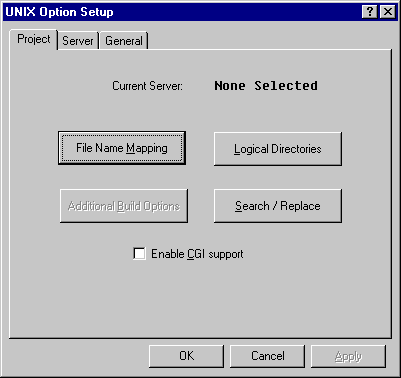
Figure 1-1: The Setup Dialog Box
- Click the Server tab. This displays the form shown in Figure 1-2.
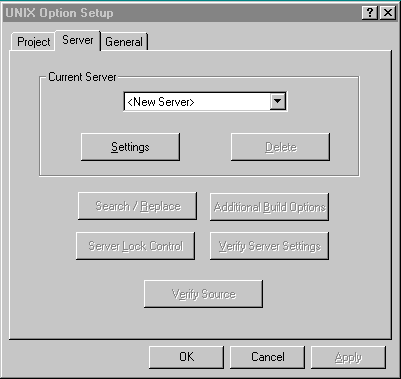
Figure 1-2: The Server Dialog Box
The list box displays any servers that have currently been defined. If you
select one of these, then any changes you make using the buttons in this tab
are made to the selected server. The entry New Server enables you to define
a new server. If there are no servers currently configured, New Server is
selected by default and all of the buttons on the dialog except Settings
are deactivated (see figure above).
- Click Settings. A dialog is displayed that enables you to specify a new
server name:

Figure 1-3: Specifying a Server
- Enter a valid Server name, and press OK. The following dialog box is then
displayed:
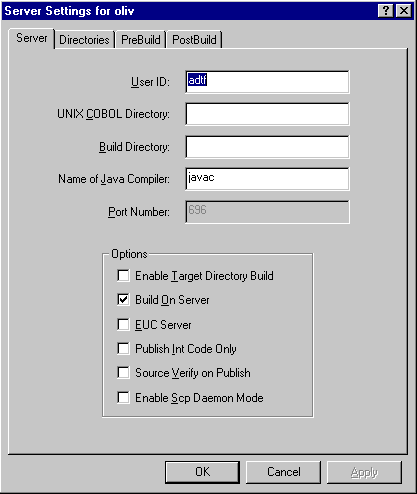
Figure 1-4: Server Settings
- In the User ID field, enter the user id you use to log onto your UNIX system.
- In the UNIX COBOL Directory field, enter the name of the COBOL system directory
on your UNIX system. You can find out this directory by entering echo $COBDIR
on your UNIX system. If you leave this field blank it defaults to /usr/lib/cobol.
- Decide the directory on your UNIX system to which you want to publish your
application, and enter its name in the Build Directory field.
- Click OK.
- Click OK again.
To publish the application:
- Ensure the directory you named in the Build Directory field in the Setup
dialog box exists on your UNIX system.
- Click UNIX > Publish.
This builds the project on the PC, creates a file called Makefile to do
the same thing on UNIX, copies the project files to the UNIX system and runs
Makefile there.
If you have any problem, check your setup - use UNIX > Setup again -
to ensure you specified the server name, UNIX login name, and directory names
correctly, and try again.
If this doesn't solve the problem, see the chapter Tips and Troubleshooting
in the UNIX Option Guide
- On your UNIX machine, use any listing utility to look at the log file Make.log.
If the log file shows any errors, or if any of the files listed in the next
section Files Created are not present in your UNIX build directory, check
your setup and try again.
Publish publishes only files that have changed since the previous time
you published the project. Publish All publishes all the files unconditionally.
If you run this tutorial a second time, do not first delete the files from
your build directory on UNIX. Publish will not know they have gone, and
will not replace them. Alternatively, if you do delete the files from your
UNIX directory, use Publish All.
UNIX Option has now created the following file for you in your project directory
on the PC and copied it into your build directory on UNIX (it has not added
it to the project, as it is not used on the PC):
- Makefile - the script file to guide the build on UNIX.
It has also copied the following file from your project directory on the
PC into your build directory on UNIX:
- Unixo.cbl - your COBOL program
The build directory also contains the following files created by the build
process on UNIX:
- Make.log - a log showing the results of the build on UNIX
- Several files created for use during the build process
Note that filenames on UNIX are case sensitive.
To run the application
- On your UNIX system, run the application in whatever way you normally run
your UNIX COBOL applications; for example:
cobrun Unixo.int
- List your build directory (for, example, use an ls command), and check
that file OUTPUT exists. Use any listing utility to check that it has just
one record, containing the words "Example output".
All that Unixo.cbl does is create this file, so if this file exists the
application has been built and run correctly.
Close the project.
If you're using RUMBA, logoff from UNIX in your usual way and click Exit
on RUMBA's File menu.
If you're planning to go straight on to another session, you can keep reUZE Developer
open.
This is the end of this path through the tutorials. To continue to another
tutorial, go to the topic Tutorials and Demos.
.
Copyright © 2006 Micro Focus (IP) Ltd. All rights reserved.