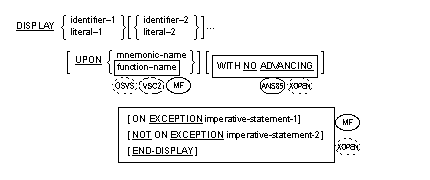
The DISPLAY statement also transfers
data from your program to the CRT or video terminal screen: non-scrolling
forms, into which you can enter data, are displayed.
The DISPLAY statement also transfers
data from your program to the CRT or video terminal screen: non-scrolling
forms, into which you can enter data, are displayed. The DISPLAY statement causes data to be transferred from specified data items to the appropriate hardware device, such as the CRT screen.
The DISPLAY statement also transfers
data from your program to the CRT or video terminal screen: non-scrolling
forms, into which you can enter data, are displayed.
 Format
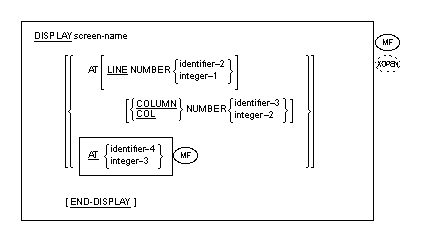
2Format
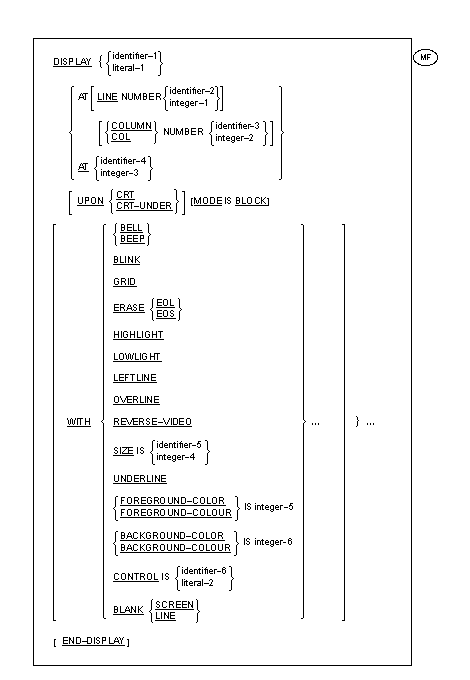
3
Format
2Format
3
 Alternatively,
function-name can itself be used instead of an associated mnemonic-name.
Alternatively,
function-name can itself be used instead of an associated mnemonic-name. This restriction can be
ignored.
When mnemonic-name is
associated with ARGUMENT-NUMBER, then identifier-1 or literal-1 must each, if
used, reference a data item defined as an unsigned integer or an unsigned
integer literal respectively. Only a single identifier-1 or literal-1 can be
used and the WITH NO ADVANCING phrase cannot be used.
When mnemonic-name is associated with ENVIRONMENT-NAME or
ENVIRONMENT-VALUE, then identifier-1 or literal-1 must each, if used, reference
an alphanumeric data item or a nonnumeric literal respectively. Only a single
identifier-1 or literal-1 can be used and the WITH NO ADVANCING phrase cannot
be used. Format
2Screen-name cannot be an item with an OCCURS
clause. Format 2
and 3The LINE and COLUMN phrases can appear in any order.
Integer-3 and identifier-4 must be 4 or 6 digits
long. Format
3A DISPLAY statement with an operand that is not a
screen-name is treated as a Format 3 DISPLAY statement if it has an AT phrase,
an UPON phrase with the CRT or CRT-UNDER option, a WITH phrase, or a MODE IS
BLOCK phrase; or if it has no UPON phrase but the CONSOLE IS CRT clause is
specified in the Special-Names paragraph. If it has the UPON phrase with the
CONSOLE option, or if it has no UPON phrase and the CONSOLE IS CRT clause is
not specified in the Special-Names paragraph, it is treated as a Format 1
DISPLAY statement. The phrases following the identifier can be in any
order. Elementary data items in identifier-1 must be of
USAGE DISPLAY. No elementary item in identifier-1 may be longer
than 8191 bytes. If the MODE IS BLOCK phrase is used, the whole of identifier-1
must be no longer than 8191 bytes. If a DISPLAY verb is followed by more than one
identifier-1, any WITH clause applies only to the operand immediately preceding
it.
If the function-name COMMAND-LINE, or a mnemonic-name
associated with the function-name COMMAND LINE, is specified, data overwrites
the contents of a system-dependent command-line buffer from where it can be
retrieved by subsequent use of ACCEPT FROM COMMAND-LINE. Only one operand is
allowed in this case.
All permissible function-names other than those specifically mentioned in the general rules for Format 1 of the DISPLAY statement are treated as equivalent to CONSOLE and each operand is transferred to the console device in the order listed. The total size of data displayed is equal to the sum of the sizes of each operand. The display starts from the current cursor position, overflowing onto the following line(s) if necessary.
On earlier releases, trailing spaces after the last operand were not displayed.
 If the NO ADVANCING phrase is
specified, the cursor is then left at the space following the last character
displayed; otherwise it is positioned at the start of the next line. Scrolling
can take place whenever the cursor is moved to a new line.
If the mnemonic-name
associated with the function-name ARGUMENT-NUMBER is used, then the position
for any subsequent ACCEPT with a mnemonic associated with ARGUMENT-VALUE is set
to retrieve the designated command-line argument. If the value associated with
identifier-1 or literal-1 is less than 0, greater than 99, or greater than the
total number of arguments on the command-line, then results are explicitly
undefined. If the mnemonic-name
associated with the function-name ENVIRONMENT-NAME is used then the variable to
be read or set in any subsequent ACCEPT or DISPLAY with a mnemonic associated
with ENVIRONMENT-VALUE is set to the designated variable-name specified in
literal-1 or as the contents of identifier-1. The ON EXCEPTION phrase is
ignored. If any problem occurs while trying to set an ENVIRONMENT-NAME for a
subsequent ACCEPT or DISPLAY associated with ENVIRONMENT-VALUE, then it is only
the subsequent ACCEPT or DISPLAY that must detect the ON EXCEPTION condition.
If the mnemonic-name
associated with the function-name ENVIRONMENT-VALUE is used then
If the mnemonic-name
associated with the function-name SYSERR is used, then a DISPLAY is performed
as if to the CONSOLE except that all output is directed to the system's
standard Error Device. When
using DISPLAY UPON ENVIRONMENT-VALUE, trailing spaces are included in the
value. You should use INSPECT REPLACING ALL SPACE BY LOW-VALUES to avoid this.
Within identifier-1,
internal floating-point numbers are converted to external floating-point
numbers for display, so that:
Literal-1 may be a
floating-point literal. Format 2This format of the DISPLAY
statement displays screen items, which are defined in the Screen Section of the
program, and allows full access to the enhanced screen handling facilities.
Format 2
and 3The AT phrase gives the absolute address on the
screen where the DISPLAY operation is to start. The order of execution of a DISPLAY statement is
always:
If integer-3 or identifier-4 is 4 digits long, the
first two digits specify the line, the second two the column. If 6 digits long,
the first three digits specify the line, while the second three specify the
column. Certain combinations of line and column numbers have
special meanings, as follows:
Format
3Part of this statement can be repeated to allow the
display of several data items. If the first item has no AT phrase, it begins at
line 1, column 1. Each subsequent item begins at the current cursor position as
left after the previous item. If identifier-1 is a group item and no MODE IS BLOCK
phrase exists, those elementary subordinate items which have names other than
FILLER are displayed. They are displayed simultaneously, positioned on the
screen in the order their descriptions appear in the Data Division, and
separated by the lengths of the FILLER items in the group. For this purpose,
the first position on a line is regarded as immediately following the last
position on the previous line. The MODE IS BLOCK phrase indicates that the
identifier is to be treated as an elementary item. Thus, even if it is a group
item it is displayed as one item.
The WITH phrase allows you to specify certain options
available during the operation. (See the chapter
Screen Section Entry
Skeleton for descriptions of these options.)
If the NO ADVANCING phrase is
specified, the cursor is then left at the space following the last character
displayed; otherwise it is positioned at the start of the next line. Scrolling
can take place whenever the cursor is moved to a new line.
If the mnemonic-name
associated with the function-name ARGUMENT-NUMBER is used, then the position
for any subsequent ACCEPT with a mnemonic associated with ARGUMENT-VALUE is set
to retrieve the designated command-line argument. If the value associated with
identifier-1 or literal-1 is less than 0, greater than 99, or greater than the
total number of arguments on the command-line, then results are explicitly
undefined. If the mnemonic-name
associated with the function-name ENVIRONMENT-NAME is used then the variable to
be read or set in any subsequent ACCEPT or DISPLAY with a mnemonic associated
with ENVIRONMENT-VALUE is set to the designated variable-name specified in
literal-1 or as the contents of identifier-1. The ON EXCEPTION phrase is
ignored. If any problem occurs while trying to set an ENVIRONMENT-NAME for a
subsequent ACCEPT or DISPLAY associated with ENVIRONMENT-VALUE, then it is only
the subsequent ACCEPT or DISPLAY that must detect the ON EXCEPTION condition.
If the mnemonic-name
associated with the function-name ENVIRONMENT-VALUE is used then
If the mnemonic-name
associated with the function-name SYSERR is used, then a DISPLAY is performed
as if to the CONSOLE except that all output is directed to the system's
standard Error Device. When
using DISPLAY UPON ENVIRONMENT-VALUE, trailing spaces are included in the
value. You should use INSPECT REPLACING ALL SPACE BY LOW-VALUES to avoid this.
Within identifier-1,
internal floating-point numbers are converted to external floating-point
numbers for display, so that:
Literal-1 may be a
floating-point literal. Format 2This format of the DISPLAY
statement displays screen items, which are defined in the Screen Section of the
program, and allows full access to the enhanced screen handling facilities.
Format 2
and 3The AT phrase gives the absolute address on the
screen where the DISPLAY operation is to start. The order of execution of a DISPLAY statement is
always:
If integer-3 or identifier-4 is 4 digits long, the
first two digits specify the line, the second two the column. If 6 digits long,
the first three digits specify the line, while the second three specify the
column. Certain combinations of line and column numbers have
special meanings, as follows:
Format
3Part of this statement can be repeated to allow the
display of several data items. If the first item has no AT phrase, it begins at
line 1, column 1. Each subsequent item begins at the current cursor position as
left after the previous item. If identifier-1 is a group item and no MODE IS BLOCK
phrase exists, those elementary subordinate items which have names other than
FILLER are displayed. They are displayed simultaneously, positioned on the
screen in the order their descriptions appear in the Data Division, and
separated by the lengths of the FILLER items in the group. For this purpose,
the first position on a line is regarded as immediately following the last
position on the previous line. The MODE IS BLOCK phrase indicates that the
identifier is to be treated as an elementary item. Thus, even if it is a group
item it is displayed as one item.
The WITH phrase allows you to specify certain options
available during the operation. (See the chapter
Screen Section Entry
Skeleton for descriptions of these options.)
In addition to the options available as screen description clauses, the following options can be used in the WITH phrase; SPACE-FILL, ZERO-FILL, LEFT-JUSTIFY, RIGHT-JUSTIFY, TRAILING-SIGN and UPDATE. ZERO-FILL appears in this list and as a screen description clause because it has two different uses. Its second use is documented later in this chapter.
A configuration option is available which allows the entry of data into numeric and numeric edited screen fields in free format mode. In COBOL, nonedited numeric data items are intended for holding data in an internal form; however, this format enables such data items to appear on the screen. See your COBOL system documentation on user interfaces for more details. If free format mode is in effect, the data appears automatically reformatted as follows:
The SPACE-FILL, ZERO-FILL, LEFT-JUSTIFY, RIGHT-JUSTIFY and TRAILING-SIGN options amend this format.
If the literal-1 is one of the following figurative
constants it has a special effect as follows: SPACE clears from the specified
cursor position to the end of the screen; LOW-VALUE moves the cursor to the
specified position; ALL X"01" clears from the specified cursor position to the
end of the line; ALL X"02" clears the whole screen; ALL X"07" sounds the bell.
If the literal is a figurative constant that is not listed above and the SIZE
option is not specified, one occurrence of its value is displayed.
If the SIZE option is specified for a figurative constant
that has no special effect, then that figurative constant is displayed as many
times as necessary to reach the length specified in the SIZE option. However,
if the display wraps around to a new line, it starts again at the beginning of
the figurative constant.
If the FOREGROUND-COLOR option is specified, then the
specified color becomes the default foreground color if and only if the entire
screen is cleared by this display. The entire screen is cleared either when the
BLANK SCREEN option is specified or when literal-1 is SPACES and the DISPLAY
starts at line 1 column 1.
If the BACKGROUND-COLOR option is specified, then the
specified color becomes the default background color if and only if the entire
screen is cleared by this display. If REDEFINES is used within identifier-1, the first
description of the redefined data area is used and subsequent descriptions are
ignored. If OCCURS or nested OCCURS are used the repeated data item is expanded
into the full number of times it occurs, so that one definition is repeated for
many fields. DISPLAY INITIAL WINDOW
TITLE-BAR,
SYSTEM MENU,
AUTO-MINIMIZE,
AUTO-RESIZE.According to SCREEN LINE and SCREEN COL, if specified; otherwise
If the window has a title bar, the host system places the window as if it were a new application; otherwise
The window is centered in the screen.
Note that LINE and COL (without the SCREEN option) are ignored in these cases.
On a character-based system, the initial window always occupies the entire terminal surface. Setting the various sizing options has no effect.
Normally, when you create a control in a window, the control is cropped to fit the current subwindow's dimensions. In addition, if the control's home position is outside of the current subwindow, the control is not created. Adding the phrase CONTROLS-UNCROPPED overrides these rules. When this phrase is used, the control is created with the specified location and dimensions, regardless of whether the control will be physically in the window.
This can be useful when you are dealing with RESIZABLE windows. Sometimes a resizable window is too small to show all of the controls that your program creates. Normally, these controls either would not be created or would be cropped. This could produce odd results when the window is later resized larger by the user. Although the resized window is now large enough to show everything, the controls still show their cropped appearance, because their (cropped) creation size is recorded in the controls as their actual size. Specifying CONTROLS-UNCROPPED avoids the cropping behavior.
This style is useful also when you want to place a combo-box near the bottom of a window. Because the size of the drop-down portion of the combo-box is determined by the control's overall height, cropping the control limits the drop-down box to the window's boundaries. If you want the box to drop down beyond the edge of the window, you need to use the CONTROLS-UNCROPPED window style to allow this.
Specifying proc-1 assigns that procedure as the window's event procedure. Flow of control returns at the end of proc-1, unless proc-2 is specified, in which case flow of control returns at the end of proc-2. If you specify the NULL option, the window does not have an event procedure. This is the default, so the NULL option is treated as commentary.
Note: The Support area of the extend Web site includes a sample program that demonstrates how a main application window can be coded to detect the system display's screen resolution and then size itself to fill the entire screen. To download the program, go to: www.acucorp.com/support/public/sample_programs/index.php. Select the category "Graphical User Interface Sample Programs" from the drop down list, and click on "WIN-START-MAX.cbl".