Creating a Blocking Policy
Storage Manager allows you to create “blocking policies” that prevent other Storage Manager policies from affecting members of organizational units, members of groups, or even individual users.
For example, you may have proxy users such as a BACKUP PROXY or VIRUS SCAN PROXY who do not need a home folder. Or, you may have organizational unit members that you do not want to have assigned home folders.
You establish a Blocking Policy by first creating a group and then adding the users you want to block from a policy. You then use the Admin Client to create the actual Blocking Policy and associate it to the group.
NOTE: Blocking Policies can be assigned to users, groups or containers.
IMPORTANT: Before proceeding, you should create a group in eDirectory whose members you want to block from the effects of any Storage Manager policies that you create.
To create a Blocking Policy:
-
Click the Main tab in the Admin Client.
-
Click Policy Management.
-
Click New from the Manage drop-down menu, then select User Home Folder.
-
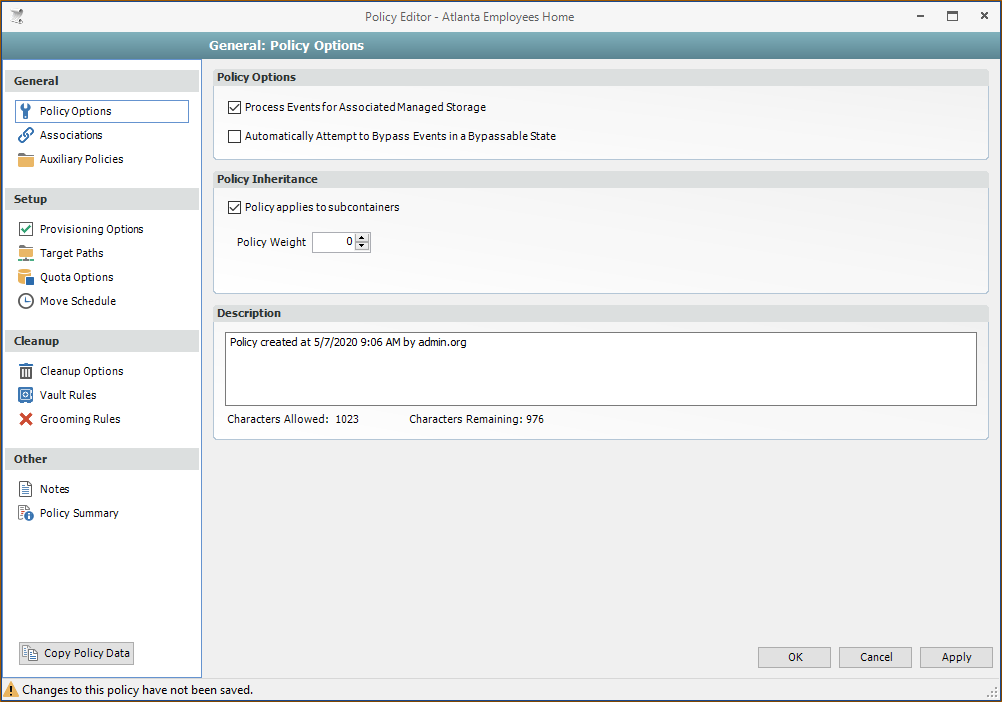
Enter a descriptive Name (e.g., “Block Policy”) and leave the User option selected, then click OK to open the Policy Options dialog.
-
Uncheck the Process Events for Associated Managed Storage box.
-
A description to the right of the check box now indicates that the policy is a Blocking Policy.
-
-
Click Associations in the left-hand pane.
-
Click the "plus" (+) sign.
-
Browse to locate and select the user, group, or container you intend to block from the effects of Storage Manager policies, then drag it to the Selected Items pane.
-
Click OK to save the setting.
-
Click OK to save the Blocking Policy.