Installing the Engine
Storage Manager 24.4 uses only one Engine per tree. The Engine can be installed on a server that meets the following minimum requirements:
-
Open Enterprise Server 24.4
-
Open Enterprise Server 24.3
To install the Engine:
-
Launch a terminal session.
-
Mount the Storage Manager ISO or copy the Engine RPM package to the local file system.
-
Change to the directory where the ISO was mounted or where you copied the RPM package.
-
Enter # zypper in ./storagemanager-engine-24.4-1.x86_64.rpm to install the package.
-
If prompted, enter
yto continue.NOTE: If you did not add the included public signing key to the list of trusted signing keys, you may encounter a message during install indicating "Signature verification failed". Enter
ito ignore the warning, or follow the steps for Adding the Trusted Signing Key. -
Proceed with Configuring the Engine.
Configuring the Engine
To configure the engine:
-
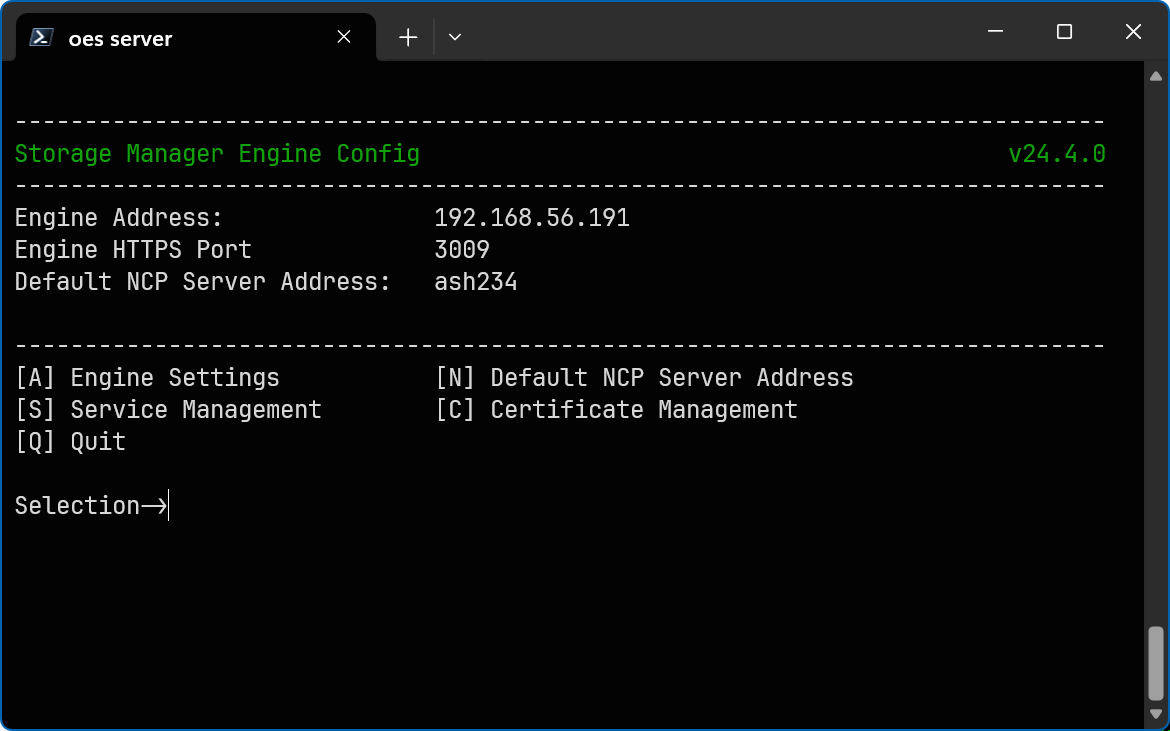
Type smengine-config 1 in the same terminal, then click Enter to update the console. If your server has multiple NIC cards, multiple IP address options are listed.
-
Specify the IP address of the server hosting the Engine and click Enter.
If the displayed IP address is correct, click 0.
-
Click Enter to accept the default HTTPS port number 3009.

If there is a conflict and you need to use another port number, enter the new port number instead.
-
Click Y to use the default server name for the common name of the certificate.
-
Click Enter to generate the certificate and continue.
-
Click Enter again to continue.
-
Click Y to start the Engine service.
-
Click Enter to update the console again and continue.
You can now navigate through the menu to perform management tasks on the Engine when necessary.

-
Click Q to exit the Engine console.