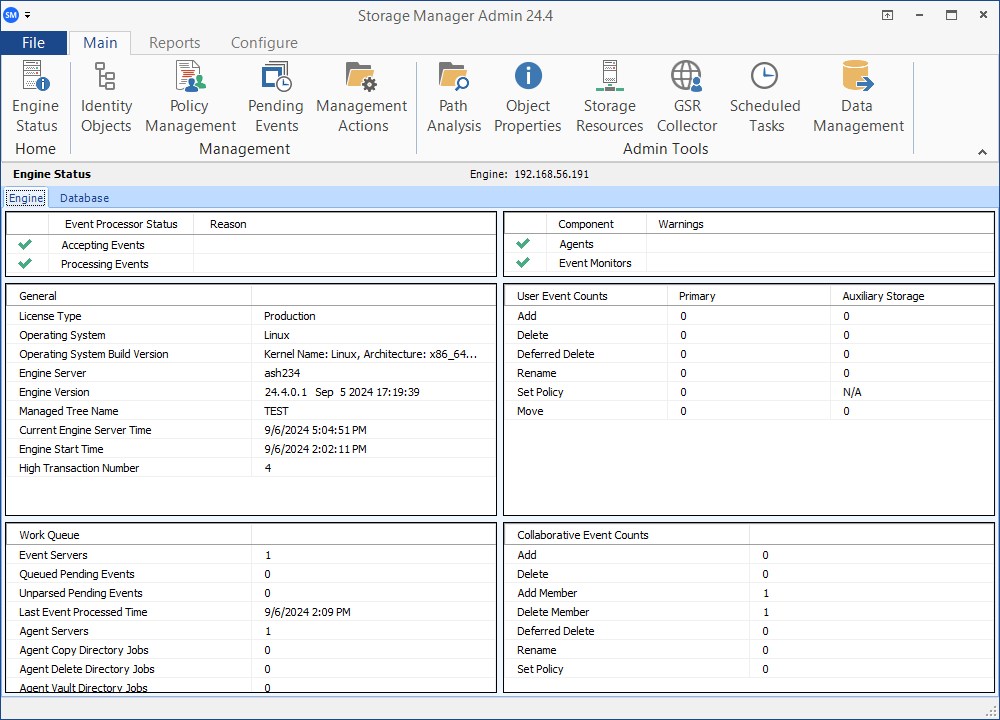
Using the Admin Client
This Storage Manager component is an intuitive, Windows-based administrative interface that runs all storage management tasks. The Admin Client is built from the Microsoft .NET Framework and is operated from a Windows workstation or server.
Launching the Admin Client
To start the administrative interface:
-
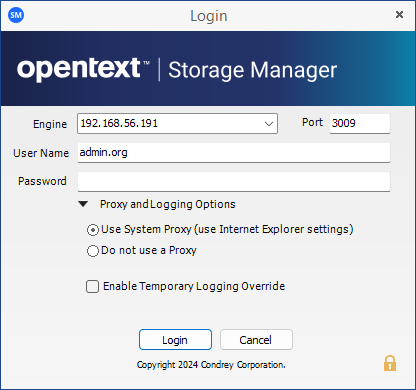
Double-click the Storage Manager Admin icon from the Windows desktop to open the authentication dialog.

-
Specify the DNS name or IP address where the Engine service is installed in the Engine field.
-
Specify the secure port number in the Port field (the default setting is 3009).
-
Enter the username in fully-distinguished format.
-
Enter the password. The user must be a member of the SMAdmins group to log in.
-
Click Login.
Overriding Proxy Settings at Login
As a .NET application, the Admin Client is managed by the proxy configurations and exceptions of Microsoft Internet Explorer. If you do not have an exception in your proxy settings to allow for the Admin Client, the application may not launch.
If you are unable to log in:
-
Repeat Steps 1–5 in Launching the Admin Client.
-
Click Proxy and Logging Options to expand the authentication dialog.
-
Select Do not use a Proxy.
-
Click Login.
Enabling Temporary Logging Override
Select the Enable Temporary Logging Override option to force Storage Manager to override any logging configuration settings established for the Engine and the Agent in the Admin Client.
Storage Manager will create log files during this session, which may be useful for troubleshooting.
This option overrides the current logging option for the Admin Client and temporarily enables debug logging. The log can be found in the %AppData%\OpenText\StorageManager\Admin.
Using the Admin Client Interface
The Admin Client interface has three tabs: Main, Reports, and Configure.
Clicking each tab displays an associated toolbar, divided into sections based on the available actions. Clicking a specific tool button displays a dashboard with data or an interface for performing a management task.
The default display is the Engine Status dashboard – see Engine Status for details.