This chapter describes the tools available from the
Tools menu and how they can help you in your tasks.
Analysis tools provide powerful insights into how your source code
applications function. They are accessed from the Tools menu
and are named according to their functionality. The following tools are
available for you to use during your analysis tasks:
-
Shell -
Provides you with an interactive command line interface for using REQL with
Revolve.
-
Metrics -
Generates and displays four statistical complexity measures for your projects.
-
Function Point
Analysis - Displays Function Point Analysis for some
or all components in a project.
-
Annotation - Manages annotations that are
created for tracking modifications and enhancement requests.
-
Scripts -
Executes specialized scripts and generates reports to aid in your system
analysis.
-
Impact
Analysis - Traces data movement and impacts throughout
your application.
-
Advanced Text
Search - Searches specific files and directories for
specific text.
-
Source
View - Displays a logical view showing all the
integrated files that comprise a module.
The Shell tool is enabled on the User tab and is accessible from the
Tools menu. It gives you an interactive command line
interface for using REQL with Revolve, which enables you to
perform specific administrative and analysis operations on the Revolve
database. The REQL language is described in detail in the chapter
Introduction to the REQL
Language.
The Metrics tool calculates four statistical measures of complexity:
- Halstead
- McCabe
- McClure
- Statistics
To change from one mode to another, use Options
 within the Metrics
window. The Metrics tool is set to Halstead by default. To change the default
mode, click the Metrics tab to change the settings that are
used when the Metrics tool starts its analysis. After you select a new mode,
the analysis is automatically performed when you click
OK.
within the Metrics
window. The Metrics tool is set to Halstead by default. To change the default
mode, click the Metrics tab to change the settings that are
used when the Metrics tool starts its analysis. After you select a new mode,
the analysis is automatically performed when you click
OK.
The Halstead metric mode uses four numbers to
calculate the estimated length of each program. These numbers are the total
number of operator occurrences (N1), the total number of operand occurrences
(N2), the number of distinct operators (n1), and the number of distinct
operands (n2). With these numbers, Halstead estimates the program length to be:
N=N1 + N2
The volume to be:
V=N log2 (n1 + n2)
The McCabe metric mode calculates the cyclomatic,
extended, and essential complexity of each paragraph and program. These numbers
represent the number of logical paths through the source code.
The McClure metric mode calculates complexity for
each paragraph and program as the number of conditionals plus the number of
unique operands used in the conditionals.
The Statistics metrics mode displays the number of
lines and statements in each paragraph and program.
Use the Function Point Analysis tool to measure the complexity of your
project.
The implementation of Function Point Analysis is based on the
International Function Point Users Group's (IFPUG's) 4.1 function point
analysis definition.
Note: We recommend that you select Project >
Complete before opening the Function Point Analysis tool, to
provide any missing information.
The FPA Options
enable you to define
weighting factors that adjust the parameters of the Function Point Analysis. A
numerical value is determined based on the designated weight of each function
where 0 represents no influence and 5 represents strong influence. You can
change the defaults for this dialog by clicking Utilities
> Tools/ Diagrams Options and the Function Point
Analysis tab. Using Options within the Function
Point Analysis window changes the settings only for that particular
session.
Function Point Analysis (FPA) first identifies and
organizes the system's business functions into five groups:
- External inputs
- External outputs
- External inquiries
- Internal logical files (ILF)
- External interface files (EIF)
Note: FPA classifies screen accesses as either inputs or outputs. Data files
are classified as ILF or EIF. The distinction is made in that ILFs are written
to and EIFs are not.
Then each business function is classified and weighted by its level of
complexity (low, average, or high). Finally, the numbers are totalled to
establish the complexity of your project. The higher the total is the more
complex the project is. The evaluation process can be viewed in the Function
Point Analysis window.
Classifications
 opens the File Types
dialog, to allow you to specifically identify file types. By selecting an item
and clicking the specific button, elements can be designated as inquiries,
inputs, outputs, ILF, or EIF. If an element is unused it can be tagged Unused.
opens the File Types
dialog, to allow you to specifically identify file types. By selecting an item
and clicking the specific button, elements can be designated as inquiries,
inputs, outputs, ILF, or EIF. If an element is unused it can be tagged Unused.
The Annotation tool allows persistent documents or notes to be
created that contain references to elements of source code as well as
user-defined information about those elements. Annotations are useful:
- For researching problems and enhancement requests.
- To analysts and programmers for saving, combining, and sharing
research.
Using annotations is an excellent way to document source code changes as
well as performing project management tasks. Use the Annotation tool to create,
manage, research, or delete annotations. Each annotation includes a title,
description, status, and list of related elements. These documents or notes
will exist within a Revolve project until they are explicitly
deleted. The Annotation tool is accessed from the Tools menu
or from the
speed
menu.
The Annotation tool locates annotations based on certain
parameters defined in the Edit Annotation dialog. Use the pull down list box to
select the parameter that is to be used to find a specific annotation. Enter
the name or naming convention in the Match edit field and click
Match. Annotations that match the criteria are displayed in
the information window.
When you add elements to an annotation, you do not have to add
them in the order they occur in the source. To organize your annotations, use
the Sort
 function. It orders
connected elements in two ways.
function. It orders
connected elements in two ways.
- Order they were added to the annotation.
- Location in the source file.
Sorting elements according to the order they were added preserves any
existing process used to create the annotation. Sorting by location in the
source file enables you to order connected elements by their occurrence in the
source code. This is especially useful when you want to organize elements that
were randomly added to the annotation. After clicking Sort,
click Refresh
 , and then expand the
connected elements folder to view the changes.
, and then expand the
connected elements folder to view the changes.
The Edit Annotation dialog is invoked with Edit
Annotation  .
.
The following information is available for each annotation:
| Field: |
Definition: |
| Title: |
Names the annotation. |
| Date: |
Indicates the date the annotation was created. This field can
not be changed. |
| By: |
Displays the user name assigned to the person who created the
annotation. The default user name is taken from the value specified in the
User Name field of the Utilities >
Options > User tab. |
| Status: |
Monitors the status of annotations that are used for source code
changes. |
|
To: |
Identifies the intended recipient. |
| Description: |
Describes the annotation. Descriptions should be limited to
8,000 bytes (8K). |
| Associated Elements: |
Lists the other elements that are associated with this
annotation. This is a concise way of associating related elements to a single
annotation. Elements for this list can be selected by using tools, views, and
information browsers. To add all currently highlighted elements, click
Add Highlighted. To delete an element, select the element in
the Associated Elements list and press Remove. |
| Element Description: |
Describes selected elements. Each element in the Associated
Elements list can have an optional description associated with it. As the
current selection in the Associated Element list is changed, the Element
Description is updated with the corresponding description. |
To save changes to the annotation, click OK. To
cancel changes, click Cancel.
Information can be added to annotations from the Annotation tool or
with Capture Results. If an annotation is currently being edited in an Edit
Annotation window, the elements are added to that annotation, otherwise the
Add element to annotation window is displayed. This enables
you to create a new annotation or lookup an existing one.
Annotations in shareable projects have two classifications:
-
Private- accessible to the creator of the
annotation only.
-
Public- accessible to all project users.
When you create an annotation in a shareable project it is
Public by default. To move it to Private:
- Open the shared project.
- Click Tools > Annotation.
- Locate the annotation.
- With the annotation selected, click Move Annotation to
Private
 .
.
To make it Public again, click Move
Annotation to Public
 . If these buttons
are not displayed in the Annotation tool, close and restart
Revolve. A single annotation cannot be public and private
simultaneously.
. If these buttons
are not displayed in the Annotation tool, close and restart
Revolve. A single annotation cannot be public and private
simultaneously.
Public annotations are stored by default in the same directory as the
project file (.prj). You can change this location by
clicking Utilities > Options and the
Project tab. Note that this directory must be accessible to
all users of a project. Private annotations are stored according to the setting
of the Private Annotation Directories setting on the
Directories tab in Utilities >
Options. We recommend that the Private and Public annotation
directories be different.
The Scripts tool enables you to automate specific tasks in
Revolve. Scripts are organized according to their general purpose in
project analysis and operation. They are categorized as follows:
Expand each folder to view the scripts it contains. To run a script,
select it and click  Run. Often specific project components must be selected for
a script to execute its designed function. The Choose Components dialog enables
you to assign a scope to the script, applying the scripting procedure to
selected project items.
Run. Often specific project components must be selected for
a script to execute its designed function. The Choose Components dialog enables
you to assign a scope to the script, applying the scripting procedure to
selected project items.
Shows records used in I-O against batch files and the copybooks
containing the record layouts. Records moved to or from I-O records are
included in the record list.
Shows records used in I-O for CICS datasets and copybooks containing
the record layouts. Records to which I-O records are moved are included in the
record list for a dataset.
Shows files accessed by their procedure.
Shows files accessed by programs. Records displayed for program/file
are records READ INTO or WRITTEN - REWRITTEN FROM, as well as the data record
defined in the File Definition (FD).
Shows procedures accessing files by file.
Shows programs accessing files by file.
Shows data files in your project that are written to by JCL job
executed programs.
Finds variables whose names are the same but whose PIC clauses
define different types or sizes.
Reports on parser-generated errors in user-specified project
components.
Reports on parser-generated errors and warnings in user-specified
project components.
Returns all discrepancies discovered during project parsing.
Reports on parser-generated file-not-found warnings in
user-specified project components. File-not-found warnings are most likely
copybooks or proclibs that have not been added to the project before parsing.
Reports on the notices that occur during the parsing process.
Notices are the least severe of the parser-generated problems.
Reports on parser-generated syntax warnings in user-specified
project components.
Reports on parser-generated Warnings in user-specified project
components.
Shows all modules by type that have been added to the
Project Manager where duplicate names exist in multiple
directories. This script is designed to show invalid conditions that exist in
the source code, so that problems can be resolved.
Shows programs in your project that do not contain source code and
other load modules that are affected. Results are organized according to the
source-less programs and the affected programs.
The Project Management scripts are provided as
templates that you can customize to automate some of your common administrative
tasks. Select a script and click View Source Code
 to view its source.
These templates are working scripts that you can actually execute if your
directory structure adheres to that used in the script, and if the sample
source code that was included in the installation is located in
samples\sampleapp.
to view its source.
These templates are working scripts that you can actually execute if your
directory structure adheres to that used in the script, and if the sample
source code that was included in the installation is located in
samples\sampleapp.
Customize these scripts according to your project needs. You can
review the source and replace existing parameters with some of your project's
parameters. For example, in the Template for creating a new project by
explicitly adding sources, substitute the existing paths with your
system paths and file names. Once you are satisfied with the settings, save the
script. Then click Compile
 . Once the script has
compiled it's ready to be Run
. For information on
language constructs and functions specific to project administration, see
Automating Project
Management.
. Once the script has
compiled it's ready to be Run
. For information on
language constructs and functions specific to project administration, see
Automating Project
Management.
Customize this script to create a new project and add components.
Substitute existing settings with your system parameters.
Customize this script to set up search directories for your project,
where Revolve loads components of specified types from specified
directories. These search directories are referenced for subsequent
Makes
 and updates.
Substitute existing settings with your system and project parameters.
and updates.
Substitute existing settings with your system and project parameters.
Customize this script to automate project Makes
. Substitute existing
settings with your project parameters.
Opens a Choose dialog that displays all the copybooks referenced in
the project. Select a copybook or copybooks (Ctrl key and
left mouse button) and click OK. The script describes all
variables referenced in the copybook(s) and their attributes.
If nothing is returned for a selected copybook, check to see if the
copybook is loaded properly. An easy way to find problem files is with the
Parsing Problems scripts.
Reports on I-O Records. Records are 01-level input/output records.
Reports on non-I-O records. Records cannot be input or output
(exclude all records defined in Comm Area, FD, and Linkage sections) and must
be 01 group level data elements.
Groups I-O records by size/name.
Groups secondary (non-I-O) records by size/name.
Reports on usage of hard-coded literals by program.
Identifies program source that violates the following indentation
rule:
- Each source line must be indented more than its parent (parent
variable or containing paragraph or statement), and all source immediately
under a given parent must be indented to the same column.
Reports on MOVE statements that result in truncation. Truncation is
a result of data elements being moved from a field of a certain size to one of
smaller size.
Returns MFS screen files that have duplicate FMT names.
Returns a list of copybooks in the project with duplicate names.
Determines greatest number levels of nested IF statements within the
selected programs. Reports on and highlights all IF statements exceeding user
specified maximum.
Reports on variable redefines, for which the redefining and
redefined variables are of different lengths.
Generates a report of all COBOL programs whose program IDs differ
from their member names. The discrepancy between program IDs and their member
names may cause problems in other scripts, resulting in programs being out of
order and duplicated in output reports. This script exposes such occurrences.
Reports on Variable Names whose length exceeds a user defined
maximum within the selected programs.
Reports on copybooks included in programs whose variable definitions
are not referenced or whose procedural logic is not executed.
Reports on paragraphs whose statements are not executed.
Reports on the unused procedural logic within the program selected
in the Choose dialog.
Provides information about variables that are not explicitly used in
the loaded project. Please note that some returned fields may not be removed
from the project because they are part of redefines, structure definitions, or
copybook members that cannot be modified.
Invokes a Choose Components dialog where you need to specify the
components whose source files you want to copy to another location. Click
OK. In the Prompt dialog, enter the path to the drive or
directory where the files should be copied.
Counts logical and physical line numbers for all project modules. It
will generate four columns:
| Column |
Indicates |
| Module Name: |
Specifies the project module's name. |
| Logical: |
Refers to the total number of lines in a module,
including imported elements (copybooks, procs, et cetera.). |
| Physical: |
Refers to the actual line count in the module.
Imported elements (copybooks, procs, et cetera.) are not included. |
| Imports: |
Lists the numbers of lines brought into the module
through imported elements (copybooks, procs, et cetera.). |
Counts files and lines that need to be metered, so you can calculate
the size of the usage counter to purchase. It will generate a list of program
files, copybooks and includes, and tell you both how many files could be
metered and how many files and lines need to be metered. See the chapter
Metering Lines of
Code for more information.
Allows you to utilize the import translations of one project in
another one that requires the same translations. The default name and location
of the script that is generated is c:\buildimp.rqs. When
you use the script Rebuild Import Translations it will ask
you for the compiled version of this file (.rqc).
Creates a script that is used to rebuild the active project
(including Complete Project and Copybook
Translation information).
Creates a list of source files which are not used in the project,
but which have been found in directories contained in the project.
Opens Screen views associated with the selected
item. To select a project component, right-click on it in a Revolve
information window and choose Select from the speed
menu. The selected component's name is displayed at the bottom of the
Revolve desktop.
If the selected item is a paragraph, printing the "text content" of
a paragraph will print the whole paragraph.
If your IMS GEN has load modules and PDBs that are not referenced
elsewhere, this script will remove them.
If your CSD report has load modules that are not referenced, this
script will remove them.
Displays the filename, record name and location of batch files, in
an RSP Viewer. The RSP Viewer is embedded in a child window, and offers a
split-screen source view.
Displays any parser-generated file-not-found warnings in an RSP
Viewer. The RSP Viewer is embedded in a child window, and offers a split-screen
source view. File-not-found warnings are most likely to be copybooks or
proclibs that have not been added to the project before parsing.
Displays any parser-generated Warnings in user-specified project
components in an RSP Viewer. The RSP Viewer is embedded in a child window, and
offers a split-screen source view.
Displays the files in your project, by type, with any files they
import, in an RSP Viewer. The RSP Viewer is embedded in a child window, and
offers a split-screen source view.
Impacts occur when data elements refer or relate to one another in a
project through moves, redefines, conditionals, arithmetic operations, group
relations, parameter passing, copybooks, references to files, and references to
screens. When one item is changed in an application, it can affect other items,
causing inconsistencies and even system failure.
The threat of data impacts poses a major problem when you consider the
task of system maintenance and specifically making source code modifications.
For example, if you modify just one data item, it might impact many different
source components in many different areas of your system. To guarantee source
code integrity, the Impact Analysis features enable you to identify all
locations in your system where specific data elements have impacts. Once you've
located the impacts, you can modify source code accordingly to alleviate impact
problems that may arise when you apply modifications to your actual system. The
benefits of using Impact Analysis are:
- It's easy to access project items that are impacted by a particular
variable that you use as a starting point. Once the relationship between the
impacted item and the starting point is understood, source code integrity is
preserved despite maintenance driven modifications.
- There are options provided that enable you to direct the impact trace
through specific types of components in the source code. In addition to
controlling the direction of the trace, you can set options that remove
unnecessary information from the final results.
- To help make sorting through the impact trace results easier and
faster, you can dynamically control the display of the returned information.
- Source code is accessible for modifications and to alleviate impact
problems.
We recommend that you select Project >
Complete before opening the Impact Analysis tool, to provide
Revolve with any missing information.
The first step in impact analysis is to define a list of data elements
that might be impacted or cause impacts. This list of impact candidates is used
as the starting point for the impact trace. A starting point can be any data
element that is scheduled to be or has been modified or edited. Also, a
starting point must be located in a loaded, up-to-date project file.
The Impact Analysis tool locates and loads starting points according
to the naming criteria you specify in the Match edit field. Specify an
element's exact name or use wildcards to define naming patterns for many
elements that use similar naming conventions.
Starting points must be classified as variables, BMS or MFS fields, or
data files. The Match edit bar contains a pull down list box that enables you
to specify the type of item to find. For example, to load all project variables
whose names begin with WS, select Variable from the
pull-down list box, enter WS* into the Match edit field, and click
Match. The Impact Analysis information window fills with all
project variables with names like WS-TABLES and WS-KEY.
When you click the Match button, Impact Analysis
searches the project database and identifies all source components that comply
with your name and type criteria. Matched components are displayed in the
information window. These are your starting points for impact tracing. The
total number of starting points is displayed on the Match edit bar. Impact
Analysis for the Assembler Extension uses variables as starting points and
traces through direct variable manipulations in MOVE statements.
When you have a list of starting points that are considered impact
candidates, you can edit, remove, or exclude items based on your analysis
needs.
In a large, complicated project, it is essential that you be able to
control the direction and flow of the impact trace. Otherwise, you would be
sifting through unneeded and unimportant impact trace information. The
Tracing tab on the Impact Analysis Options
dialog enables you
to define the parameters for tracing impacts from your starting points through
the project. There are four categories of options: Impact
Through, Prune, Logical Levels to
Expand, and Enable Code Flow Analysis.
The Impact Through options control which
circumstances are considered to cause the impact of one variable on another.
The options enable you to configure the impact trace to return specific
information on impacts occurring in certain project modules. You direct the
path of impact tracing through source code components, like conditions,
literals, arithmetics, copybooks, data files and executables. With this control
you can trace impacts through points of interest as well as known problem areas
in your source code.
All options are checked by default, except Children.
In the sections below, all Impact Through options code
examples are located in your samples\impact directory, in
the files prog1.cbl and prog2.cbl.
Each example is preceded by a corresponding named label. For example,
01-IT-CONDITIONS for the Conditions option.
The Impact Through options are:
-
Literals: Traces impacts through literals. For
example, statements that move a literal to a variable or compare a literal to a
variable are returned as impacts.
-
Moves: Traces impacts through MOVE, CONVERT,
RELEASE, and STRING statements.
-
Copybooks: Traces impacts through a copybook
used by more than one program. For example, if your starting point is the
variable A in PROG-1 and your programs contain the following statements:
* copybook COPY1
01  C1-A PIC X.

* program PROG-1
01 A PIC X.
COPY COPY1.

MOVE A to C1-A.

* program PROG-2
01 P2-B PIC X.
COPY COPY1.

MOVE C1-A to P2-B
then the analysis will include the variable C1-A in PROG-1 and
PROG-2 and the variable P2-B in PROG-2. This is because C1-A appears in a
copybook and PROG-2 uses the same copybook.
-
Data Files: Traces impacts through programs
that share the same stored data. Impacts are traced based on:
- the COBOL verbs READ, WRITE, REWRITE, FETCH, FIND, GET,
MODIFY, STORE, and DELETE
- the clauses SQL INTO and COLUMN ASSIGN
- the commands CICS READ, WRITE, REWRITE, DELETE, READQ, and
WRITEQ
- DLI commands with INTO and FROM options
-
Executables: Traces impacts caused by
parameters passing among programs invoked by the COBOL CALL and CHAIN verbs or
the CICS LINK or XCTL commands. For CALL and CHAIN statements, passed
parameters are considered. For LINK and XCTL commands, the CICS COMMAREA is
considered.
-
Screens: Traces impacts through BMS and MFS
formatted data. In programming CICS and IMS/DC applications, it is common
practice for one program to send data to a display terminal while another
program reads and processes the data.
-
Children: The default setting for this option
is unchecked. Traces impacts through children of group-level items. For
example, if your starting point is the variable W and your program contains the
following statements:
01 W PIC XX.
01 X.
    05 X-1 PIC X.
    05 X-2 PIC X.
01 Y PIC XX.
01 Z PIC X.

MOVE W TO X
MOVE X TO Y
MOVE X-1 TO Z
with this option unchecked, the analysis will only include the
variables W, X, and Y. If checked, then the children X-1 and X-2, and the
variable Z will be included in the output.
-
Modifications: When a variable or literal is
used in a program statement, its use is classified as either modification or
reference. If a program statement modifies a variable, the usage is classified
as modification. For example, if your starting point is the variable B and your
program contains the following statements:
MOVE A TO B
MOVE B TO C
MOVE D TO C
MOVE C TO E
then A will be included in the impact chain because the first
MOVE statement modifies B with the value of A. All the variables will be
included in the output.
If this option is not checked and you start impact tracing with
the variable B, then only B, C, and E will be included in the output. The logic
that applies, is as follows:
- As B is the starting point, each statement that uses B is
considered.
- The first MOVE statement modifies B. As the
Modifications option is unchecked, the statement is not
considered further.
- The second MOVE statement also uses B. In this case the usage
of B is a reference and not a modification, so C is added to the impact
chain.
- As C is now part of the impact chain, each statement that
uses C is considered.
- The third MOVE statement uses C. As the statement modifies C
and the Modifications option is unchecked, the statement is
not considered further.
- The fourth statement also uses C. In this case the usage of C
is a reference and not a modification, so E is added to the impact chain.
You can think of checking the Modifications
option as having the effect of tracing in a backward direction only.
-
References: When a variable or literal is used
in a program statement, its use is classified as either modification or
reference. If the program uses but does not modify the variable, the usage is
classified as reference. For example, if your starting point is the variable C
and your program contains the following statements:
MOVE A TO B
MOVE B TO C
MOVE D TO C
MOVE C TO E
E will be included in the impact chain because it is referenced
by C. All the variables will be included in the output.
If this option is not checked and you start impact tracing with
the variable C, then only A, B, C, and D will be included in the output. The
logic that applies, is as follows:
- As C is the starting point, each statement that uses C is
considered.
- The second MOVE statement uses C. This usage is a
modification, so B is added to the impact chain.
- The third MOVE statement also uses C. Again the usage is a
modification, so D is added to the impact chain.
- The fourth MOVE statement also uses C. As the
References option is unchecked and the usage is a reference,
the statement is not considered further and E is not added to the impact
chain.
- The other variables in the impact chain are considered in
turn. B is used in the first MOVE statement. As this usage of B is a
modification, A is added to the impact chain.
You can think of checking the References
option as having the effect of tracing in a forward direction only.
There are some situations in which the Impact Analysis tool returns
information that probably does not represent a true impact. The
Prune options are built-in rules to remove these items.
Normally, you will want to prune these items from the impact analysis output.
For this reason, the default state for all these options is checked. This means
that the built-in pruning rules will apply. If, in unusual circumstances, you
do want to include any of these items, you can suppress pruning by unchecking
one or more of these options.
In the sections below, all Prune options code examples are
located in your samples\impact directory, in the files
PROG1.CBL and PROG2.CBL. Each example
is preceded by a corresponding named label. For example,
08-PR-SUSPECTLITERAL for the Suspect Literal option.
The Prune options are:
-
Suspect Literal: Prevents the impact analysis
from proceeding through a variable that appears to be a literal. A variable is
considered to be a literal if it has a value clause and it has not been
modified. For example, if you run impact analysis on the variable A and your
program contains the following statements:
01 SUSPECT-LITERAL PIC X VALUE '1'.
01 A PIC X.
01 B PIC X
01 C PIC X
...
MOVE SUSPECT-LITERAL TO A.
IF B = SUSPECT-LITERAL
     MOVE B TO C
END-IF
then SUSPECT-LITERAL will be treated as a literal. This is
because SUSPECT-LITERAL is initialized with a value and is not modified. The
output of the impact trace will include A and SUSPECT-LITERAL, because
SUSPECT-LITERAL effects the value of A.
If this option is not checked, the output will include A,
SUSPECT-LITERAL, B, and C. B and C will be included as SUSPECT-LITERAL will be
treated as if it were an ordinary variable.
-
Suspect Buffer: Buffers that are used to write
to files that are not read by an application are considered suspect. This
situation often occurs for report files for which several types of records are
written to the output through a common buffer. Normally, Impact Analysis traces
data flow through files. For example, if data is moved into a buffer and
written to a file in one program and another program reads the file, Impact
Analysis traces this data movement. If this option is checked, Impact Analysis
does not trace data movement through a file if the file is written only and not
read anywhere in the application. For example, if your starting point is the
variable A in PROG-1, your programs are run with JCL that points RPT-FILE in
PROG1 and RPT-FILE2 in PROG2 to the same output file, and your programs contain
the following statements:
PROGRAM-ID. PROG1.

FD RPT-FILE.
01 RPT-REC.
   05 RR-1 PIC X.
   05 RR-2 PIC X.

WORKING-STORAGE SECTION.
01 A PIC X.

MOVE A TO RR-1.
WRITE RPT-REC.

PROGRAM-ID. PROG2.

FD RPT-FILE2.
01 RPT-REC2.
   05 RR2-1 PIC X.
   05 RR2-2 PIC X.

WORKING-STORAGE SECTION.
01 B PIC X.

MOVE B TO RR-1.
WRITE RPT-REC.
then A will not be traced into PROG2. This is because the file
is only written by the application. If this option is not checked, A will be
traced into PROG2 and RPT-REC2 and RR2-1 will appear in the output.
-
Copybook Buffer: Determines whether buffers,
that are defined in copybooks and which do not contain a synonym for an item
being traced, are traced into other programs that use the same copybook. If
this option is unchecked, data movement is traced into other programs that use
the same copybook even if the copybook does not contain a synonym for the item
being traced. For example, if your starting point is variable S in PROG1 and
your programs contain the following statements:
* Copy book COPYCBB.
01 BUF-IN-CB PIC X(20).

* Program PROG1
01 S PIC X.
01 T PIC X
   COPY COPYCBB.

MOVE S to BUF-IN-CB
MOVE BUF-IN-CB TO T.

* Program PROG2
01 A-2 PIC X.
01 B-2 PIC X.
   COPY COPY1.

MOVE A-2 to BUF-IN-CB
MOVE BUF-IN-CB TO B-2.
then the output will include S, T, and BUF-IN-CB. If this item
is unchecked, variable S will also be traced into PROG2, because PROG2 also
uses copybook COPCBB. Therefore, the output will also include A-2, B-2, and
BUF-IN-CB in PROG2.
Note: If the copybook contains a synonym for the item being traced
and the Impact Through Copybooks option is checked, it will
be traced regardless of this setting.
-
Execs Buffer: Directs the impact trace through
program parameters that are equal in size. If this option is unchecked, the
difference in size of parameters is not considered. For example, if you start
tracing with the variable A in PROG1 and your programs contain the following
statements:
PROGRAM-ID. PROG1.

WORKING-STORAGE SECTION.
01 A PIC X.
01 PARM-OUT PIC X(10).

MOVE A TO PARM-OUT.
CALL 'PROG2' USING PARM-OUT.

PROGRAM-ID. PROG2.

LINKAGE SECTION.
01 PARM-IN PIC X(25).
PROCEDURE DIVISION USING PARM-IN.
then the output will not include an impact on PARM-IN in
PROG2.
This prune option is more useful in eliminating output when the
program uses a dynamic, rather than static, CALL statement. In this case,
Impact Analysis traces the call for each possible value that it can determine
for the variable. For example, if you start with the variable A and your
program contains the following statements:
01 CALL-PROG PIC X(10).
01 PROG2-PARM PIC X(10).
01 PROG3-PARM PIC X(20).

IF A = SPACES
   MOVE 'PROG2' TO CALL-PROG
ELSE
   MOVE 'PROG3' TO CALL-PROG
END-IF

MOVE A TO PROG2-PARM

IF A <> 'XX'
   CALL CALL-PROG USING PROG2-PARM
ELSE
   CALL CALL-PROG USING PROG3-PARM
END-IF

PROGRAM-ID. PROG3.

LINKAGE SECTION.
01 PROG3-PARM-IN PIC X(20).
PROCEDURE DIVISION USING PROG3-PARM-IN.
then impact analysis will determine that PROG2-PARM is impacted
and examine the first CALL statement. CALL-PROG can contain either PROG2 or
PROG3, so the analysis will attempt to trace into both PROG2 and PROG3. The
mismatch between the size of PROG2-PARM and the parameter received by PROG3
will be detected and the impact will not be traced into PROG3. If this option
is unchecked, the impact will be traced into PROG3.
-
File Buffer Redefines: Directs the trace
around implicit redefines in 01 level variables. Impact analysis works by
tracing usages of memory location as specified in the source code. When
multiple 01 levels are specified under a File Definition (FD) statement, there
is an implicit redefine of the 01 levels over the same physical space. Setting
this prune option will not consider the implicit redefines when determining
impact. For example, if you start with the variable U and your program contains
the following statements:
DATA DIVISION.
FILE SECTION.
FD  IN-FILE.
01  REC-1.
   05 R1-F1 PIC X.
   05 R1-F2 PIC X.
   05 R1-F3 PIC X.
01 REC-2.
   05 R2-F1 PIC X.
   05 R2-F2 PIC X.
   05 R2-F3 PIC X.
WORKING-STORAGE SECTION.
01 U PIC X.
01 WS-REC1.
   05 WS-R1-F1 PIC X.
   05 WS-R1-F2 PIC X.
   05 WS-R1-F3 PIC X.
01 WS-REC-2 REDEFINES WS-REC1.
   05 WS-R2-F1 PIC X.
   05 WS-R2-F2 PIC X.
   05 WS-R2-F3 PIC X.

READ IN-FILE INTO WS-REC1
MOVE WS-R1-F1 TO U.
then the output will include U, WS-R1-F1, and R1-F1. WS-R2-F1
and R2-F1 will not be included as WS-REC-2 explicitly redefines the file buffer
WS-REC-1 and REC-2 implicitly redefines the buffer REC-1.
-
General Buffer Redefines: Keeps buffers from
being traced through redefines. This option is similar to the File Buffer
Redefines option but applies in the more general case of buffer redefinition.
For example, if you start with the variable J and your program contains the
following statements:
01 J PIC X.
01 K PIC X.
01 BUF PIC X(10).
01 BUF-REDEF REDEFINES BUF PIC X(10).

MOVE J TO BUF
MOVE BUF-REDEF TO K.
then the output will include J and BUF. If you run Impact
Analysis with this option unchecked, the output will also include BUF-REDEF and
K.
-
Execs without source: Allows the flow of the
impact trace to skip executables without source code. If this option is not
checked, Impact Analysis attempts to trace impacts even if the source code does
not exist. Impact Analysis traces through non-existent programs by looking for
other calls to the same non-existent program. The corresponding parameters on
these other calls are treated as buffers through which data may pass. For
example, if you start with the variable V and your program contains the
following statements:
PROGRAM-ID. PROG1.

01 PARM-1 PIC XXX.
01 PARM-1A PIC X.
01 V PIC XX.

MOVE V TO PARM-1
CALL 'NOTEXIST' USING PARM-1 PARM-1A

PROGRAM-ID. PROG2.

01 PARM-2 PIC XXX.
01 PARM-2A PIC X.
01 W PIC XX.

MOVE W TO PARM-2
CALL 'NOTEXIST' USING PARM-2 PARM-2A
Impact Analysis will not attempt to trace through the call to
the non-existent program NOTEXIST and the output will only include V and
PARM-1. If this option is not checked, the output will also include PARM-2 and
W.
-
Intermediary Buffer: Leaves out items that are
encountered in the impact trace, between the starting point and impacted
variables, but do not cause an impact or modification. For example, if you
start with the variable E1 and your program contains the following statements:
01  G1.
   05 G1-A PIC XX.
   05 G1-B PIC XX.
   05 G1-C PIC XX.
01  G2.
   05 G2-A1 PIC X.
   05 G2-A2 PIC X.
   05 G2-B PIC XX.
   05 G2-C PIC XX.
01 E1 PIC XX.
01 E2 PIC XX.

MOVE E1 TO G1-B
MOVE G1 TO G2.
MOVE G2-B TO E2.
then the output will include E1, G1-B, G2-B, and E2. Even though
the data value moves through the two intermediary buffers, G1 and G2, the
analysis recognizes that G2-B in the group item G2 is the same size and at the
same location as the item G1-B in group item G1.
The Logical Levels to Expand option specifies the
maximum number of logical levels to expand from a starting point. This feature
is useful when you want to step through an impact one logical level at a
time.
Entering "0" expands through all logical levels.
The Enable Code Flow Analysis option determines
whether Impact Analysis considers only data movement in a program or if it
considers the sequence of statements. By default, this option is unchecked and
only data movement is considered. This can occasionally lead to unexpected
results. For example, if your starting point is the variable A and your program
contains the following statements:
MOVE B TO C
MOVE A TO B
then the output will include A, B, and C. Even though the MOVE B to
C statement occurs before the MOVE A to B statement, C is included because the
sequence of statements is not considered. This is fine for purposes such as
field expansion but not for tracing data flow. If you check the Enable
Code Flow Analysis option, Impact Analysis will consider the order of
program statements and C will not be included in the output. However, if the
above sequence is included in a loop, Code Flow Analysis correctly recognizes
that the first MOVE can be executed after the second. C will then be included
in the output.
If you check the Enable Code Flow Analysis
option, you must select a variable usage as opposed to the variable's
definition as a starting point for Code Flow tracing.
Note: Running Impact Analysis with Code Flow Analysis enabled can be
much slower than running it with this option unchecked.
After you are satisfied with your impact candidates and tracing
options you're ready to perform the impact trace. Impact tracing begins at each
starting point in the source code and traces through each element encountered.
Along the way impacts with other project elements are determined, identified,
and returned in the results.
To initiate impact tracing, click Impact Tracing
 . By default, the
Impact Analysis tool displays all results by name. You can change the display
of impact information. See
Display
Options.
. By default, the
Impact Analysis tool displays all results by name. You can change the display
of impact information. See
Display
Options.
Once you have performed an impact trace, expand the displayed folders
to view the chain of events that led to each impact. The trace chain of events
are displayed as leaves
 . Each leaf details a
step in the data movement leading up to the impact of an item with the impact
candidate.
. Each leaf details a
step in the data movement leading up to the impact of an item with the impact
candidate.
During impact tracing the Impact Analysis tool analyzes data for all
project entities that are affected when the variable, BMS field, or MFS field
is modified. Impacts are categorized into the following types:
-
Buffers are variables which contain the impacted
element at a particular offset and size.
-
Synonyms are variables that reference the same
field as the specified impact element.
-
Files are physical files that are impacted with
the impact element.
-
Copybooks are reference items which are effected
by changing the impact item.
-
Literals categorize the impacts of constants in
the source or the impacts of variables which are treated as literals. A
variable is considered a literal if it is declared and assigned an initial
value and is not modified any where else in the program.
-
Screen fields represent impacted BMS map fields
or MFS screen fields.
-
Screens are BMS maps or MFS screens that are
impacted.
-
Global Variables are defined in PL/I with STATIC
EXTERNAL attributes and in Toshiba as GD SECTIONs.
The Impact Analysis tool gives you various modes in which to view the
results of an impact trace. Click Options...
and click the
Display tab. The options provided enable you to have
complete control over the display of the impact trace results. It is important
to pay attention to the starting points that you use to identify impacts. Your
results can be displayed according to those starting points or by the items
that are impacted.
The Impact Analysis tool enables you to save the results of an impact
trace. The impact analysis is saved to a location that you define in the Save
dialog that is invoked when you click Save Impact Analysis
 . The file is given
an .ia extension. To open the impact analysis file later,
click Load Impact Analysis
. The file is given
an .ia extension. To open the impact analysis file later,
click Load Impact Analysis
 .
.
Advanced text search allows you to specify the exact text, or text
pattern, you want to search for, in files and directories which you also
specify. You can refine this by specifying text, files and directories to be
ignored in your search.
The six tabs on the Advanced Text Search dialog allow you to enter your
precise requirements. They are:
In this tab, you can specify multiple project directories, and
subdirectories if required, to include in the scope of your search. By default,
this tab is populated with directories containing source files used in the
current project.
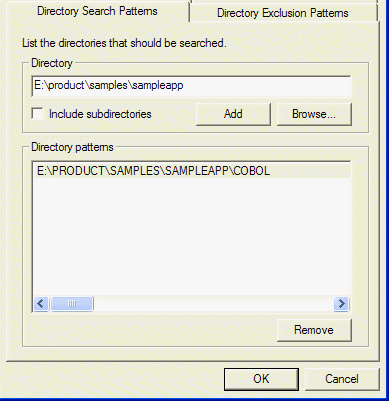
Figure 4-1: Directory Search Pattern tab
This works in the same way as the Directory Search Patterns, except
this specifies directories and subdirectories to be ignored in your search.
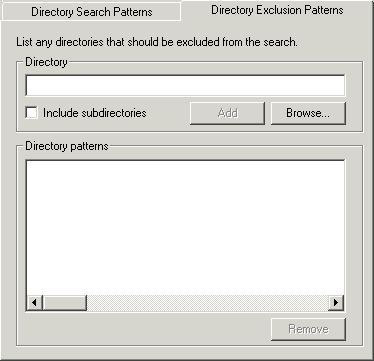
Figure 4-2: Directory Exclusion Patterns tab
In this tab, you can specify the filename extensions to include in the
scope of your search. You do this by selecting from a file types list,
supported extensions list, or by adding your own filename patterns. The
following pattern matching is used:
- * meaning one or more characters may follow
- ? meaning any character in this position
- + meaning the character in this position must be non-blank
- - meaning the character in this position must be a blank
- / meaning the character in this position must be numeric
- \ meaning the character in this position must be non-numeric
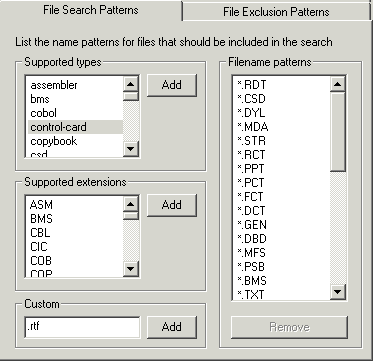
Figure 4-3: File Search Patterns tab
This works in the same way as the File Search Patterns, except this
specifies filename extensions to be ignored in your search.
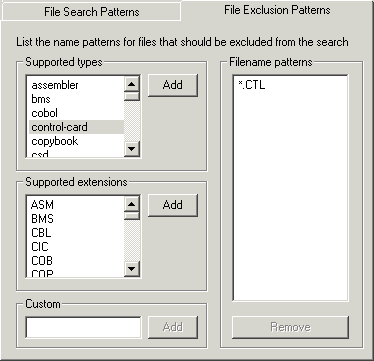
Figure 4-4: File Exclusion Patterns tab
In this tab, you can specify multiple text patterns to include in the
scope of your search. You can use the wildcard character (*) to indicate one or
more characters, or the question mark (?) to specify one character, and select
whether to make your search case sensitive. You can save your text pattern as a
.mpt file, or load an existing text pattern.
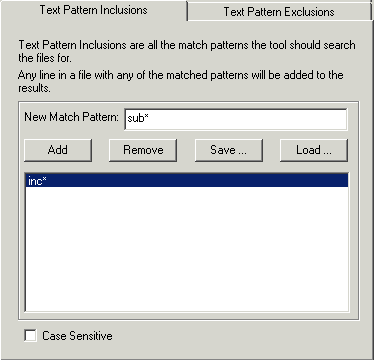
Figure 4-5: Text Pattern Inclusions tab
This works in the same way as the Text Pattern Inclusion, except this
specifies patterns to be ignored in your search. It works by first searching
for the patterns you specified in the Text Pattern Inclusion tab, and then
removes from the results any patterns specified in this tab.
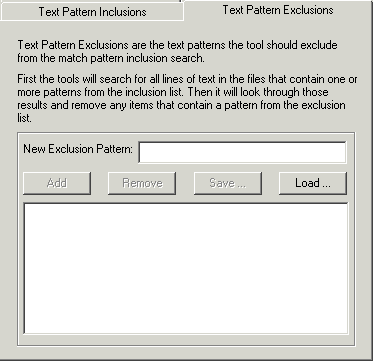
Figure 4-6: Text Pattern Exclusions tab
The Advanced Text Search Viewer displays all files with matches based
on your requirements. Click the plus sign (+) in front of the filename to
display the specific lines of code containing your text pattern match. Results
are shown in bold italics. You can use the Split Screen Viewer to examine the
results more closely. You can view an item that is found by the Advanced Text
Search in a tool or browser only if that item has been added to the current
project.
The Source view creates a logical view showing all the integrated files
that comprise a module. For example, for a COBOL program, the copybooks and
include files are interleaved in the main source file. As a further example,
for JCL, a logical view that integrates all the proclibs with the main job is
shown. The Source view displays the source code as it would appear in its
source file format. The overview window runs along the left side of the view
and provides a representation of the source file. The selected item's location
appears as a horizontal bar in the overview window. Highlighted items will also
be displayed in their appropriate color in the overview window.
When the Source view is invoked from the Tools
menu, an Open Source dialog appears. To find a specific source file, enter the
file name into the Match edit box and click
Match. Or use the list to find and select multiple files for
display in the view. The Select All !button selects all of
the items in the scroll-able list and opens Source views for each file.
Copyright © 2006 Micro Focus (IP) Ltd. All rights reserved.
 . These items are
removed from the list and will not be traced. To load these items back into
Impact Analysis, click
. These items are
removed from the list and will not be traced. To load these items back into
Impact Analysis, click  . These items are
placed on the Exclusions list and are withheld from the impact trace. Excluded
items are displayed in the impact trace results with an
. These items are
placed on the Exclusions list and are withheld from the impact trace. Excluded
items are displayed in the impact trace results with an