This chapter contains the following sections:
Database
functions and actions
An Online Express database call defines which record or records to read,
and which database actions to perform on them. Each database function that you
specify in your program definition has a corresponding database action that
defines the function, as shown below:
Database Function
|
Corresponding
Database Action
|
|
Query |
Obtain |
|
Update |
Modify |
|
Add |
Store |
|
Delete |
Erase |
For example, if your program must query, update, add, and delete a
record, you must define a call to obtain, modify, store, and erase that record.
To do so, you simply enter the action codes o(btain), m(odify), s(tore), and
e(rase) next to the record that Online Express displays.
Looping
on records
You can obtain multiple occurrences of a record simultaneously by
looping on the record with the l(oop) action code. For example, you might want
to loop on a record to display multiple data items in a repeated record block,
list box, or combination box on your screen. Alternatively, you might want to
loop on a record to calculate field totals, and display just the calculation
results. You can map to your program screen any fields of any records that you
loop. You specify which fields to map, using the Field Mapping screen.
By default, Online Express considers any call or calls that follow a
loop call to be nested within the loop. That is, these calls execute each time
that the loop executes. To indicate that a call is nested within a loop, Online
Express assigns a nesting level value to the nested call. You can, however,
decrease the nesting level of any call to execute it independently of the loop.
Define inner, or nested, loops
When you define multiple loops in your program, Online Express considers
the first loop to be an outer loop, and each subsequent loop to be an inner
loop, nested within the previous loop. By default, loops are progressively
nested--that is, the second loop is nested within the first, and the third loop
is nested within the second. As with any nested call, you can decrease the
nesting level of a nested loop to execute it independently of a loop, or nest
it within a different loop.
Define database calls
Define a database call by completing a few Online Express screens that
prompt you to do the following:
- Select which record or records to access.
- Specify the database read and write actions that you want to perform
on the record.
- Qualify the data that you access by specifying field or column
criteria.
Online Express displays a list of all records of the program subschema
or PSB. From that list, you select a record and specify its read and write
actions. For example, to define a call for a record that you want end users to
modify and store, simply specify the obtain, modify, and store action codes
next to that record in the list.
How you use the action codes in Online Express depends on the structure
and methods inherent to your database target. For example, you can obtain data
from multiple IMS records in a path and specify that end users can modify and
store it. Or you can select multiple SQL tables and loop on them, returning
multiple row records that can be modified, stored, and erased.
Online Express then displays all fields or columns of the record or
records that you select for the call. You specify any field or column criteria
to qualify the data that the call returns. Online Express prompts you for
information appropriate to your selected database target.
Qualify Online Express database calls using methods available to your
database target, as shown below:
Database
|
Qualification
Method
|
|
IMS |
Qualify on any field, including:
- Key field
- Non-unique search field
- Sequence field
Qualify on multiple fields and conditions using Boolean
operators
|
|
SQL |
Qualify on any column
Qualify on multiple columns and conditions using Boolean
operators
Qualify on multiple columns of multiple tables, using Union and
Join calls
Qualify with Subselect specifications, including SQL column and
scalar functions, and Exists, Group By, and Having clauses
|
|
VSAM |
Qualify on any field, including:
- Primary index
- Partial key field
|
|
IDMS |
Qualify on any field, including:
- Address
- CALC key
- Key
- Non-unique search
- Sequence
|
You should define the calls in the order in which you want to execute
them, but you can rearrange the order and modify any call definition at any
time.
Execution methods for database calls
Typically, you define calls that execute when the end user enters a
function code, presses a key. For example, you might want the obtain action to
execute when the end user enters Q, presses F5, or presses the Enter key.
In addition, you can define calls that execute as a custom program
function. For example, you can automatically execute a call at various
locations in your program, known as control points. Online Express provides
many control points at which you can execute calls.
Error processing
Online Express generates status flags that you can use to determine
execution errors. Each flag has a default status code, as shown below:
Status Flag
|
Default
Status Code
|
|
OK-ON-REC |
N(ormal) |
|
END-ON-REC |
N(ormal) |
|
NTF-ON-REC |
E(rror) |
|
DUP-ON-REC |
E(rror) |
|
VIO-ON-REC |
E(rror) |
Customize database call processing
While Online Express lets you completely define database calls without
having to code them, you can also extend and customize those calls to suit your
needs. Without leaving Online Express, you can write and execute custom
database call processing logic to supplement or override the default logic that
Online Express generates. You execute custom logic at any of several
APS-provided locations in your program, known as database call control points.
The control points let you add processing logic before and after a database
call, and when calls execute normally or abnormally.
If you want to override APS error processing routines, you change a
status flag's status code from Error to Exception, and then write your own
error routines at control points. You can also override the default error
messages with your own messages.
Define a Commarea
You can define an area in your program to store any data that your
program passes between programs, called a Commarea. You must define a Commarea
if your program passes data with the X(CTL), M(SG-SW), or C(all) functions. You
do so simply by specifying its size to Online Express.
Define a savekey storage area
You can also define an area in your program to store record key values
during program execution, called savekey storage. You must define savekey
storage if you program must do any of the following:
- Update records with the U(pdate), A(dd), and D(elete) program
functions.
- Obtain records sequentially with the N(ext) program function.
- Display repeated record blocks that the end user can scroll with the
F(orward) and B(ackward) functions.
- Re-read repeated record blocks so that the end user can update and
delete them with the M(odify) and E(rase) functions.
You can store savekey data either in savekey screen fields that you
define in your screen definition, or in the program Commarea.
Sample database calls
The Database Access Summary screen provides access to all the screens
that you need to define a call, and displays a summary list of all calls that
you define for a program. Sample Database Access Summary
Screen illustrates four sample SQL database calls.
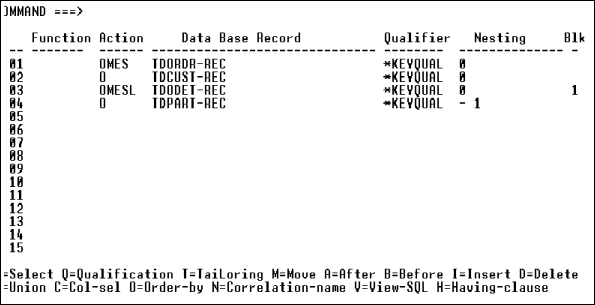
Figure 6-1: Sample Database Access Summary
Screen
Note the following about the calls defined above:
- Call 01 obtains a customer order table record qualified on key field
criteria, as indicated by the Qualifier field value KEYQUAL. The qualification
is satisfied when the end user enters a screen field value that matches that
criteria. The end user can query, update, delete from, and add to the table, as
indicated by the o(btain), m(odify), e(rase), and s(tore) action codes in the
Action field.
- Call 02 obtains a customer information table record qualified on a
field in the customer order table.
- Call 03 loops on the detail table of the customer order table,
qualified on the customer order table key field. The end user can also update,
delete from, and add to the table, as indicated by the m(odify), e(rase), and
s(tore) action codes in the Action field. The records returned by the loop are
mapped to a repeated block on the program screen, as indicated by the value 1
in the Blk (Block) field.
- Call 04 obtains a part master table record qualified by a field in
the detail table. Because call 04 follows a loop, Online Express assumes that
the call is nested within the loop, as indicated by its Nesting field value -
1.
You can define SQL database calls to obtain, loop, modify, erase, and
store columns from one or more tables. Specifically, you can define the
following types of SQL calls:
Types of SQL calls
- Basic SQL calls, to access qualified columns of one table.
- Join calls and Union calls, to access qualified columns of multiple
tables.
Types of call qualifiers
Online Express lets you specify any of the following SQL call
qualifiers:
- Select and Subselect statements
- Boolean qualifiers
- SQL column and scalar functions
- Exists and Not Exists clauses
- Group By and Having clauses
Procedures for defining basic calls, Join calls, and Union calls follow,
in separate sections.
Follow these steps to define a basic, qualified SQL database call.
Procedures for defining Join and Union calls appear in separate topics, later
in this section.
- Select the Database Access Summary screen
Select
option 6, Database Access, from the Online Express menu. Alternatively, enter 6
or dba on any primary Online Express screen. The Database Access Summary screen
displays.
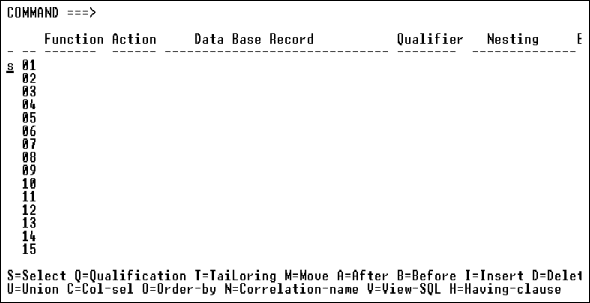
Figure 6-2: Database Access Summary
Screen
- Define the first call
To
define the first call, enter s in the selection field next to call number 01.
The Database Record Selection screen displays, listing all tables in the
program subschema.
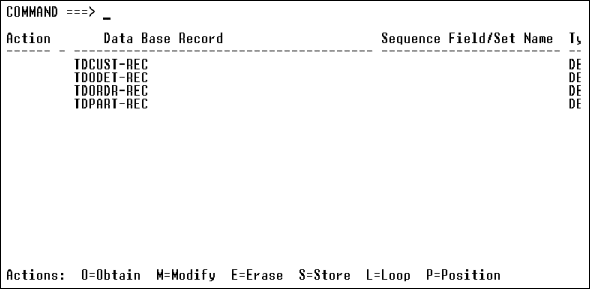
Figure 6-3: Database Record Selection
Screen
- Specify action codes
Enter
one or more action codes, in any order, in the Action field next to the table
that you want to access in the first call. For example, Specifying Database Action Codes illustrates a simple call
that obtains and loops on table TDODET-REC, as indicated by the o(btain) and
l(oop) action codes next to the table. To allow the end user to modify, erase
from, and store to the table, enter the m, e, and s action codes as well. To
define nested loops, see Nested Loops.
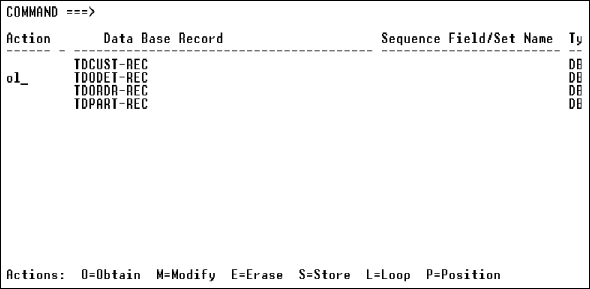
Figure 6-4: Specifying Database
Action Codes
- Select columns
Press
PF3 to display the Column Selection screen, which lists all columns of the
selected table, as shown in Column Selection Screen. Note
that Online Express identifies each index column with an asterisk in the Index
field.
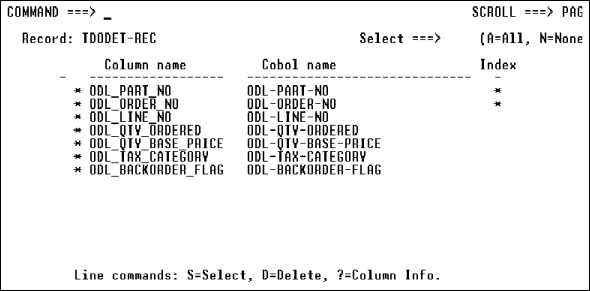
Figure 6-5: Column Selection
Screen
- Select the columns for the call by entering s in the selection field
next to each column that you want to include. Alternatively, enter d(elete)
next to each column that you want to exclude. To select all columns, enter
a(ll) in the Select field at the top of the screen. To display the definition
of any column, enter ? in the selection field next to it.
- Update the column list
Press
PF3 to display the Column Selection Update screen, where you see the list of
columns that you selected for the call, as shown in Column
Selection Update Screen.
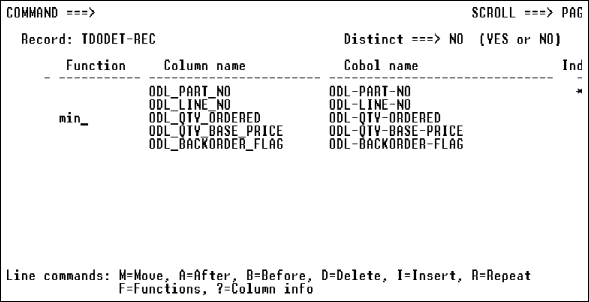
Figure 6-6: Column Selection
Update Screen
- Add, exclude, and rearrange the order of columns
Do
any of the following:
- To add a column, insert a line with the i(nsert) line command and
enter the column name in the Column Name field. Alternatively, insert a line,
enter listcol in the Command field to display a column list, and select a
column from the list. Then press PF3 to return to the Column Selection Update
screen.
- To exclude a column, enter d(elete) in the selection field next
to it.
- To rearrange the order of the columns, use the line commands
m(ove), a(fter), and b(efore).
- Override COBOL host variables
To
override the default COBOL host variables with Working-Storage fields or
literals, simply overtype the host variable names in the COBOL Name field.
Doing so enables you to change the destination for columns that the call
obtains and to update columns with literal values. These changes affect the
obtain, modify, and store actions as follows:
Override Value
|
Effect
|
|
Working-Storage field |
Obtain action: Obtains the column value into the
Working-Storage field.
Modify and Store actions: Updates the column with the
Working-Storage field value.
|
|
Literal |
Obtain action: Obtains the column value into the default
COBOL host variable.
Modify and Store actions: Updates the column with the
literal value. |
- Obtain literal values from a column
To
obtain a literal value from a column, overtype a column name with the literal,
or insert a new line and enter the literal.
- Assign SQL functions
To
assign a SQL column or scalar function to one or more columns, enter the
function name in the Function field next to the column(s), as shown in
Column Selection Update Screen. Alternatively, enter
f(unction) in the selection field next to the column to display a function
list, select one from it, and press PF3 to return to the Column Selection
Update screen. When you assign a column function--AVG, COUNT, MAX, MIN, or
SUM--to at least one, but not all, columns of a loop call, Online Express
generates a Group By clause. The Group By clause lists all other columns,
called grouping columns, in the order in which they appear on the Column
Selection Update screen. You can rearrange the order using the line commands
m(ove), a(fter), and b(efore). To define an optional Having clause to specify
conditions that the group must satisfy, see step 11.
- Press
PF3 to display the SQL Qualification Specification screen, where you qualify
the columns that you selected, as shown in SQL Qualification
Specification Screen.

Figure 6-7: SQL Qualification
Specification Screen
- Qualify columns
Qualify one or more columns by
entering an operator and a qualification value next to the column(s). A
qualification value can be a:
- COBOL host variable; APS automatically generates the colon
prefix.
- Working-Storage field.
- Number.
- Literal string enclosed in quotation marks or apostrophes.
- Subselect clause. To specify a Subselect, see below.
Specify Subselect clauses
To specify a subselect clause for a column, enter a value in the
Operator field, and subselect in the Value(s) field to display the Subselect
Specification screen, as shown in See Subselect Specification Screen.
Alternatively, enter s(ubselect) in the selection field next to the column.
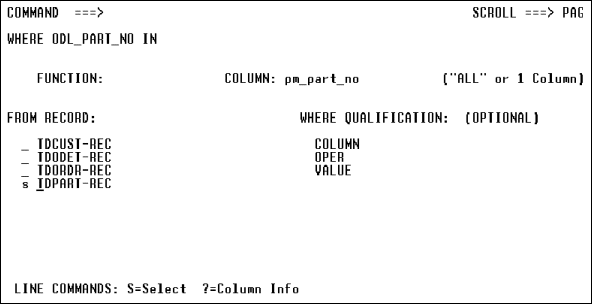
Figure 6-8: Subselect Specification
Screen
On the Subselect Specification screen, perform the following steps:
- Select a record for the subselect by entering s next to the
record in the From Record field.
- In the Column field, enter the column name for the subselect.
Alternatively, enter s(elect) in the selection field next to the Column field
to display a column list, select a column from the list, and press Enter to
return to the Subselect Specification screen.
- In the Function field, you can enter a SQL function.
Alternatively, enter s(elect) in the selection field next to the Function field
to display a function list, select a function from it, and press PF3 to return
to the Subselect Specification screen.
- In the Where Qualification field, you can qualify the subselect
by entering values next to the Column, Oper, and Value fields.
- Press Enter to preview the subselect clause as it will appear
when generated. Then press PF3 to return to the SQL Qualification Specification
screen.
Use Boolean qualifiers
To specify multiple conditions or value ranges for the call, enter
the Boolean qualifier AND or OR in the Bool field. When you specify two or more
Boolean qualifiers in a call, you can group the qualification within
parentheses as shown below:

Figure 6-9: Grouping Qualifiers
Use the OF operator
If your qualification value is an elementary-level COBOL field that
belongs to multiple group-level fields, insert a line and enter the OF operator
and the group-level field to which it belongs. For example:

Figure 6-10: Using the OF
Qualifier
Use
Exists and Not Exists clauses
To specify an Exists clause, first insert a blank line below the
call by entering i(nsert) in the selection field next to it. Leave the Column
Name field blank, enter exists or not exists in the Operator field, and enter
subselect in the Value field. Online Express displays the Subselect
Specification screen, where you specify your Exists clause subselect criteria.
Specify only one Exists clause per qualification. Press PF3 to return to the
SQL Qualification Specification screen.
- Press PF3 to exit the SQL Qualification Specification screen. APS
displays one of the following screens, depending on the contents of your call:
If your call contains …
|
APS
displays the …
|
|
No loop |
Database Access Summary screen. The call definition is
complete.
|
|
Loop with no Group By columns |
Order By Columns screen. Perform step 12.
|
|
Loop with Group By columns |
SQL Having Clause Specification screen. Perform step 11.
|
- Define Having clauses
You
can define a Having clause to qualify the Group By columns and columns to which
you have assigned column functions in steps 7 or 9. To do so, select H(aving)
on the Database Access Summary screen. The Having Clause Specification screen
displays, as shown in Grouping Qualifiers, showing all such
columns. Qualify them just as you qualify any column. In addition, you can
assign column functions to a Having clause as follows:
- To assign the COUNT column function to test the number of rows
found for the Group By columns, insert a line and enter * in the Column Name
field, and appropriate values in the Operator and Value(s) fields. APS
automatically displays the function name abbreviation CNT next to the clause.
- To assign any other column function, enter f(unction) in the
selection field next to the clause to display a function list, and select a
function from it.
After you define a Having clause, press PF3 to display the Order By
Columns screen.
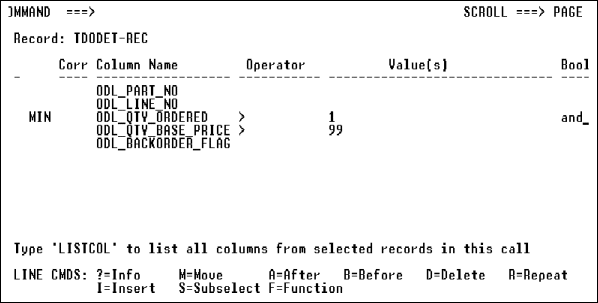
Figure 6-11: SQL Having Clause Specification
Screen
- Order the columns
On
the Order By Columns screen, specify the order in which the call obtains and
displays the columns, as shown in Using the OF Qualifier.
APS identifies the index column that you have selected, by displaying an
asterisk in the Index field. If your subschema contains multiple indexes, APS
displays only the last one listed in the subschema. To add any index or
non-index columns to the list, insert a line and enter the column names.
Alternatively, to display a column selection list, enter listcol in the Command
field and select columns from it.
- If your call includes the modify or erase action codes, the index
must be unique.
- To limit the number of rows that a loop call obtains, specify
that number in the Optimize field.
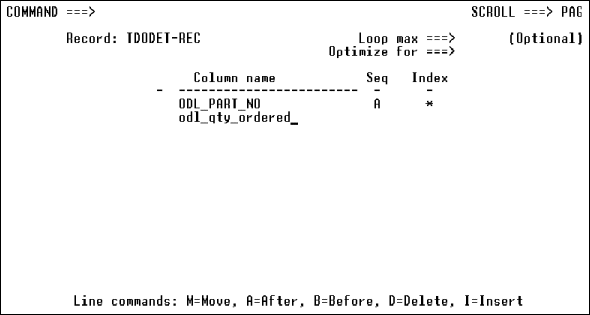
Figure 6-12: Order By Columns
Screen
- Press PF3 to display the Database Access Summary screen. Your call
definition is complete.
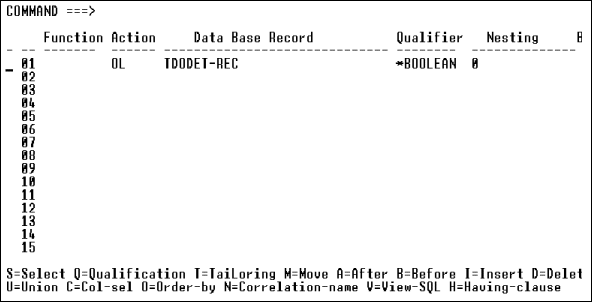
Figure 6-13: Database Access Summary
Screen
- Preview and test the call
You
can preview the call definition as it will appear when generated, and test
execute the call using SPUFI, the external interactive facility. To do so,
follow these steps:
- To define subsequent calls for a program, repeat the above steps. To
modify any call definition, display the Database Access Summary screen and
select the appropriate options displayed at the bottom of the screen. For
example, to modify a call's qualification, enter the q (ualification) command
in the selection field next to the call to display the SQL Qualification
Specification screen.
- When you finish defining all calls for your program, view a summary
list of the calls by displaying the Database Access Summary screen. Ensure that
the calls appear in the order in which you want them to execute. You can
rearrange, add to, and delete from the list as follows:
- Move any call to a position before or after another call by
typing m (move) next to the call, and either b (before) or a (after) next to
another call.
- Add a call definition in between calls in the list by typing i
(insert) next to a call and then defining the new call.
- Delete a call by typing d (delete) next to the call.
- Select option 6, Database Access, from the Online Express menu.
Alternatively, enter 6 or dba on any primary Online Express screen. The
Database Access Summary screen displays.
- Enter s in the selection field next to a new call number. The
Database Record Selection screen displays, listing all tables in the program
subschema.
- Select up to 16 tables for the Join by entering the o(btain) action
code and any other action codes next to the tables.
- Press
PF3 to display the Correlation Names screen, which shows default correlation
names for each selected table. To override the default correlation names,
simply overtype them. To reset the default names, enter reset in the Command
field.
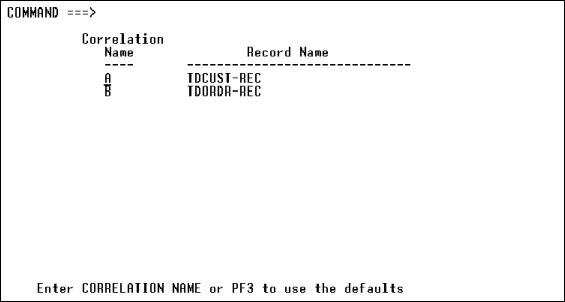
Figure 6-15: Correlation Names
Screen
- Press PF3 to display the Column Selection screen.
- Perform steps 5 through 16 in Defining Basic SQL
Calls. Your Join call definition is complete, as shown in Database Access Summary Screen.
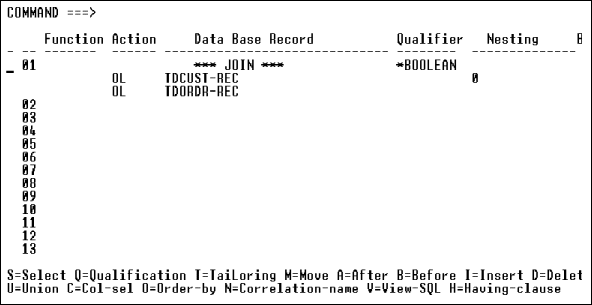
Figure 6-16: Database Access
Summary Screen
- Select the Database Access Summary screen
Select
option 6, Database Access, from the Online Express menu. Alternatively, enter 6
or dba on any primary Online Express screen. The Database Access Summary screen
displays.
- Define the first Select statement
To define the
first select statement of the Union, enter u(nion) next to a new call number on
the Database Access Summary screen. APS displays the Database Record Selection
screen.
- Perform steps 3 through 9 in Defining Basic SQL
Calls.
- Instead of selecting just one table on the Database Record
Selection screen, select up to 16 tables for the Join by entering the o(btain)
action code and any other action codes next to them.
- APS displays the Correlation Names screen, which contains a
default correlation name for each selected table. To override the names, simply
overtype them. To reset the default names, enter reset in the Command field.
Press PF3 to display the Column Selection screen.
- Define Having clauses
Press PF3 to exit the SQL
Qualification Specification screen. APS displays one of the following screens,
depending on whether your call contains Group By columns:
To define a Join within a Union, follow these steps:
If your call contains …
|
APS
displays the …
|
|
Group By columns |
SQL Having Clause Specification screen. Perform step 5.
|
|
No Group By columns |
Union Summary screen. Perform step 6.
|
- You
can define a Having clause to qualify the Group By columns and columns to which
you have assigned column functions in steps 7 or 9 inDefining
Basic SQL Calls. The Having Clause Specification screen, shown in
Correlation Names Screen, displays all such columns.
Qualify them just as you qualify any column. In addition, you can assign column
functions to a Having clause as follows:
- To assign the COUNT column function to test the number of rows
found for the Group By columns, insert a line and enter * in the Column Name
field, and appropriate values in the Operator and Value(s) fields. APS
automatically displays the function name abbreviation CNT next to the clause.
- To assign any other column function, enter f(unction) in the
selection field next to the clause to display a function list, and select a
function from it.
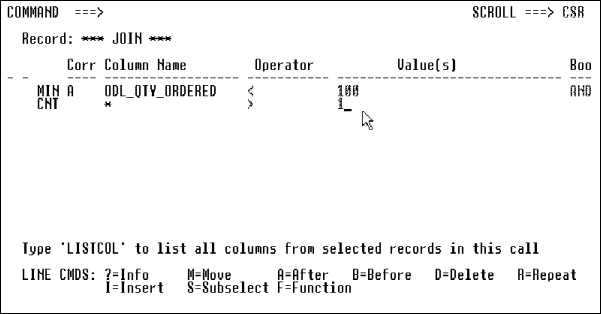
Figure 6-17: SQL Having Clause Specification
Screen
- After
you define a Having clause, press PF3 to display the Union Summary Menu. The
Menu displays the first Select statement that you just defined for the Union,
as shown in Union Summary Menu.
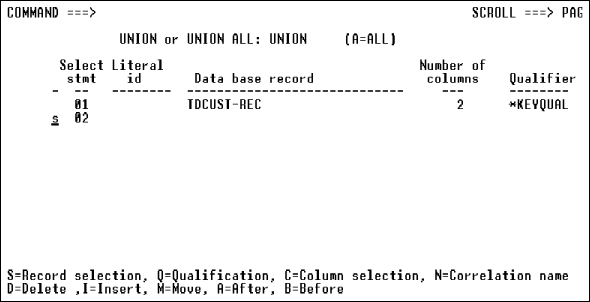
Figure 6-18: Union Summary Menu
- Define the next Select statement
On the Union
Summary Menu, define the next Select statement by entering s in the selection
field next to Select Stmt 02. APS displays the Database Record Selection
screen. Repeat steps 3 through 6 above to define as many Select statements as
you need for the Union. Online Express returns all column data to the host
variables of the first Select statement.
- Pad the Select statement columns
After you define
all the Select statements, check the Number of Columns field to see whether
each statement has an equal number of columns. If they do not, do the
following:
- Ensure that the statement with the greatest number of columns is
the first statement in the list. The other statements can be in any order.
Remember that Online Express returns all column data to the host variables of
the first Select statement.
- Ensure that the columns of each Select statement correspond to
each other properly. If the last column in the first statement has no
corresponding column, Online Express automatically pads the omitted column(s)
with an appropriate value--either a blank character, a zero, DATE, TIME, or
TIMESTAMP.
For example, Online Express pads the third column of statement
2, below:
|
Stmt 1 |
Column 1 |
Column 2 |
Column 3 |
|
Stmt 2 |
Column 1 |
Column 2 |
|
|
Stmt 3 |
Column 1 |
Column 2 |
Column 3 |
If any column except the last column in the first statement has
no corresponding column, you must pad the omitted column(s) on the Column
Selection Update screen. For example, you must pad the second column of
statement 2, below:
|
Stmt 1 |
Column 1 |
Column 2 |
Column 3 |
|
Stmt 2 |
Column 1 |
|
Column 3 |
|
Stmt 3 |
Column 1 |
Column 2 |
Column 3 |
- To pad any column, enter c(olumn selection) next to the Select
statement to display the Column Selection Update screen. Insert a line between
the appropriate columns and enter * in the Column Name field. Online Express
pads the column with an appropriate value.
- Ensure matching columns
After
you define all the Select statements for the Union, press PF3 on the Union
Summary Menu. If each column's corresponding column(s) match in data type and
length, APS displays the Order By Columns screen; perform step 12. If any
columns are mismatched, APS displays the mismatched columns on the Union
Columns Cross Reference screen.
- On the Union Columns Cross Reference screen, examine the data type
and length of each column to find the error. Note which columns do not match,
and press PF3 to return to the Union Summary Menu.
- To correct the mismatch, enter c(olumn selection) in the selection
field next to the Select statement that contains the mismatch. APS displays the
Column Selection Update screen, where you can make the necessary changes. Then
press PF3 to return to the Union Summary screen to ensure that the columns
match now, and press PF3 to display the Order By Columns screen.
- Order the columns
Specify the order in which the
call obtains and displays the columns, as described in step 12 in
Defining Basic SQL Calls.
- Press PF3 to display the Database Access Summary screen. Your Union
call definition is complete.
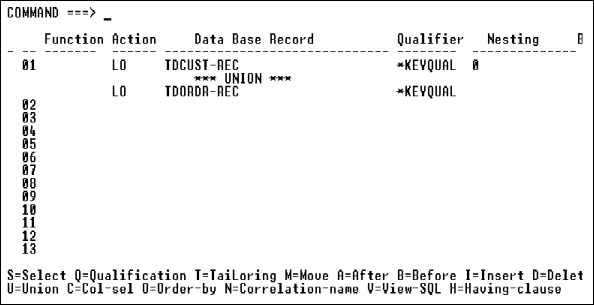
Figure 6-19: Database Access
Summary Menu
- Preview and test the call
To preview and test the
call, see step 14 in Defining Basic SQL Calls.
- While Online Express lets you completely define database calls
without having to code them, you can also extend and customize those calls to
suit your needs. See Customized Database Calls.
- If you specify multiple loops in your program, you must specify which
loop that you plan to map to a repeated record block on your program screen. By
default, Online Express assigns a 1 in the Blk (Block) field of the first loop
on the Database Access Summary screen, and leaves the field blank for all other
calls. If you plan to map fields of a different loop, enter the value 1 in its
Blk field, and blank out the default Blk field value of the first loop. For
more information, see Nested Loops.
- You can use COUNT(*) in Online Express. You code a COUNT(*) as
follows:
- Create a database call in Online Express.
- From the database call summary type C in the line command to
access the column selection.
- Insert a line with 'I' in the line command field.
- Under Function type COUNT; under Column Name type a
asterisk (*); under Cobol Name type the name of the working storage
field to receive the count, for example WS-COUNT.
- When you generate the COBOL you get SQL similar to the following:
SELECT COUNT(*) FROM TABLEA INTO WS-COUNT.
Using
IMS database calls
You can define IMS database calls to obtain, loop, modify, erase, and
store any record. For example, you can obtain a parent record and loop on its
child records to obtain multiple records that the end user can modify, erase,
and store. Online Express stores a child record for the parent record that is
currently obtained when the store action executes.
Follow these steps to define an IMS database call for any record:
- Select the Database Access Summary screen
Select
option 6, Database Access, from the Online Express menu. Alternatively, enter 6
or dba on any primary Online Express screen. The Database Access Summary screen
displays.
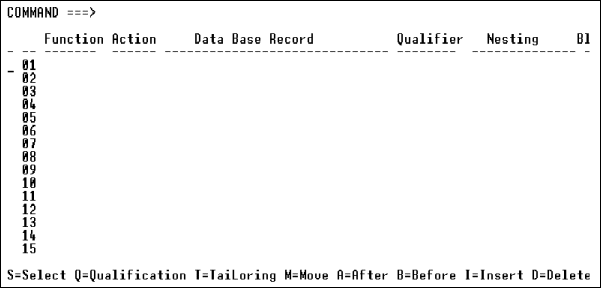
Figure 6-20: Database Access Summary
Screen
- Define the first call
To
define the first call, enter s in the selection field next to call number 01.
The Database Record Selection screen displays, listing all records in the
program subschema. IMS parent and child records display, showing their
parent/child relationships. Child records appear indented from their parents,
as shown in Database Record Selection Screen.
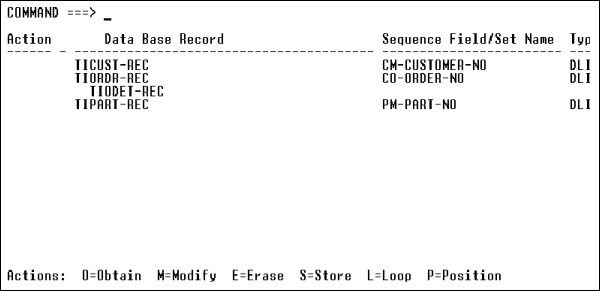
Figure 6-21: Database Record
Selection Screen
- Specify actions
Enter
one or more action codes, in any order, in the Action field next to the record
of the first call. For example, Specifying Database Action
Codes illustrates a simple call that obtains and loops on a parent record
and allows the end user to modify, erase, and store it, as indicated by the o,
l, m, e, and s action codes entered next to the record. To define nested loops,
see Nested Loops.
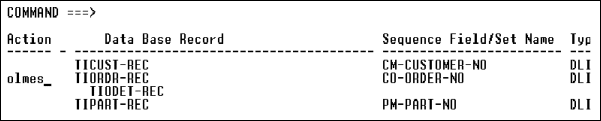
Figure 6-22: Specifying Database
Action Codes
- Obtain a child record
To
obtain a child record of the parent that you just obtained, define another call
to position the database pointer on the parent record and obtain the child. To
do so, enter the p(osition) action code next to the parent record, and the
o(btain) action code next to the child. To loop on the child, also enter the
l(oop) action next to the parent. For example, to position on TIORDR-REC and
loop on TIODET-REC, enter the p(osition) and l(oop) action codes next to
TIORDR-REC, and the o(btain) action code next to TIODET-REC, as shown in
Positioning on a Parent Record to Obtain and Loop on Its
Child.
In addition, you can enter the m(odify), e(rase), and s(tore) action
codes next to the child record if you want the end user to be able to perform
those actions against it.
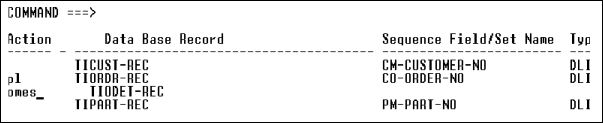
Figure 6-23: Positioning on a
Parent Record to Obtain and Loop on Its Child
- Qualify the record
From
the current Database Record Selection screen, enter s in the selection field
next to the record that you want to obtain. The Database Qualification screen
displays, listing all fields of the selected record, as shown in
Database Qualification Screen.
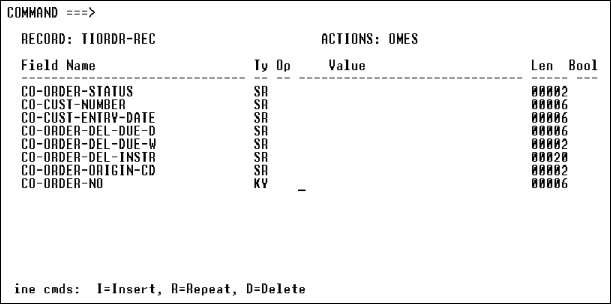
Figure 6-24: Database
Qualification Screen
- Qualify the record on one or more fields by entering an operator and
a qualification value next to the field(s). A qualification value can be a
COBOL screen field, Working-Storage field, a number, or a literal enclosed in
quotes or apostrophes. To specify multiple conditions or value ranges for the
call, enter the Boolean qualifier AND or OR. To let you specify Boolean
qualification for a key field, APS copies the key field onto the next line. You
can qualify the following types of fields described below. The field type for
the field displays in the Ty(pe) field on the screen.
Field Type
|
Description
|
|
KY |
Key field. |
|
SQ |
Sequence field of a child record's index set. |
|
SR |
Non-unique search field. |
For example, in Qualifying a Record below, note
that the call is qualified using Boolean qualification on three fields.
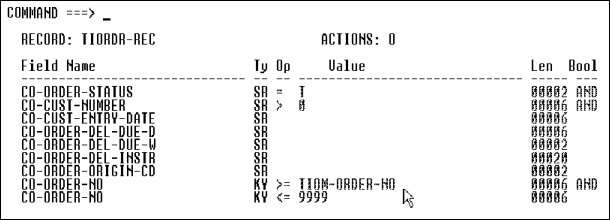
Figure 6-25: Qualifying a Record
If your qualification value is a record field that must reference
another field at a higher level in the hierarchy, insert a line and specify the
OF operator in the Op field and the higher-level field in the Value field.
- Save and review the specifications
When you finish
qualifying the record, save your specifications.
- View a summary of the call that you just defined by pressing PF3
twice. Note in Database Access Summary Screen that call 01
obtains, loops on, modifies, erases, and stores TIORDR-REC, qualified on its
key field. Call 02 finds the currently-obtained TIORDR-REC and loops on its
detail records, which the end user can modify, erase from, and store additional
records with.
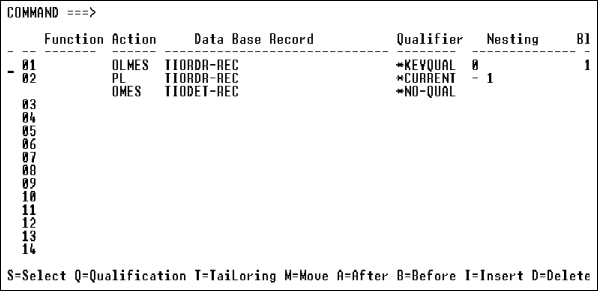
Figure 6-26: Database Access
Summary Screen
- Define additional calls
Repeat the above steps to
define subsequent calls for a program, or to modify call definition.
- View list of all calls
When you finish defining all
calls for your program, view a summary list of the calls by displaying the
Database Access Summary screen. Ensure that the calls appear in the order in
which you want them to execute. Rearrange, add to, and delete from the list as
follows:
- Move any call to a position before or after another call by
typing m (move) next to the call, and either b (before) or a (after) next to
another call.
- Add a call definition between calls in the list by typing i
(insert) next to a call and then defining the new call.
- Delete a call by typing d (delete) next to the call.
- While Online Express lets you completely define database calls
without having to code them, you can also extend and customize those calls to
suit your needs. See Customized Database Calls.
- If
you specify multiple loops in your program, you must specify which loop you
plan to map to a repeated record block on your program screen. By default,
Online Express assigns the value 1 in the Blk (Block) field of the first loop
on the Database Access Summary screen, and leaves the field blank for all other
calls. If you plan to map fields of a different loop, enter the value 1 in its
Blk field, and blank out the default Blk field value of the first loop. For
more information, see Nested Loops.
You can define VSAM database calls to obtain, loop, modify, erase, and
store any record. Follow these steps to define VSAM database calls:
- Select Database Access
Select
option 6, Database Access, from the Online Express menu. Alternatively, enter 6
or dba on any primary Online Express screen. The Database Access Summary screen
displays.
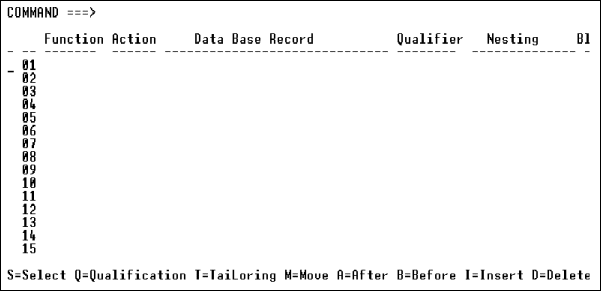
Figure 6-27: Database Access Summary Screen
- Define the first call
To
define the first call, enter s in the selection field next to call number 01.
The Database Record Selection screen displays, listing all records in the
program subschema, as shown in Database Record Selection
Screen.
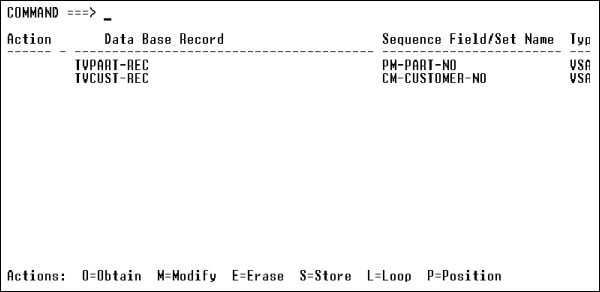
Figure 6-28: Database Record Selection Screen
- Specify action codes
Enter
one or more action codes, in any order, in the Action field next to the record
of the first call. For example, Specifying Database Action
Codes illustrates a simple call that obtains and loops on a record and
allows the end user to modify, erase, and store it, as indicated by the o, l,
m, e, and s action codes entered next to the record. To define nested loops,
see Nested Loops.
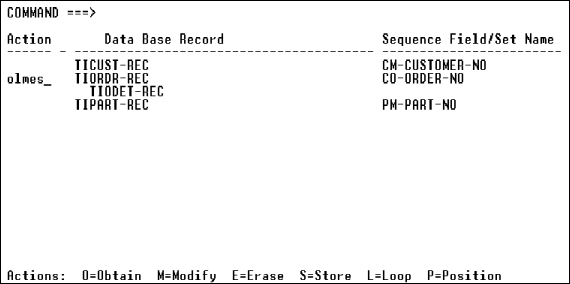
Figure 6-29: Specifying Database
Action Codes
- Qualify the record
Access
the Database Qualification screen by entering s in the selection field next to
the record that you want to obtain. The Database Qualification screen displays,
listing all fields of the selected record, as shown in Database
Qualification Screen.
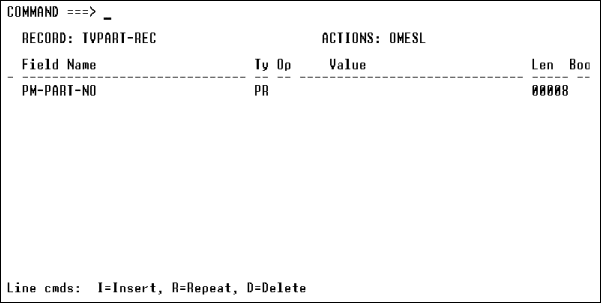
Figure 6-30: Database
Qualification Screen
- Qualify
the record on one or more fields by entering an operator and a qualification
value next to the field(s). A qualification value can be either a COBOL screen
field or Working-Storage name, or a literal enclosed in quotation marks. You
can qualify the following types of fields, as shown below. Each field's type
automatically displays in the Ty(pe) field on the screen.
Field
Type
|
Description
|
|
KY |
Key field. To qualify on a partial key, type over the value in
the Len(gth) field.
|
|
PR |
Primary index.
|
|
SR |
Non-unique search field.
|
For example, in Qualifying a Record, the key
field CO-ORDER-NO qualifies the record. The qualification is satisfied when the
end user enters a value in the screen field PM-PART-NO is greater than or equal
to the value in the database record TVPM-START-BROWSE.

Figure 6-31: Qualifying a
Record
To qualify a record on a key field that consists of multiple fields,
create a group-level qualification value field and move the values of the
fields to it. You then qualify the key with the qualification value field. See
Multiple-Field Key Qualification.
- Save and review the specifications
When you finish
qualifying the record, save your specifications.
- View a summary of the call that you just defined by pressing PF3
twice. Note in Database Access Summary Screen that call 01
obtains, loops on, modifies, erases, and stores TVPM-START-BROWSE, qualified on
its key field.
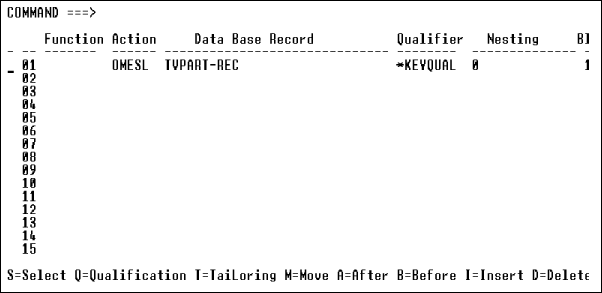
Figure 6-32: Database Access
Summary Screen
- Define additional calls
Repeat the above steps to
define subsequent calls for a program, or to modify any call definition.
- When you finish defining all calls for your program, view a summary
list of the calls by displaying the Database Access Summary screen. Ensure that
the calls appear in the order in which you want them to execute. You can
rearrange, add to, and delete from the list as follows:
- Move any call to a position before or after another call by
typing m (move) next to the call, and either b (before) or a (after) next to
another call.
- Add a call definition in between calls in the list by typing i
(insert) next to a call and then defining the new call.
- Delete a call by typing d (delete) next to the call.
- While Online Express lets you completely define database calls
without having to code them, you can also extend and customize those calls to
suit your needs. See Customized Database Calls.
- If
you specify multiple loops in your program, you must specify which loop that
you plan to map to a repeated record block on your program screen. By default,
Online Express assigns the value 1 in the Blk (Block) field of the first loop
on the Database Access Summary screen, and leaves the field blank for all other
calls. If you plan to map fields of a different loop, enter the value 1 in its
Blk field, and blank out the default Blk field value of the first loop. For
more information, see Nested Loops.
Using
IDMS database calls
You can define IDMS database calls to obtain, loop, modify, erase, and
store any record-an owner record, a member record, or an independent record
that is neither an owner or member. For example, you can obtain an owner record
and loop on its member records to obtain multiple records that the end user can
modify, erase, and store. Online Express stores a member record for the owner
record that is currently obtained when the store action executes.
Connecting
and disconnecting records in owner/member sets
In addition, you can connect and disconnect records in owner/member
sets. For example, you might want to change ownership of an employee record
from one department record to another. To do so, you use action codes to
disconnect the employee record from its current department record, and connect
it to a different department record. Or you might want to disconnect the
ownership of the employee record completely, making it an independent record.
All records in a disconnect/connect operation must be current of record type,
meaning that they must be obtained immediately before the operation executes.
Follow these steps to define an IDMS database call for any record:
- Select Database Access
Select
option 6, Database Access, from the Online Express menu. Alternatively, enter 6
or dba on any primary Online Express screen. The Database Access Summary screen
displays.
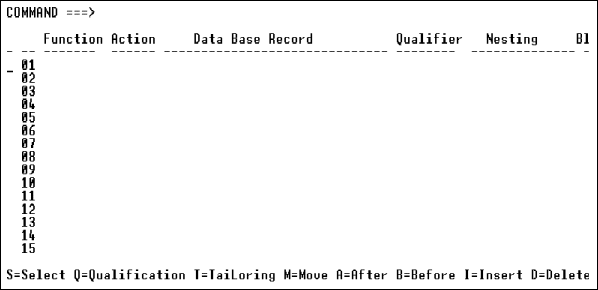
Figure 6-33: Database Access Summary
Screen
- Define the first call
To
define the first call, enter s in the selection field next to call number 01.
The Database Record Selection screen displays, listing all records in the
program subschema. IDMS owner and member records display, showing their
owner/member set relationships. Member records appear indented from their
owners, as shown in Database Record Selection Screen.
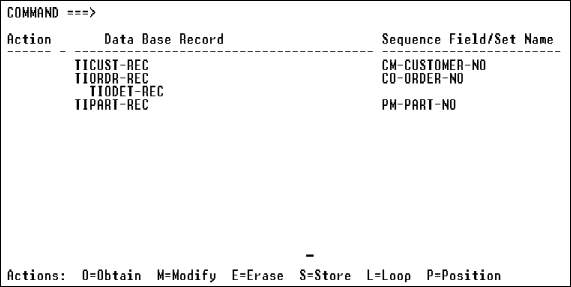
Figure 6-34: Database Record
Selection Screen
- Specify actions
Enter
one or more action codes, in any order, in the Action field next to the record
of the first call. For example, Specifying Database Action
Codes illustrates a simple call that obtains and loops on an owner record
and allows the end user to modify, erase, and store it, as indicated by the o,
l, m, e, and s action codes entered next to the record. To define nested loops,
see Nested Loops.
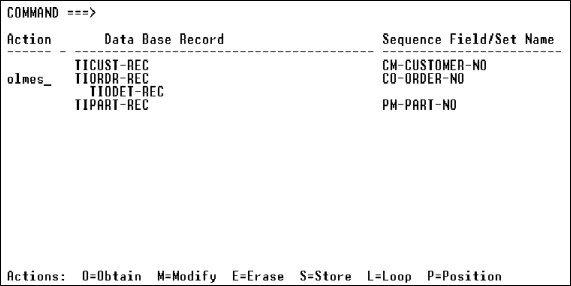
Figure 6-35: Specifying Database
Action Codes
- Obtain member records
To
obtain a member record of the owner that you just obtained, define another call
to find the owner record and obtain the member. To do so, enter the p action
code next to the owner record, and the o(btain) action code next to the member.
To loop on the member, also enter the l(oop) action next to the owner. For
example, to find TIORDR-REC and loop on TIODET-REC, enter the p and l(oop)
action codes next to TIORDR-REC, and the o(btain) action code next to
TIODET-REC, as shown in Finding an Owner Record to Obtain and
Loop on Its Member.
In addition, you can enter the m(odify), e(rase), and s(tore) action
codes next to the member record if you want the end user to be able to perform
those actions against it.
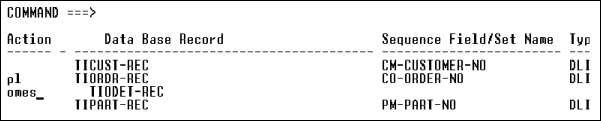
Figure 6-36: Finding an Owner
Record to Obtain and Loop on Its Member
- Qualify the record
From
the current Database Record Selection screen, access the Database Qualification
screen by entering s in the selection field next to the record that you want to
obtain. The Database Qualification screen displays, listing all fields of the
selected record, as shown in Database Qualification Screen.
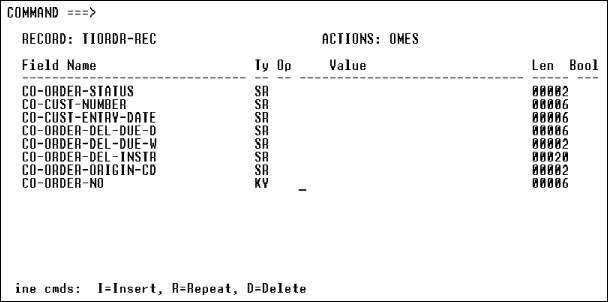
Figure 6-37: Database
Qualification Screen
- Qualify
the record on one or more fields by entering an operator and a qualification
value next to the field(s). A qualification value can be either a COBOL screen
field or Working-Storage name, or a literal enclosed in quotation marks. You
can qualify the following types of fields, as shown below. Each field's type
automatically displays in the Ty(pe) field on the screen.
Field Type
|
Description
|
|
AD |
Address field, if one exists. Online Express displays the
address field as a field named DB-KEY.
|
|
CA |
CALC key field.
|
|
KY |
Key field.
|
|
SQ |
Sequence field of a member record's index set.
|
|
SR |
Non-unique search field.
|
For example, in Qualifying a Record below, the
key field CO-ORDER-NO qualifies the record. The qualification is satisfied when
the end user enters a value in the screen field TIOM-ORDER-NO that equals a
value in the database record field CO-ORDER-NO.
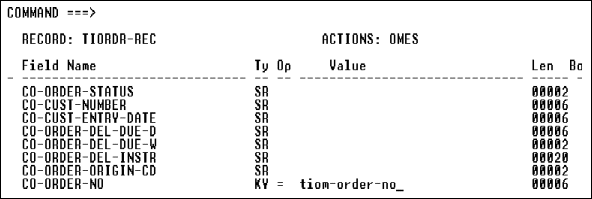
Figure 6-38: Qualifying a
Record
To qualify a record on a key field that consists of multiple fields,
create a group-level qualification value field and move the values of the
fields to it. You then qualify the key with the qualification value field. See
Multiple-Field Key Qualification, later in this chapter.
- Save and review the specifications
When you finish
qualifying the record, save your specifications.
- View a summary of the call that you just defined by pressing PF3
twice. Note in Database Access Summary Screen that call 01
obtains, loops on, modifies, erases, and stores TIORDR-REC, qualified on its
key field. Call 02 finds the currently-obtained TIORDR-REC and loops on its
detail records, which the end user can modify, erase from, and store additional
records with.
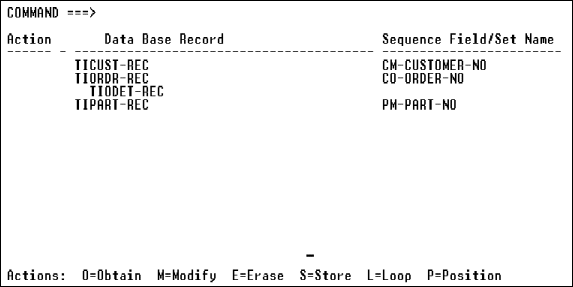
Figure 6-39: Database Access
Summary Screen
- Repeat the above steps to define subsequent calls for a program, or
to modify any call definition.
- When you finish defining all calls for your program, view a summary
list of the calls by displaying the Database Access Summary screen. Ensure that
the calls appear in the order in which you want them to execute. You can
rearrange, add to, and delete from the list as follows:
- Move any call to a position before or after another call by
typing m (move) next to the call, and either b (before) or a (after) next to
another call.
- Add a call definition in between calls in the list by typing i
(insert) next to a call and then defining the new call.
- Delete a call by typing d (delete) next to the call.
- While Online Express lets you completely define database calls
without having to code them, you can also extend and customize those calls to
suit your needs. See Customized Database Calls.
- If
you specify multiple loops in your program, you must specify which loop that
you plan to map to a repeated record block on your program screen. By default,
Online Express assigns the value 1 in the Blk (Block) field of the first loop
on the Database Access Summary screen, and leaves the field blank for all other
calls. If you plan to map fields of a different loop, enter the value 1 in its
Blk field, and blank out the default Blk field value of the first loop. For
more information, see Nested Loops.
You can define database calls that connect and disconnect records to and
from owner/member sets. To do so, perform the following steps:
- Ensure that you have defined the Update function in your program
definition and on the program screen.
- Define a call that obtains the member record that you want to
disconnect by entering the o(btain) action code next to it.
- Define a call that finds the member's owner record by entering the p
action code next to the owner.
- Define a call that disconnects the member from its current owner
record by entering the d(isconnect) action code next to the member.
- Define a call that obtains the new owner record that you want to
connect the member record to.
- Define a call that connects the member record to the new owner by
entering the c(onnect) action code next to the member.
- Display the Database Access Summary screen to view all calls that you
created in the above steps, as shown in Database Access Summary
of Connect/Disconnect Program.
Database Access Summary of Connect/Disconnect
Program:
   Function Action Data Base Record      Qualifier Nesting
-- -------- ------ --------------------- --------- ---------
01 *UPDATE  O      EMPLOYEE-REC          *KEYQUAL  0
02 *UPDATE  P      DEPT-A-REC            *NO-QUAL  0
03 *UPDATE  D      EMPLOYEE-REC          *NO-QUAL  0
04 *UPDATE  O      DEPT-B-REC            *KEYQUAL  0
05 *UPDATE  C      EMPLOYEE-REC          *NO-QUAL  0
- Enter *update in the Function field of each call to update the
modified owner/member relationship, as shown in Database Access
Summary of Connect/Disconnect Program. The *update entries cause the
program to execute all the calls when the end user executes the Update function
on the program screen.
Six
basic tailoring options
While Online Express lets you completely define database calls without
having to code them, you can also extend and customize those calls to suit your
needs. Use any of the following techniques, in any of the supported database
environments:
- Define nested loop calls.
- Execute multiple database actions with one program function.
- Write and execute custom processing routines at APS-provided
locations in your program known as database call control points.
Control
points let you add customized error processing routines and routines that you
want to execute before or after a database call.
- Override status codes and error messages.
- Qualify a record key that consists of multiple fields.
- Execute a call as a custom program function anywhere that you can
perform a paragraph, such as at a program control point.
The following sections explain these techniques.
Using nested loops
You use nested loops to obtain multiple occurrences of multiple records.
Loops that are not nested obtain multiple occurrences of a single record. You
can map any loop records to a repeated record block, list box, or combination
box on your screen, or you can loop on records to calculate field totals, and
display just the calculation results.
Nesting levels
When you define two loop calls in a program, the first loop is an outer
loop, and the second loop is an inner, or nested, loop. The nested loop
executes repeatedly each time that the outer loop executes once, and obtains
all records that satisfy the outer loop record key. For example, you might want
to loop on all order records of a particular customer, and loop on all detail
records of all the order records.
Or you might want to loop on a record to obtain a certain record
occurrence that you loop on again, and display just the second loop's records.
For example, if your program must display all items to be included in the next
shipment to a certain customer, you first loop on all outstanding orders for
the customer to determine which order ships next. You then loop on that order
to obtain all its detail records. Executing the Store Action
When Querying a Record and Database Call Tailoring
Screen illustrate this example.
To indicate that the inner loop is nested within the outer loop, Online
Express assigns the default nesting level value - 1 to it on the Database
Access Summary screen. The outer loop's nesting level is 0, indicating that it
is not nested.
When you define more than two loops, each loop is nested within the
previous loop. That is, the second loop is nested within the first, and the
third loop is nested within the second. The default nesting level of the third
loop is - - 2. You can define as many nested loops in your program as you need.
Example of nested loop calls
In the sample IMS program in A Nested Loop, a nested
loop obtains all detail records of each order record that is obtained by the
program's previous loop. In addition, the call following the nested loop
obtains the part master record for each detail record. Fields from all three
records display in a repeated record block on the program screen.
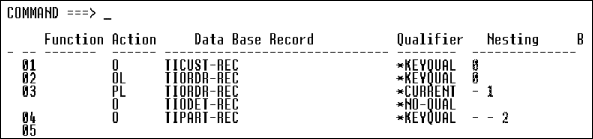
Figure 6-40: A Nested Loop
The sample program above executes as follows:
- Call 01 obtains the customer record. It is qualified on the customer
record key, the customer number.
- Call 02 is the outer loop. It loops on the order record, qualified on
the order record key, the customer number. When the outer loop finds the first
order, call 03 executes.
- Call 03 is the nested loop. It positions the database pointer on the
currently-obtained first order and loops on the detail record. When it finds
the detail record that is associated with the first order, call 04 executes.
- Call 04 is an obtain call, nested within the second loop. It obtains
the part master record associated with the detail record that was obtained by
the nested loop.
- Calls 03 and 04 execute repeatedly until no more detail and part
master records are found for the first order record.
- Call 02 executes again, obtaining the second order record.
- Calls 03 and 04 execute repeatedly until no more detail and part
master records are found for the second order record.
- Calls 02 through 04 execute repeatedly until no more order, detail,
or part master records are found for the customer number specified in the
customer record call, call 01.
Overriding
nesting levels
Depending on what you want your program to do, you might need to
override the nesting levels of nested loops to nest them under different loops,
or to execute them independently of other loops. By default, Online Express
assigns default nesting levels to each loop, in the Nesting field on the
Database Access Summary screen. If you define three loops in your program,
their default Nesting field values are as follows:
Loop
|
Nesting Value
|
Description
|
|
1 |
0 |
Loop is not nested
|
|
2 |
- 1 |
Loop is nested within loop 1
|
|
3 |
- - 2 |
Loop nested within loop 2
|
You can decrease the default nesting level of any loop simply by typing
over the Nesting field value. For example, if you want the second loop to
execute independently of the first loop, you change its nesting level from - 1
to 0. Or, if you want the third loop to be nested within the first loop rather
than the second, you change its nesting level from - - 2 to - 1. APS ensures
that your nesting levels do not skip a level. For example, you cannot specify a
level 0 loop, followed by a level - - 2 loop.
When you override nesting levels, ensure that the value 1 appears in the
Blk (Block) field of the outer loop that you plan to map to a repeated record
block on your program screen. For example, if you have two loops with the
nesting level 0, and you want to map fields of only the second loop to your
screen, blank out the default value 1 in the Blk field of the first loop, and
enter 1 in the Blk field of the second loop.
Example of overridding nesting levels
In the following example, the program must display all items to be
included in the next shipment to a certain customer. The first loop reads all
outstanding orders for the customer and executes a user-defined routine to
determine which order ships next. The second loop obtains all detail records of
the order found by the first loop, and maps them to a repeated record block.
Note that if the default nesting level of the second loop is used, the
program would not execute as required. The program would loop on and obtain all
customer order records and their detail records. In addition, Online Express
would assume that records of the first loop will map to the repeated block.
To make the program execute as required, note in Overridden Nesting Level and Blk Values that:
- The nesting level of calls 02 and 03 are changed from - 1 to 0 to
make them not nested within the first loop.
- The Blk field value of the first loop is changed from 1 to spaces to
indicate that the loop does not display in the repeated record block.
- The Blk field value of the second loop is changed from spaces to 1 to
indicate that the loop does display in the repeated record block.
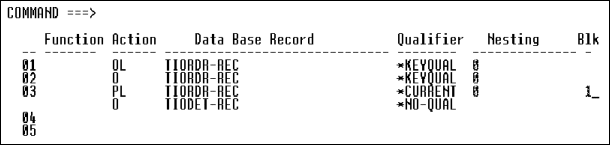
Figure 6-41: Overridden Nesting Level and Blk
Values
You can define a program function to execute more than one database
action. For example, you can define the query function to execute the store
action as well as the obtain action.
Suppose you want to store in a log record the ID of each end user who
queries a customer order record. You define one call to obtain the order
record, and another call to store the IDs in another record, as shown in
Executing the Store Action When Querying a Record. To cause
the query function to execute the store call as well as the obtain call, you
enter the value *query in the Function field next to the store call. You then
customize the store call with user-defined logic to move the user IDs to the
log record. To write and execute custom logic for database calls, see
Custom Logic at Database Call Control Points.
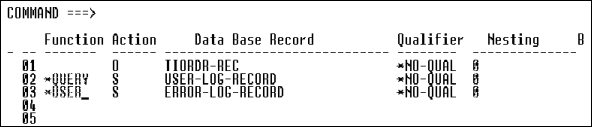
Figure 6-42: Executing the Store Action When
Querying a Record
Write custom logic for database calls
Without leaving Online Express, you can write and automatically execute
custom database call processing logic to supplement or override the default
logic that Online Express generates. You execute custom logic at any of several
APS-provided locations in your program, known as database call control points.
The control points let you add processing logic before and after a database
call, and when calls execute normally or abnormally. You select control points
from a list that displays on the Database Call Tailoring screen. The list
includes the following control points:
Control Point
|
Location
|
|
Befor DB Access |
Before a non-loop database call executes
|
|
Before Loop |
Before a loop database call executes
|
|
Normal Status
(Before Record is Processed)
|
Before Online Express maps looped records to the screen
|
|
Normal Status |
After Online Express maps any records to the screen
|
|
Exception Status |
After the database call returns a status flag with the Exception
status code
|
|
Error Status |
After the database call returns a status flag with the Error
status code
|
|
After DB Access |
After a non-loop database call executes
|
|
After Loop |
After a loop database call executes
|
Write
local or global custom processing logic
You can write control point logic specifically for one program, or for
use throughout your application. Program-specific custom logic is known as a
local program stub; custom logic that you use throughout your application is
known as a global program stub. Alternatively, you can write a macro and invoke
it in any program of any application. You execute any stub or macro at any
control point.
Local stubs
A local stub can consist of Procedure Division and Data Division code.
You write a local stub in the Specification Painter, which you access from the
Database Call Tailoring screen.
Global stubs
A global stub can consist of Procedure Division paragraphs. You write a
global stub in the Program Painter, which you access from the Application
Painter.
User-defined
macros
A macro can consist of any code that you write using the APS
Customization Facility, a high-level tool for writing and processing macros.
You include macro library members in your application on the Application
Painter screen.
Tailor individual database call actions
You add custom logic to, or tailor, each action of a database call
individually. For example, you might want to tailor the obtain action by adding
a data validation routine that executes whenever the obtain action executes.
The Normal Status control points
The Normal Status (Before Record is Processed) control point lets you
add custom logic before looped records map to a repeated record block on your
screen. Use this control point if you want to map only some of the records that
a loop obtains. In your stub or macro, write conditional logic to determine
which records to map. Online Express provides a flag, OK-TO-PROCEED, that you
set to True to map and process the record, or False to bypass mapping and
processing. You can ignore the flag if you do not use this control point; the
flag is set to True by default. To add custom logic after Online Express maps
any record to your screen, use the Normal Status control point.
The following example illustrates both control points. Suppose that you
must map the records that show annual sales of $100,000 or more in the
Northwest region, and calculate and map the grand total of those records. You
first define a loop call and qualify it to obtain the records of $100,000 or
more. Then you tailor the loop call with two local stubs.
The first stub checks the records obtained by the loop to allow only
records of the Northwest region to be processed further. The second stub
calculates the grand total of those records, and maps the total to the screen.
The generated loop call and stub paragraphs are shown below:
DB-PROCESS REC SALES-RECORD
... WHERE ANNUAL-SALES-TOTAL > 99999
    PERFORM CHECK-BEFORE-MAPPING-STUB-PARA
    IF OK-TO-PROCEED
        ADD 1 TO CTR
        PERFORM RECORD-STOREKEY-PARA
        MOVE REC-TO-SCREEN-BLK1
        PERFORM CHECK-AFTER-MAPPING-STUB-PARA
.
.
.
CHECK-BEFORE-MAPPING-PARA
    TRUE OK-TO-PROCEED
    IF SALES-REGION NOT = NORTHWEST
        FALSE OK-TO-PROCEED

CHECK-AFTER-MAPPING-PARA
    calculation and mapping routine for grand total
Note that:
- Online Express generates the loop call as an APS DB-PROCESS call.
- The CHECK-BEFORE-MAPPING paragraph is written and executes at the
Normal Status (Before Record is Processed) control point. Online Express
generates the paragraph's PERFORM statement.
- The CHECK-AFTER-MAPPING paragraph is written and executes at the
Normal Status control point. Online Express generates the paragraph's PERFORM
statement.
- Online Express generates all other lines of code that are subordinate
to the DB-PROCESS call.
Write and automatically execute custom logic for a call as follows :
- Display the call on the Database Access Summary screen.
- Enter t(ailoring) next to the call to display the Database Call
Tailoring screen.
- Specify which action that you want to customize by entering its
action code, such as o(btain) or s(tore), in the Action To Be Tailored field,
as shown in Database Call Tailoring Screen. You can tailor
the Obtain, Modify, Store, and Erase actions.
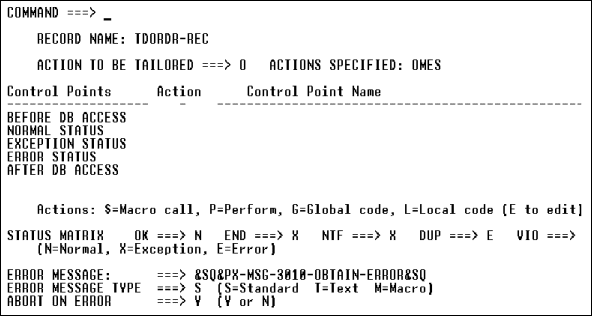
Figure 6-43: Database Call
Tailoring Screen
- In
the Action field next to the control point where you want to add logic, either
invoke a macro that contains the logic, execute a global stub that contains the
logic, or write and execute the logic in a local stub, as follows:
- To invoke a macro, enter $ in the Action field, and the macro
name in the Control Point Name field. The macro must reside in the USERMACS
library member that you specify on the Application Painter screen. For rules on
writing macros, see the APS Customization Facility User's Guide.
- To execute a global stub, enter g in the Action field, and the
global stub name in the Control Point Name field. You must define the global
stub in the Program Painter and specify its name on the Application Painter
screen. For rules on writing global stubs, see Custom
Program Functions.
- To write and execute a local stub, perform steps 5 and 6.
- To write a local stub, first enter e(dit) in the Action field next to
the control point where you want to write the logic. The Specification Painter
displays, as shown in Error Flag Status Codes.
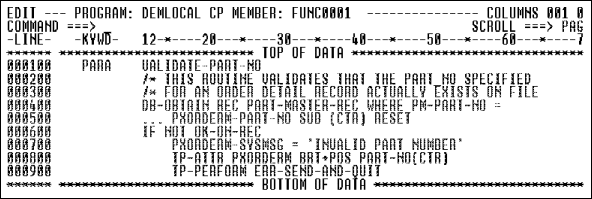
Figure 6-44: Writing a Local Stub in the
Specification Painter
- Write the local stub in the Specification Painter and save it. For
rules on writing local stubs, see Defining Custom
Program Functions. You do not name a local stub. After you save the stub,
Online Express redisplays the Database Call Tailoring screen with the message
PAINTED next to the control point.
You can customize database call processing to override the status codes
of Online Express status flags and the text of default error messages. You do
both on the Database Call Tailoring screen.
Online Express provides five status flags. By default, all status flags
except OK-ON-REC return the Error status code, as shown below:
Status Flag
|
Default
Status Code
|
|
OK-ON-REC |
N(ormal) |
|
END-ON-REC |
E(rror) |
|
NTF-ON-REC |
E(rror) |
|
DUP-ON-REC |
E(rror) |
|
VIO-ON-REC |
E(rror) |
When Online Express returns the Error status flag, the program aborts
and performs the Error-Send-And-Quit paragraph.
Overriding status codes
To override the default Error flag processing, you can change a status
flag's status code from Error to Exception, and then write your own error
routines at control points on the Call Tailoring screen. You do so by
overtyping the status code values in the Status Matrix fields, as shown in
Error Flag Status Codes and writing error routines as
described in Custom Logic at Database Call Control Points.
To just prevent the Error flag from aborting the program, specify n for the
Abort On Error field on the Database Call Tailoring screen.
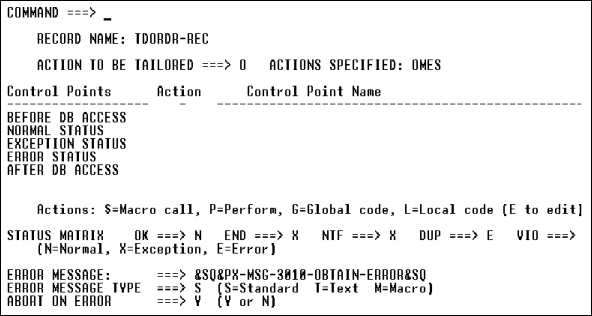
Figure 6-45: Error Flag Status Codes
Overriding error messages
Online Express generates error messages that show which type of call
failed and which record caused the failure. You can override the default
messages with either a text message or a macro that contains a text message. To
do so, enter either the text or the macro name in the Error Message field, and
specify in the Error Message Type field whether you entered text or a macro.
Qualify
group-level keys
To qualify a VSAM or IDMS group-level key field, you write custom logic
that moves the key's elementary field values to a group-level qualification
value field that you define. You then qualify the key with the qualification
value field. For example, suppose that a key has the following elementary
fields:
01  SALES-KEY.
    05  REGION-CODE    PIC X(2).
    05  YEAR-CODE      PIC X(2).
You write custom logic that defines a group-level Working-Storage field
and moves the values of the two elementary fields to it, as follows:
-KYWD-  12-*----20---*----30---*----40---*----50---*--
        MOVE SCREEN-REGION-CODE TO REGION-CODE
        MOVE SCREEN-YEAR-CODE TO YEAR-CODE
 WS01   NEW-SALES-KEY.
        05  REGION-CODE    PIC X(2).
        05  YEAR-CODE      PIC X(2).
On the Database Qualification screen, you qualify the key field,
SALES-KEY, with the qualification value field, NEW-SALES-KEY.
Write and execute the custom logic
You write and execute the custom logic at the Before DB Access control
point, on the Database Call Tailoring screen. See Custom Logic
at Database Call Control Points.
Follow these steps to qualify a multiple-field key field with a
qualification value field:
- Define the call as you normally do, using the Database Record
Selection screen, but do not qualify the call yet.
- Return to the Database Access Summary screen.
- On the Database Access Summary screen, enter t(ailoring) next to the
call to display the Database Call Tailoring screen.
- If the o(btain) action does not display in the Action To Be Tailored
field, enter it now, as shown in Database Call Tailoring Screen
for the Obtain Action.
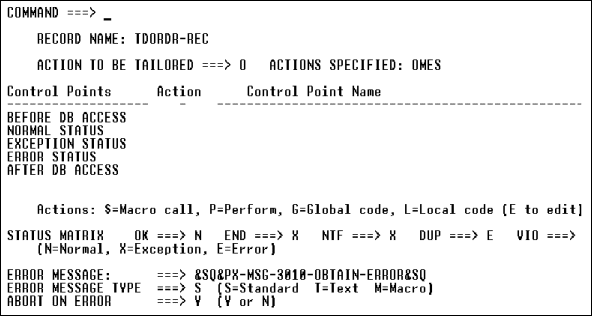
Figure 6-46: Database Call
Tailoring Screen for the Obtain Action
- Enter e(dit) in the Action field next to the control point named
Before DB Access. The Specification Editor displays so that you can write the
qualification value field logic in a local stub. Online Express automatically
executes the local stub at this control point, before the call executes. See
Defining Custom Program Functions, for rules on
coding local stubs. Alternatively, you can execute a global stub or invoke a
user-defined macro at the control point.
- Access the Database Qualification screen.
- Qualify the key field by entering the = operator in the Operator
field, and the group-level qualification value field in the Value field. In
this example, you qualify the key field SALES-KEY with the value field
NEW-SALES-KEY.
Typically, you define calls that execute when the end user enters a
function code, presses a key. You can define additional calls that you execute
anywhere that you can execute a paragraph, such as at a control point. For
example, you might want to store in a log record the error messages that end
users receive when querying a customer order record. You first define a call
that stores the log record. Then, on the Database Access Summary screen, you
enter *user in the Function field to indicate that you will execute the call as
a paragraph, somewhere in Online Express, as illustrated in Call 03 in
Defining a Call That You Execute As a Custom Function:
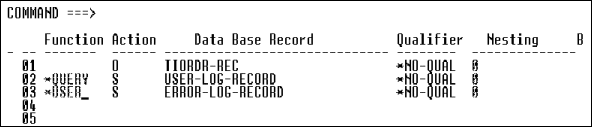
Figure 6-47: Defining a Call That You Execute
As a Custom Function
After you define the *user call, Online Express writes it to a
paragraph. You then execute the paragraph anywhere that Online Express allows,
such as at a control point or on the Alternate Functions screen. In the example
above, you would execute the paragraph at the control point after the screen is
read, named POST-SCREEN-READ, on the Control Points screen. You then would
write and execute custom code at the AFTER DB ACCESS control point on the
Database Call Tailoring screen to move the error messages to the log record.
Follow these steps to write and execute a call in a custom program
function:
- Define the call as you normally do. On the Database Access Summary
screen, enter *user in the Function field next to the call.
- View the name of the paragraph to which Online Express writes the
*user call. To do so, enter *user in the Command field. The User Controlled
Database Calls screen displays, showing the APS-generated paragraph name. You
can override the name on this screen by overtyping it.
- Perform the paragraph anywhere that Online Express allows.
Purpose
of savekey storage
You use a savekey storage area to store key record values during program
execution. You must define savekey storage if your program must do any of the
following:
- Update records with the U(pdate) and D(elete) program functions
- Obtain records sequentially with the N(ext) program function
- Display repeated record blocks that the end user can scroll with the
F(orward) and B(ackward) functions
Define savekey storage in screen definition or Commarea
You can store savekey data either in:
- The program Commarea, a storage area that Online Express
automatically creates when you indicate so on the Savekey Definition screen.
- Fields that you define on the program screen.
If you use screen fields to store the savekey data, you define either
one or two savekey fields, depending on your screen design as follows:
- If your screen displays only one occurrence of data at a time, and
the data is updateable, you define one savekey field.
- If your screen displays a scrollable or updateable repeated record
block as well as a single occurrence of data, you define either:
- Two savekey fields: one for the repeated block data and one for
the single occurrence data.
- Or one savekey field for both.
Size of savekey is automatically calculated
Online Express automatically calculates the minimum size requirement for
savekey storage, and displays that size on the Savekey Definition screen. Your
savekey size is the total of the key lengths of each updateable record on your
screen, plus a one-byte flag per key.
Commarea also required to store data you pass
Another purpose of a Commarea is to store data that your program passes
between programs. If you use the X(CTL), M(SG-SW), or C(all) functions to pass
data between programs, you must specify on the Savekey Definition screen the
size of the largest record that you must pass. Online Express adds this number
of bytes to your Commarea.
Define a Commarea
You define a program Commarea simply by specifying its size on the
Savekey Definition screen. Its size should be the number of bytes of the
largest record that you pass between programs. If you also use Commarea to
store your savekey data, Online Express adds its byte requirements to Commarea
if you specify so.
When you define a Commarea to store savekey data, or data that you pass
between programs, or both, Online Express creates the following storage area in
Commarea when you generate the program:
-KYWD-  12-*----20---*----30---*----40---*----50---*--
 SYM2   $PX-CA-COMPUTE-LEN( savekeybytes, sharedbytes)
 CA05   FILLER
        $PX-CA-SETUP
where:
- Savekeybytes is the number of savekey storage bytes that
Online Express calculates for storing record keys when:
- Sharedbytes is the number of bytes that you specify for
storing data that you pass between programs with the X(CTL), M(SG-SW), or
C(all) functions. The number that you specify can be any number of bytes that
you want to pass. Online Express stores the sharedbytes in the data
structure in Commarea named PX-USER-COMMAREA.
To define a savekey storage area and a Commarea, follow these steps:
- Ensure that you have defined all program functions and database calls
for the program.
- View storage requirements
Display
the Savekey Definition screen by selecting option 7, Savekey Definition, from
the Online Express menu. The screen displays the savekey storage requirements,
in number of bytes, as shown in Savekey Definition Screen.
If you want to define savekey fields, write down these requirements so you will
know how large to define your savekey field(s).
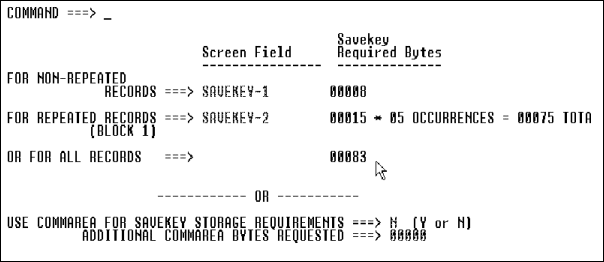
Figure 6-48: Savekey Definition
Screen
- Define savekey storage in screen fields
To store
savekey data in screen fields, first determine whether to define one or two
savekey fields, as follows:
- If your screen updates only one occurrence of data at a time, or
your program must execute the N(ext) function, define just one savekey field.
- If your screen displays an updateable repeated record block as
well as a single occurrence of data, define either:
- Two savekey fields: one for the
repeated block and one for the single occurrence.
- Or one savekey field for both.
- Define your savekey field(s) in your screen definition, using the APS
Screen Painter. Set their Length and Type attributes as follows:
Attribute
|
Setting
|
|
Length |
The number of bytes specified in the Savekey Required Bytes
field on the Savekey Definition screen
|
|
Type |
P(rotected)
|
- Redisplay the Savekey Definition screen and enter the savekey field
name(s) in the Screen Field field.
- Define savekey storage in the Commarea
To store
savekey data in the program Commarea, enter y(es) in the field, Use Commarea
for Savekey Storage Requirements.
- To define storage in the Commarea for receiving data that another
program passes, enter a number of bytes in the field, Additional Commarea Bytes
Requested.
- Define a global Commarea
To ensure that your
Commarea can accommodate both the program key and the largest amount of data
that the program can receive from another program, you can define a global
Commarea size that all programs of the application use as their Commarea size.
To do so, follow these steps:
- Check the Savekey Definition screen of each program to determine
the largest savekey requirement.
- Determine the number of bytes of the largest record that your
program can receive.
- Add these two numbers.
- In a control file or a USERMACS macro, assign the result to the
APS variable named &TP-USER-LEN. Online Express uses the value of this
variable to assign the size of the savekey storage in Commarea. The format of
&TP-USER-LEN is as follows.
&TP-USER-LEN = savekeybytes + sharedbytes
where:
- Savekeybytes is the value of the Savekey Required
Bytes for All Records field.
- Sharedbytes is the value of the Additional Commarea
Bytes Requested field.
- Suppress generation of savekey storage area
You
might want to suppress the generation of the savekey storage area and savekey
logic for a call if you want to:
- Update or delete records that do not have a unique index
- Perform blind update or delete functions
To do so, after you define the call, display the Database Access
Summary screen and enter either *update (for a Modify call) or *delete (for an
Erase call) next to the call in the Function field. For example, to update and
delete a record, you would write two separate calls--one to obtain and modify
the record and one to obtain and delete the record. You would enter the
following values for each call:
Call
|
Function Field Value
|
Action
Field Value
|
| 01
|
*update |
OM |
| 02
|
*delete |
OE |
Copyright © 2002 Micro Focus International Limited. All rights reserved.
This document and the proprietary marks and names
used herein are protected by international law.